To run this sample, use the Business Process Choreographer Explorer.
Business Process Choreographer Explorer (BPC Explorer)
If you already know how to start a BPC Explorer session, you may proceed to the section Start the sample business process.
To start BPC Explorer in the integrated test environment of your WebSphere® Integration Developer, follow these steps:
- In WebSphere Integration Developer, switch to the Servers view.
- In the table, right-click WebSphere Process Server v7.0.
- From the pop-up menu, select Launch > Business Process Choreographer Explorer.

To start BPC Explorer on WebSphere Process Server, follow these steps:
- In a web browser, open URL
http://yourhost:yourport/bpc.
Note: Replace yourhost with your server's internet address and replace yourport with the port of your server's HTTP transport,
for example
The login screen is displayed:
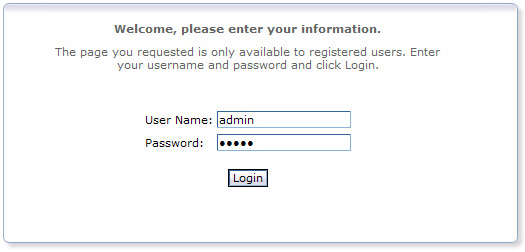
- Enter a valid User ID and Password. The default User ID is admin.
- Click Login.
Start the sample business process
To start the promotional gift process, follow these steps:
- Switch to the BPC Explorer.
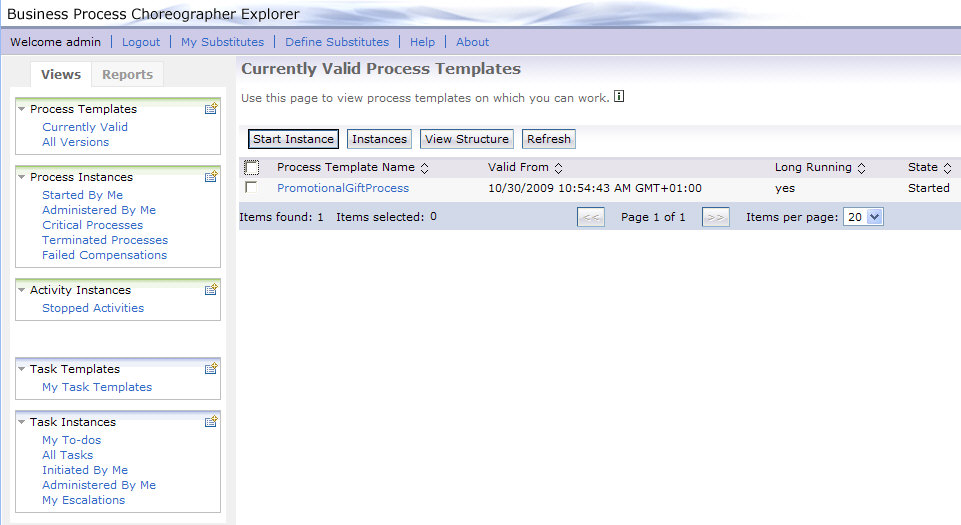
- In the Process Templates section, click the Currently Valid link.
- Select PromotionalGiftProcess, then click Start Instance.
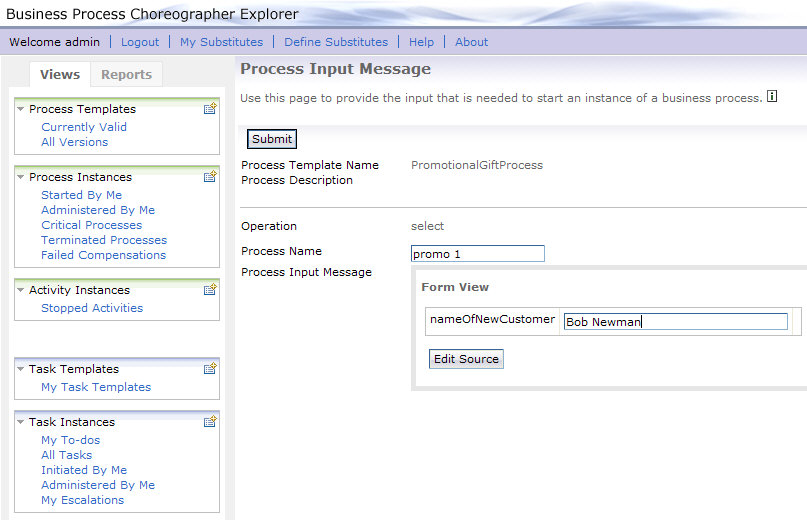
- Optionally, enter a Process Name; here we have used promo 1.
- In the nameOfNewCustomer field, enter a value of type string.
- Click Submit.
The Currently Valid Process Templates view is displayed:
The Process Input Message view opens:
Work with the human tasks of the sample business process
This sample business process involves humans to enter data that are required in the process. You can use the BPC Explorer to work with the provided human tasks.
To work with human tasks, follow these steps:
- Switch to the BPC Explorer.
- In the Task Instances section, click My To-dos.
- Select SelectPromotionalGiftTask, then click Work on.
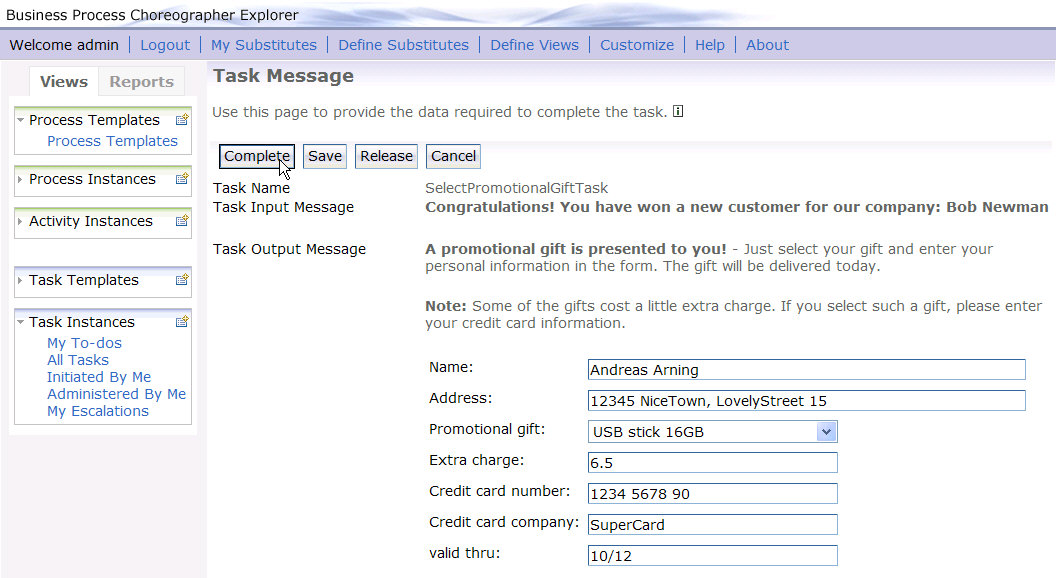
- In the Name field, enter a value of type string.
- In the Address field, enter a value of type string.
- Select a Promotional gift. The Extra charge field is updated when you select a promotional gift.
- In the Credit card number field, enter a value of type string.
- In the Credit card company field, enter a value of type string.
- In the valid thru field, enter a value of type string.
- Click Complete.
The My To-dos view opens:
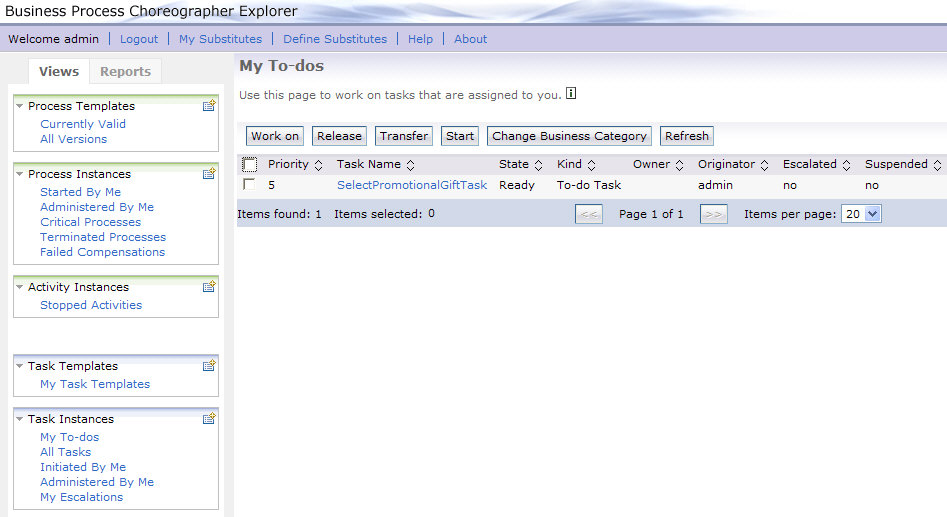
The SelectPromotionalGiftTask is in the ready state.
The customized Task Message view is displayed:
Process output
Output message
Since the promotional gift process is a long-running business process, the process output message is not displayed immediately after the process input message has been submitted. To display the process output message, follow these steps:
- In the BPC Explorer, switch to the Process Templates view.
- Select PromotionalGiftProcess, then click Instances.
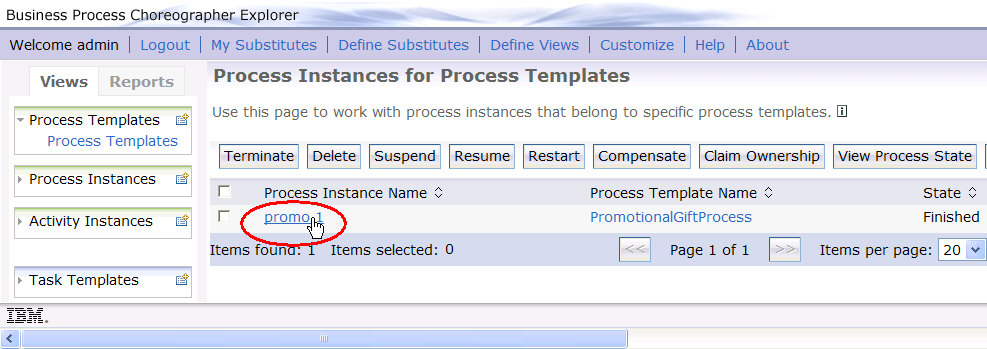
- Click the process instance name, which is a hyperlink.
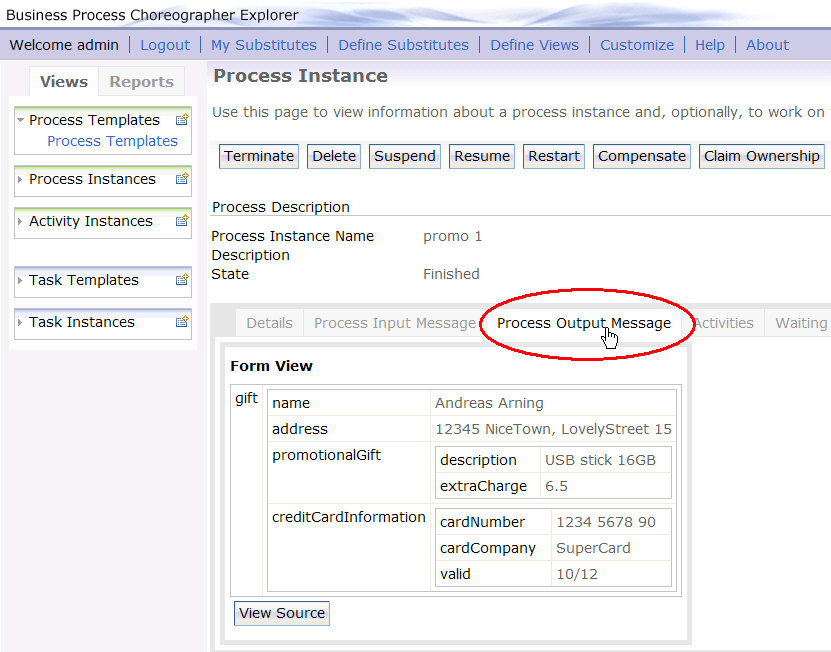
- Click the Process Output Message tab.
The Process Instances for Process Templates list is displayed:
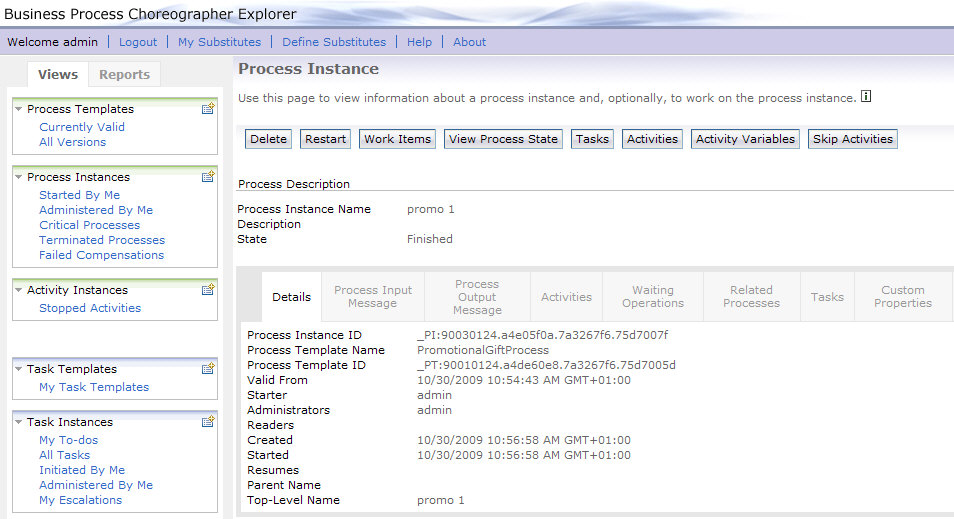
The Process Instance view is displayed:
The process output message is displayed:
Clean up process instances
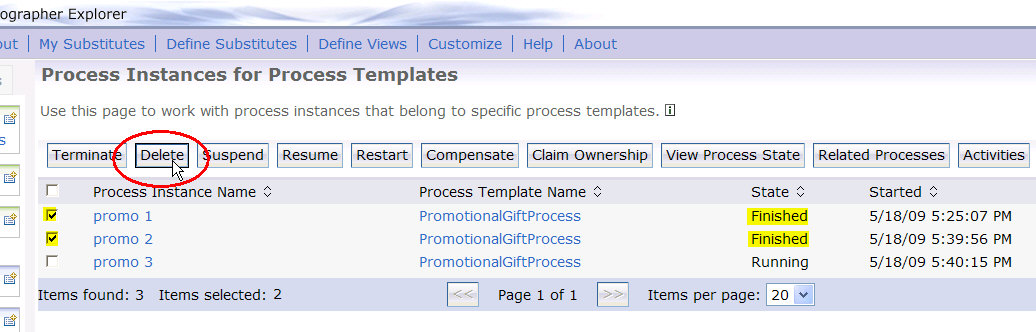
During modeling of the promotional gift process it had been specified that process instances are not cleaned up automatically when they have finished. To delete process instances manually, follow these steps:
- In the BPC Explorer, switch to the Process Templates view.
- Select PromotionalGiftProcess, then click Instances.
- Select all process instances with a state of Finished or Failed.
- Click Delete.
The Process Instances for Process Templates list is displayed: