Client applications
There are two client applications delivered with this sample: an originator application and a receiver application. Use these applications to run this sample.
Originator application
Start the originator application
To start the originator application on a WebSphere Process Server, follow these steps:
- In a web browser, open URL
http://yourhost:yourport/CollaborationTaskOriginator.
Note: Replace yourhost with your server's internet address and replace yourport with the port of your server's HTTP transport,
for example
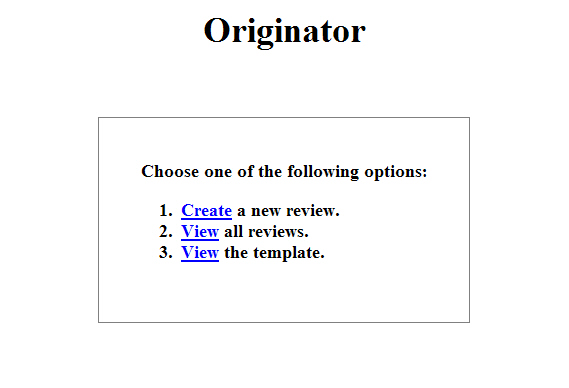
The home view of the originator application is displayed:
Create new tasks
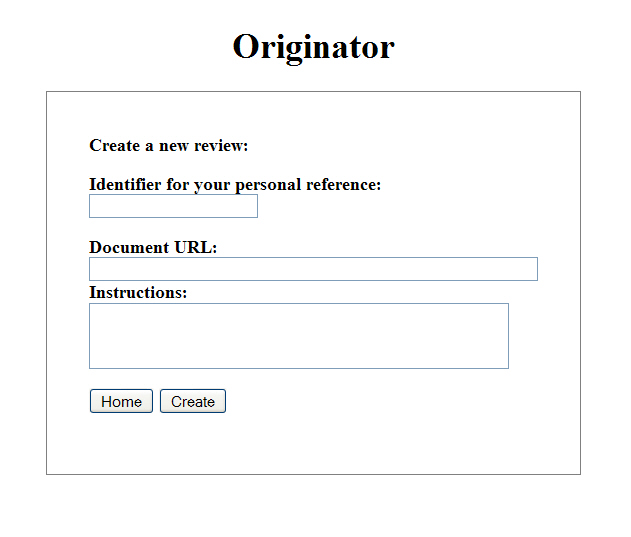
To create a new task, follow these steps:
- In the home view, click Create.
- Optionally, enter an Identifier.
- In the Document URL field, enter a value of type string.
- In the Instructions field, enter a value of type string.
- Click Create.
- To return to the home view, click Home.
- To create another human task, click New.
- To display the task list view, click List.
The input view is displayed:
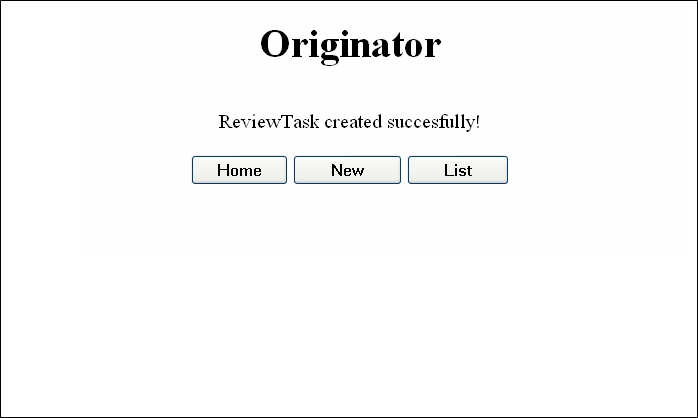
A confirmation message is displayed:
Track the task status
To track the status of a task, follow these steps:
- Switch to the originator application.
- In the home view, click View.
- To return to the home view, click Home.
- To create another human task, click New.
- To refresh the task list view, click Refresh table.
- To delete all tasks that are in the finished state, click Delete finished.
- To delete all tasks, click Delete all.
The task list view is displayed:
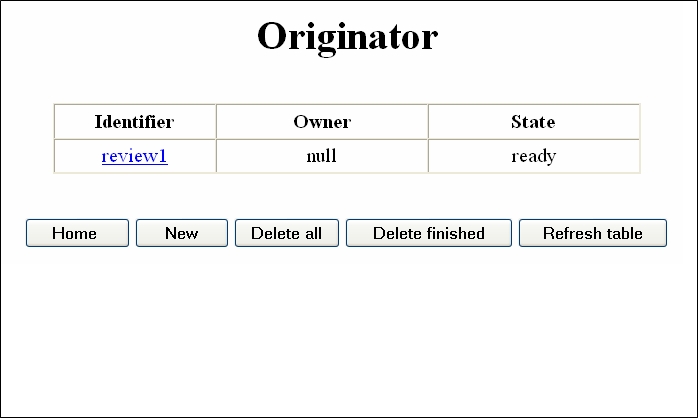
Note: Refer to the section Receiver application below on how to claim and finish tasks.
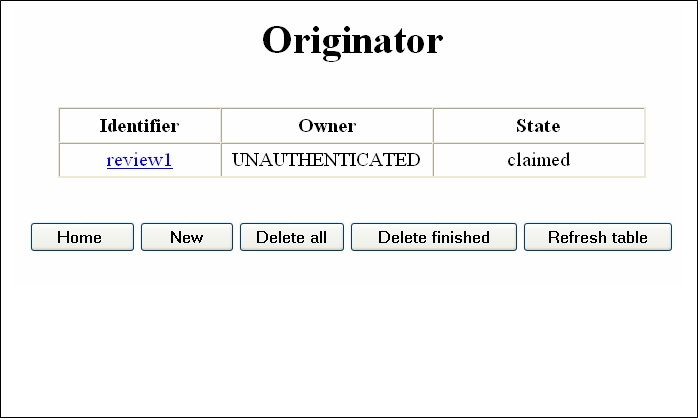
After the task was claimed, the task list view looks like the following:
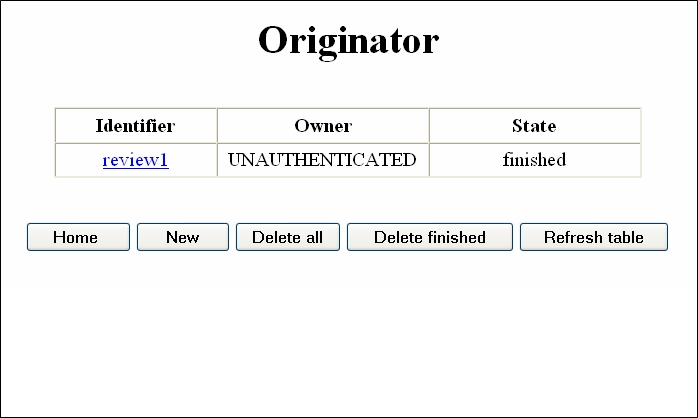
When the task is finished, the output message is available. The task list view looks like the following:
Inspect task details
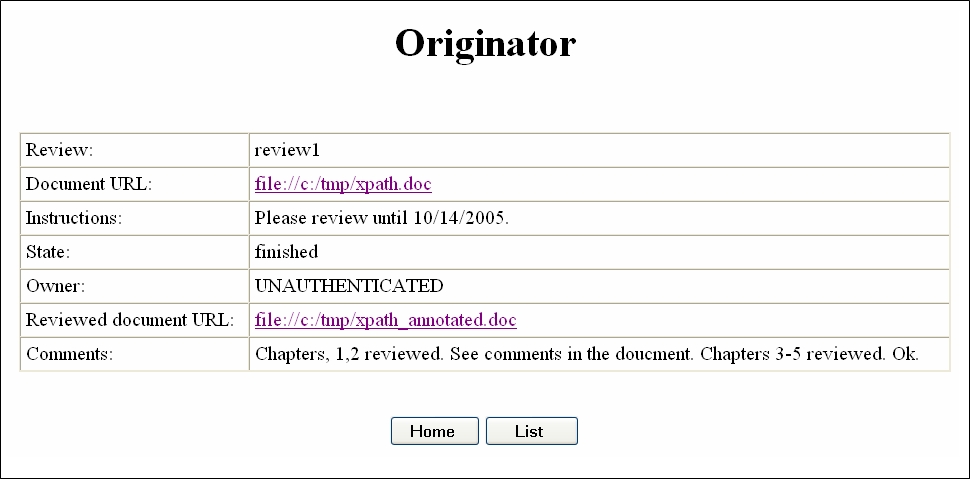
To inspect the details of a task, such as input and output messages, follow these steps:
- Switch to the originator application.
- In the home view, click View.
- Click the identifier of the task you want to see the details for, in this example review1.
- To return to the home view, click Home.
- To display the task list view, click List.
The task list view is displayed:
The details view is displayed:
Clean up task instances
To delete task instances with the originator application, follow these steps:
- Switch to the originator application.
- In the home view, click View.
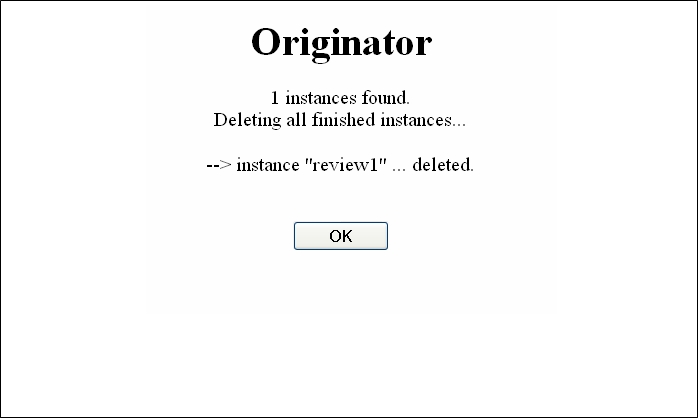
- To delete all tasks that are in the finished state, click Delete finished.
- To delete all tasks, click Delete all.
- To return to the task list view, click OK.
The task list view is displayed:
A confirmation message is displayed:
Receiver application
Start the receiver application
To start the receiver application on a WebSphere Process Server, follow these steps:
- In a web browser, open URL
http://yourhost:yourport/CollaborationTaskReceiver.
Note: Replace yourhost with your server's internet address and replace yourport with the port of your server's HTTP transport,
for example
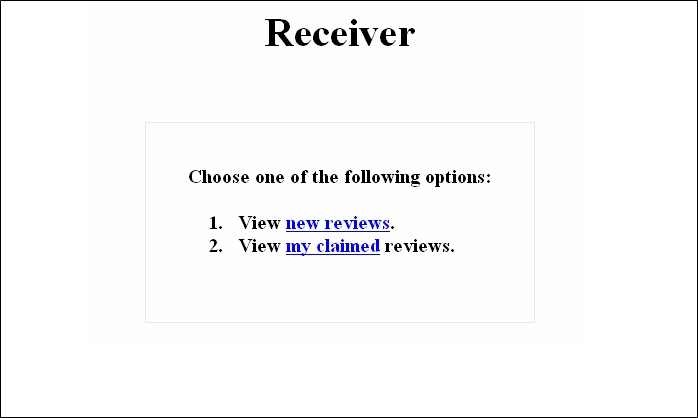
The home view of the client application is displayed:
Query new tasks
To query new tasks, follow these steps:
- Switch to the receiver application.
- In the home view, click new reviews.
- To inspect the details and to work on a task, click its identifier. In this example review1.
- To return to the home view, click Home.
- To display a list of all claimed reviews, click My claimed reviews.
- To refresh the list view, click Refresh list.
The list view is displayed:

Query claimed tasks
To query the claimed tasks, follow these steps:
- Switch to the receiver application.
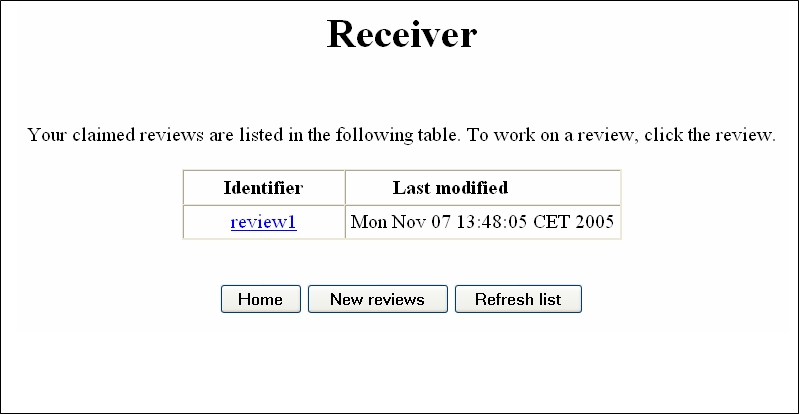
- In the home view, click my claimed.
- To inspect the details and to work on a task, click its identifier. In this example review1.
- To return to the home view, click Home.
- To display a list of all new reviews, click New reviews.
- To refresh the list view, click Refresh list.
The list view is displayed:
Work on tasks
You can work on either new tasks or tasks that you have already claimed. Before you can work on a task, you have to display the specific task list. To work on a task, follow these steps:
- Switch to the receiver application.
- In the home view, click new reviews or my claimed.
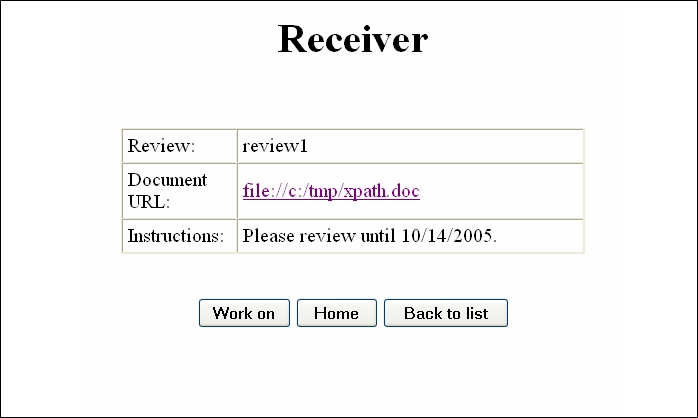
- Click the identifier of the task you want to work on, in this example review1.
- To return to the home view, click Home.
- To return to the list view, click Back to list.
- To work on the task, click Work on.
- In the Comments field, enter a value of type string.
- In the Document URL field, enter a value of type string.
- To cancel all current and previous updates to the task, click Cancel. Note, that in this case the task state changes from claimed to ready.
- To finish the task, click Complete. In this case the task state changes from claimed to finished.
- To save your current updates to the task, click Save. In this case the task state remains claimed.
The list view is displayed. Note, that this view looks a little different if you have chosen to display your claimed reviews.
The details view is displayed:
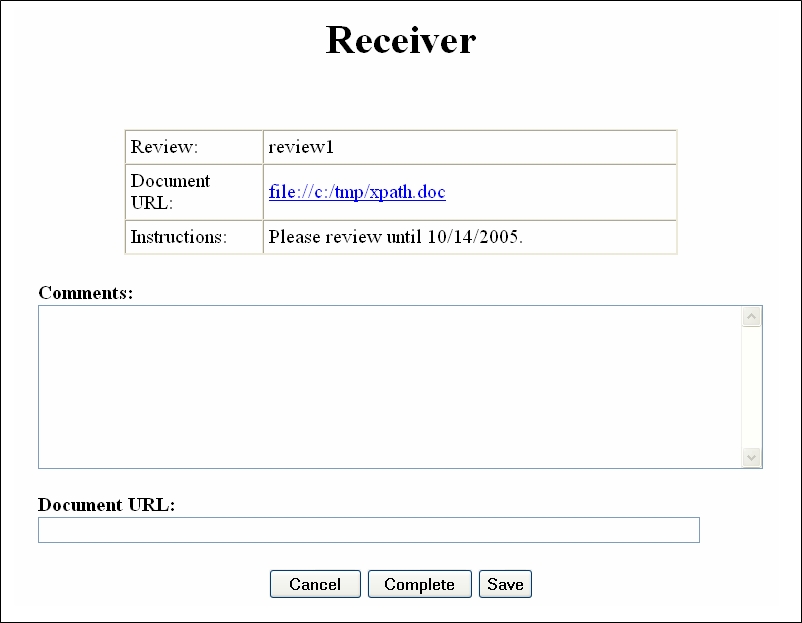
The input view is displayed: