You can run the sample using:
BPC Explorer
Follow these steps to run this sample using the Business Process Choreographer Explorer.
Starting the Business Process Choreographer Explorer (BPC Explorer)
To start BPC Explorer in the integrated test environment of your WebSphere® Integration Developer, follow these steps:
- In WebSphere Integration Developer, switch to the Servers view.
- In the table, right-click WebSphere Process Server v7.0.
- From the pop-up menu, select Launch > Business Process Choreographer Explorer.

To start the BPC Explorer on WebSphere Process Server, follow these steps:
- In a web browser, open URL
http://yourhost:yourport/bpc.
Note: Replace yourhost with your server's internet address and replace yourport with the port of your server's HTTP transport,
for example
If security is enabled, the BPC Explorer opens with a login screen:
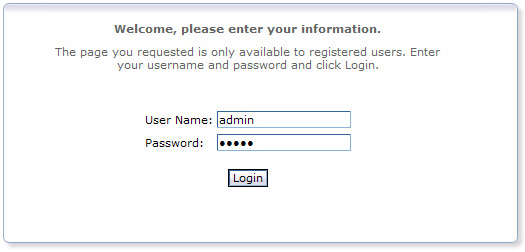
- Enter a valid User ID and Password. The default User ID is admin.
- Click Login.
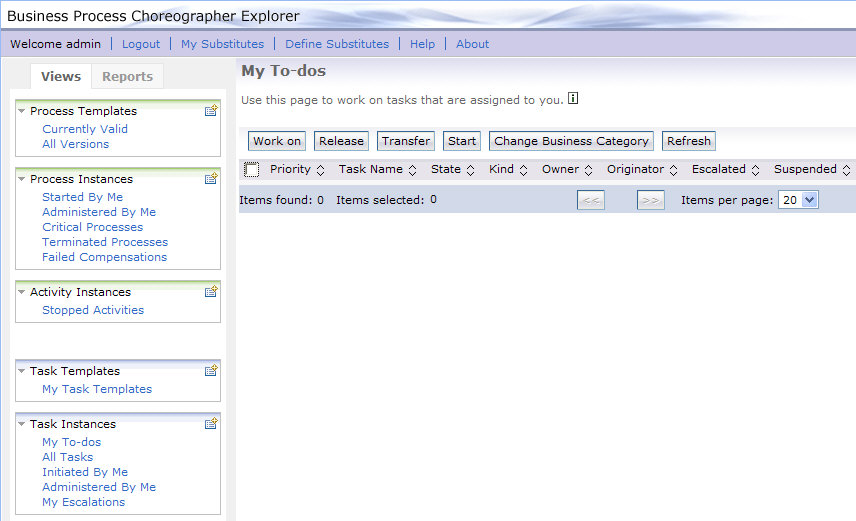
The BPC Explorer opens:
Start the to-do task with a business process
To start the request process, follow these steps:
- In the Process Templates section, click Currently Valid.
- Select the checkbox next to RequestProcess, then click Start Instance.
- Optionally, enter a Process Name.
- In the question field, enter a value of type string.
- Click Submit.
The Currently Valid Process Templates view is displayed:

The Process Input Message view opens:

Work with the human task
To work with human tasks, follow these steps:
- In the Task Instances section, click My To-dos.
- Select the checkbox next to RequestTask and click Work on. The Task Message view is displayed.
- In the answer field, enter a value of type string.
- Click Complete.
The My To-dos view opens:

The task you created is in the Ready state. RequestTask is the Task display name, specified when you modeled the Task.

To view the status of completed human tasks in BPC Explorer, follow these steps:
- In the Task Instances section, click All Tasks.
- Click on RequestTask to view more details.
- Click on the Task Input Message tab to view the input message.
- Click on the Task Output Message tab to view the output message.
The All Tasks view is displayed:

As you can see, your task is now in the finished state.

Process output
Output message
Since the request process is a long-running business process, the process output message is not displayed immediately after the process input message has been submitted. To display the process output message, follow these steps:
- Switch to the BPC Explorer.
- In the Process Instances section, click Started By Me.
- Click on process1 to view more details.
- Click the Process Output Message tab.
The Process Instances Started By Me view is displayed:

As you can see, your process is now in the finished state.
The Process Instance view is displayed:

The process output message is displayed:

Clean up process instances
Instances of the request process are not cleaned up automatically after completion. To delete process instances, follow these steps:
- In the Process Instances section, click Administered By Me.
- Select the checkbox next to process1 and click Delete.
The Process Instances Administered By Me view is displayed:

The list will automatically refresh and should now be empty.
Clean up task instances
Instances of the human task are not cleaned up automatically after completion. To delete task instances, follow these steps:
- In the Task Instances section, click Administered By Me.
- Select the checkbox next to RequestTask and click Delete.
The Task Instances Administered By Me view is displayed:

The list will automatically refresh and should now be empty.
Client application
Follow these steps to run this sample using the Client Application delivered with the sample.
Starting the client application
In the Download section of this sample, you can find the client application ToDoTaskClient as both a WID project interchange file and as an Enterprise Archive (EAR File). You can deploy either version to your server:
- To deploy the project interchange file, import it into WID, right-click WebSphere Process Server v7.0, then select Add and Remove Projects and add the ToDoTaskClientEAR to the server.
- To deploy the EAR file, open the administrative console and use Applications > Install New Application, accepting all the defaults. Then make sure that this application is started.
To run the client application in your Web browser, follow these steps:
- In a Web browser, open URL
http://yourhost:yourport/ToDoTaskClient. - If security is enabled, you will be requested to log into the client Web application. Enter the userid and password.
Note: Replace yourhost with your server's internet address and replace yourport with the port of your server's HTTP transport,
for example
The home view of the client application is displayed:

Start a to-do task
To create a new to-do task, follow these steps:
- In the home page, click Create. The create page is loaded.
- Optionally, enter a Task identifier.
- In the Input data field, enter a value of type string.
- Click Create.
- To return to the home view, click Home.
- To create another to-do task, click New.
- To display the task list view, click List.
- Click List to see the task you just created:

A confirmation message is displayed:


Track the task status with your client application
To track the status of your human task, follow these steps:
- Switch to the client application.
- In the home view, click View.
- To return to the home view, click Home.
- To create another to-do task, click New.
- To delete all tasks, click Delete all.
- To delete all tasks that are in the finished state, click Delete finished.
- To refresh the task list view, click Refresh table.
The task list view is displayed:

Notice the task is now in the finished state and the output message is available.
To track the status of human tasks in general, follow these steps:
- Switch to the client application.
- Create a new task and submit.
- In BPC Explorer, claim the task. Before you complete the task, return to the client.
- In the home view, click View.
- You should now see the task status as claimed.
- Return to BPC Explorer and complete the task.
- Return to the client and Refresh table. The task status is now finished.
Client application
To delete task instances with the client application, follow these steps:
- Switch to the client application.
- In the home view, click View.
- To delete all tasks that are in the finished state, click Delete finished.
- To delete all tasks, click Delete all.
- To return to the task list view, click OK.
The task list view is displayed:
A confirmation message is displayed:
