Prerequisites
Download the EndpointLookupSampleSkeleton.zip project interchange file and import the associated projects.
- In WebSphere® Integration Developer, go to File >Import >Other >Project Interchange.
- Browse for the downloaded EndpointLookupSampleSkeleton.zip project interchange file. Select the file. Click OK.
- The project panel is displayed. Click Select all to select all associated projects.
To build the Endpoint Lookup sample, complete these steps:
- Create and edit a mediation module.
- Add a WebService Export.
- Build the mediation flow.
Create and edit a mediation module
To create a mediation module:
- In WebSphere Information Developer, select File >New >Mediation module.
- Name the new module OrderDispatchMediation. Leave the default boxes ticked. Click Next.
- Select OrderDispatchLibrary. Click Finish. The assembly diagram is displayed and a new mediation component is automatically created.
To edit this mediation module:
- In the assembly diagram, right click the mediation flow component and select Add >Interface.
- Select the existing interface, OrderDispatchService. Click OK.
- Right click the mediation flow component again. Select Add >Reference.
- Select the existing interface, OrderDispatchService. Click OK.
Add a WebService export
- In the assembly diagram, right click the mediation flow component. Select Generate Export >Web Service Binding.
- Select SOAP1.1/HTTP. Click Finish.
Build the mediation flow
To generate a flow and implement the mediation:
- In the assembly diagram, right click the mediation flow component. Select Generate Implementation. Move the file to the default folder, OrderDispatchMediation. Click OK. The flow editor overview appears.
- Click dispatchOrder. Select the blank template.
- On the Palette, click the Callout node. Click and drag this node to any blank space in the assembly diagram.
- In the Reference Operation dialog, select. The default reference is DispatchServicePartner. Click OK.
To set the properties of the callout node:
- Click the callout node and select Retry.
- Set the value of Retry on to Any fault.
- Set the value of Retry count to10, and the value of Retry delay(seconds) to 5. Make sure Try alternate endpoint is checked.
To link the OrderDispatchService input node to the OrderDispatchServicePartner callout node:
- Click the out terminal, click and drag this to the callout node you have just created.
- On the Palette, select Routing >Endpointlookup. Click and drag Endpointlookup onto the wire that you created in Step 1.
- Click the name of this Endpointlookup primitive and rename it to FindServices.
- Click the Endpoint Lookup primitive.
- Go to the Properties view. Click Details.
- Click the Browse button and select matching interface OrderDispatchService from the list.
- Select from the Match Policy list:Return all matching endpoints and set
alternate routing targets.

- Wire the noMatch terminal of the Endpoint Lookup primitive to the InputFault node. Ensure you select the Transform the message using an XSL Transformation Primitive box.
- Rename the XSLT primitive to MapFaultInfo.
Create a new map:
- In the MapFaultInfo primitive, go to Properties >Details >New. Leave the default values and click Next.
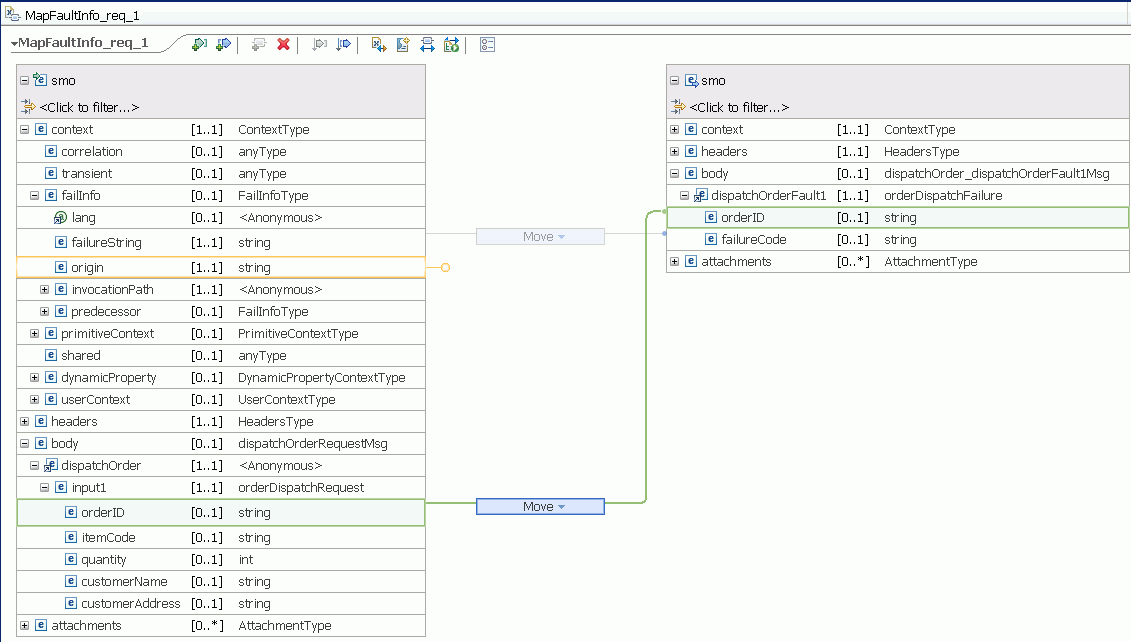
- In the Message Root list, select /. Click Finish. The Mapping editor is displayed.
- In the MapFaultInfoReq_1 view, map according to the following
specifications:
- Under Source, select Context >failInfo >failureString.
- Click and drag the failureString item to the Target area and connect it to failureCode, which you can find under Body >DispatchOrderFault1.
- Under Source, select Body >DispatchOrder >input1 >orderID.
- Click and drag orderID to the Target area and connect to orderID under Body/DispatchOrderFault1/orderID.
- Click Save.
- Connect the callout response to the input.