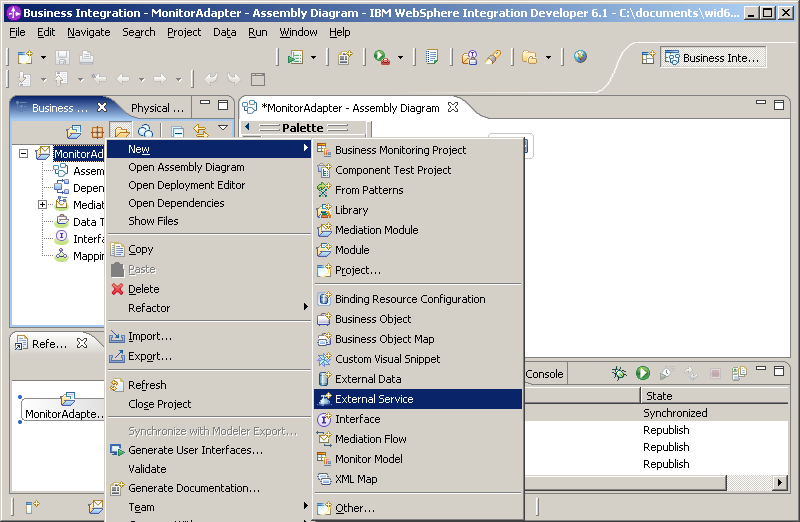
Add a JDBC Adapter external service to the mediation module and deploy the mediation module.
- Right click MonitorAdapter and select .
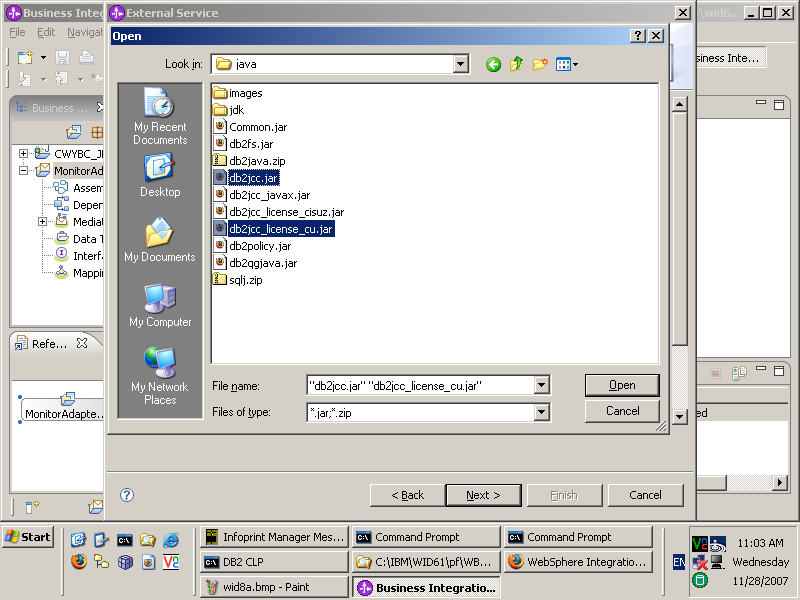
- Click Add, locate and select the db2jcc.jar
and db2jcc_licence_cu .jar files in the DB2 installation directory and click Open to
add the JDBC driver jar files and click Next.
- Click Next, then click Run Query to
find the table lists. Select and
click > to add CUSTOMER to the Selected objects list.
Click Next.

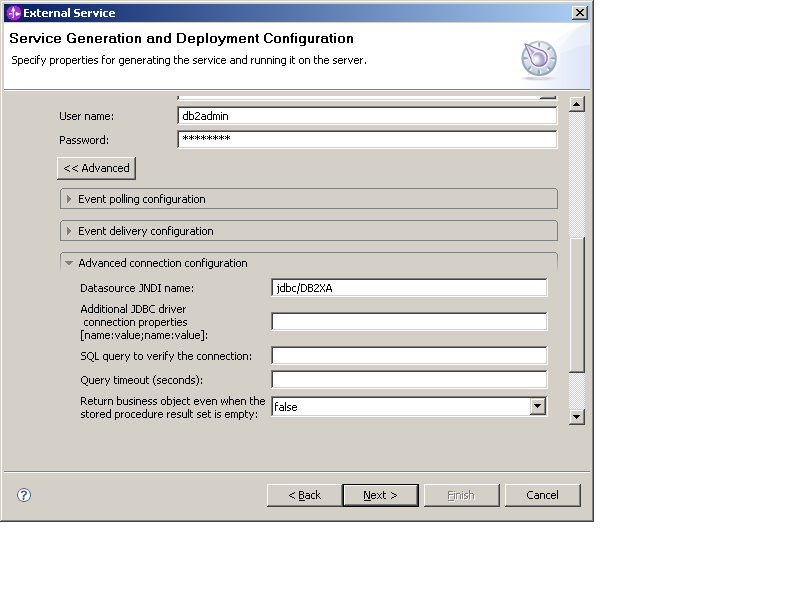
- In the Service Generation and Deployment Configuration window,
enter the following values:
- For J2C Authentication Data Entry, type <NodeName>/JDBCAdapter/inbound, where <NodeName> is the node name of the WebSphere Application Server that will run the MonitorAdapter module. The node name for the Monitor Server on WebSphere ESB defaults to WBMonSrv_esb_Node.
- Enter the password for the DB2 Admin User name.

- Click Advanced and expand Advanced
connection configuration and type jdbc/DB2XA as
the Datasource JNDI name. You will create this datasource later.