Add a trigger and metrics to the model so that it can be tested later.
- Right-click MonitorAdapterModule and select New > Trigger.
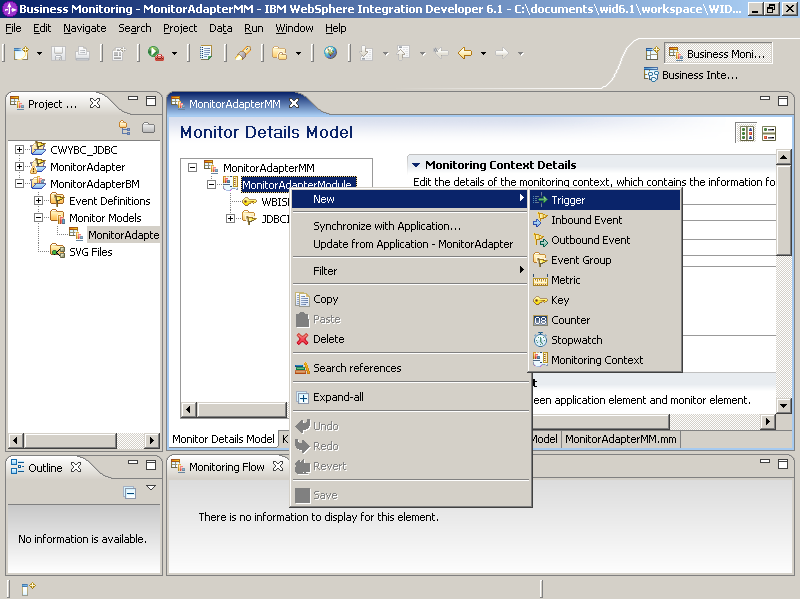
- For Name, type JDBCInbound Entry Trigger and then click OK.
- On the right panel, click Add. Select JDBCInboundInterface.createDb2adminCustomerBGEntry and then click OK.
- Add the FName metric using the following steps:
- Right-click MonitorAdapterModule and select New-> > Metric.
- For the Name, type FName Metric. Click OK.
- On the right panel, click Add under Metric Value Expressions.
- Click in the space under Trigger. Click … and select JDBCInbound Entry Trigger. Then click OK.
- Click in the space under Expression and press Ctrl+Spacebar to use the content assist function. Go to MonitorAdapterMMMonitorAdapterModuleJDBCInboundInterface.createDb2adminCustomerBGENTRYcreateDB2AdminCustomerBGInput:Db2adminCustomerDb2adminCustomer:Db2adminCustomer: Db2adminCustomer:Db2adminCustomer.
- Double click fname. The FName Metric is finished and will be assigned the fname from the service data object received from the adapter.
- Add the LName Metric with JDBCInbound Entry Trigger and expression using the same process.JDBCInboundInterface.createDb2adminCustomerBGENTRY.createDb2AdminCustomerInput:Db2AdminCustomerBG.Db2AdminCustomer/lname.
- Add CCode Metric with JDBCInbound Entry Trigger and expression JDBCInboundInterface.createDb2adminCustomerBGENTRY.createDb2AdminCustomerInput:Db2AdminCustomerBG.Db2AdminCustomer/ccode. Select A value is required for this metric and type 'notspecified' for the Default Value.
- Add Is Gold Customer Metric. Set the type to Boolean with the trigger
JDBCInbound Entry Trigger and the following expression:
if (JDBCInboundInterface.createDb2adminCustomerBGENTRY/createDb2adminCustomerBGInput/Db2adminCustomer/ccode eq 'Gold') then fn:true() else fn:false()
- Save the monitor model.