Now create the mediation flow.
- The Assembly Diagram editor is open. There are two elements: JDBCInboundInterface,
which was created when you added the adapter, and MonitorAdapter, which was
created when the module was initially created.
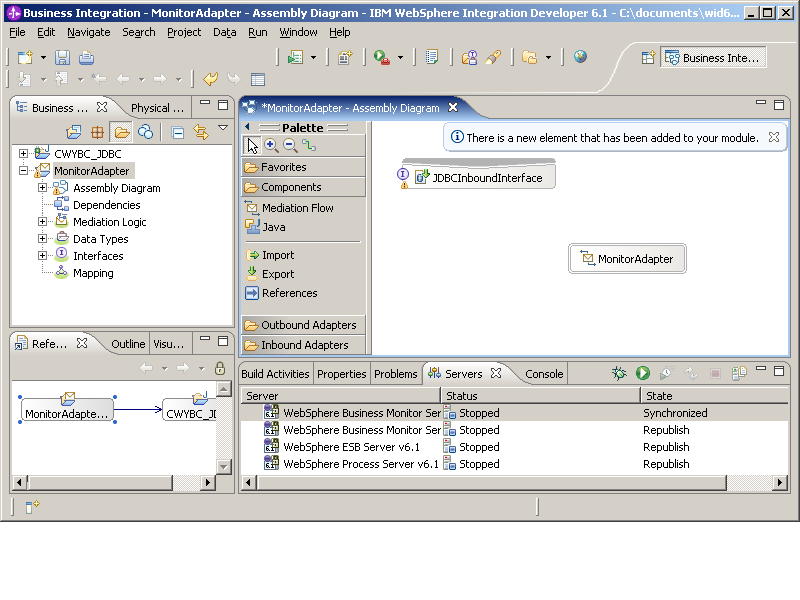
- Right-click MonitorAdapter and select Rename. Type MediationFlow and press Enter.
- In the diagram, link JDBCInboundInterface to MediationFlow using the Wire tool. In response to the prompt, click OK.
- Change back to the Selection tool on the Palette and then right-click MediationFlow and
select Regenerate Implementation.
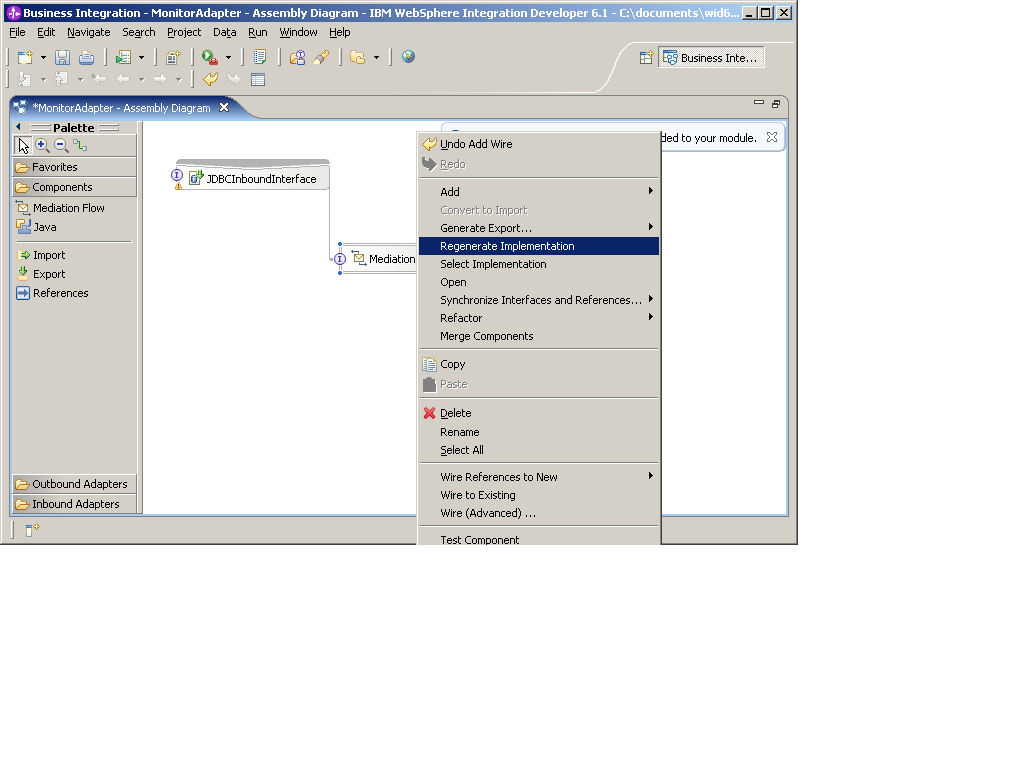
- Click OK at the prompt.
- In the Mediation Flow Editor window, click createDb2adminCustomerBG and you see a source operation for createDb2adminCustomerBG.
- In the flow, right-click and select .
- Connect the out terminal of createDb2adminCustomerBG to
the input terminal of Stop1.
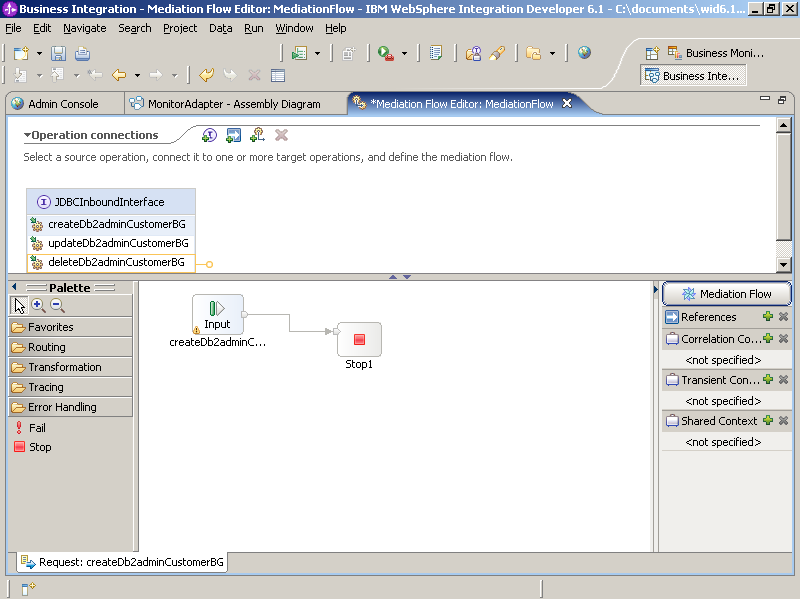
- Save the Mediation and then click MonitorAdapter:Assembly Diagram.
- Click MediationFlow and in the Properties tab
select Details. Go to and click the Event Monitor tab. Select All
for Monitor and select Full for Event Content.
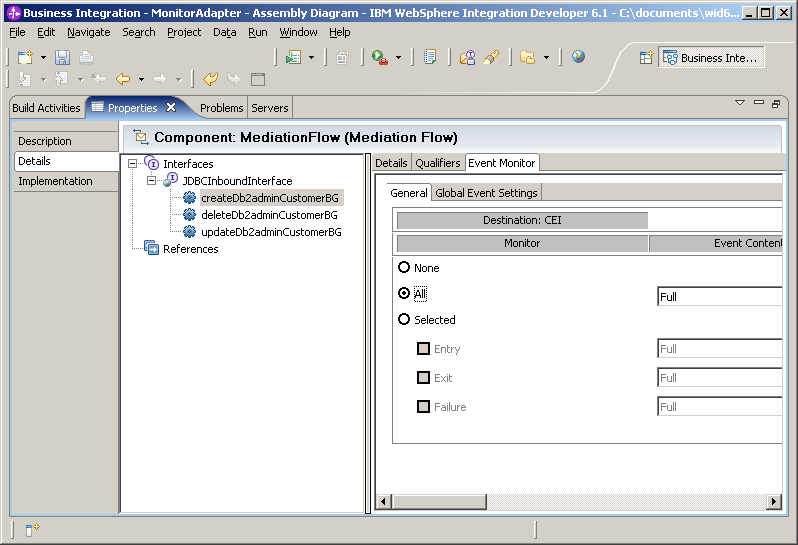
- Click the Global Event Setting tab. The default event format is WebSphere Business Monitor 6.1 format.
- Save the assembly diagram.