This sample demonstrates how you can create a WebSphere® Web application which accesses the Web service API delivered with the WebSphere Business Process Choreographer. This API is available both for the Business Flow Manager and the Human Task Manager.
JAX-WS 2.0 overview
- Separates the data binding technology from the Web services programming model with support for Java Architecture for XML Binding (JAXB) 2.0.
- Supports SOAP 1.2, as well as SOAP 1.1.
- Supports WS-I Basic Profile 1.1 for improved Web services
interoperability.
- Adds a descriptorless deployment of Web services by including
support for annotations defined in JSR 181 (Web Services Metadata for
the Java Platform) and annotations defined with JAX-WS as well. Since
all metadata is in standardized annotations, the Web service
implementations are vendor-neutral.
- Supports an asynchronous client programming model.
- Simplifies the development of handlers and provides a mechanism to allow handlers to collaborate with service clients and service endpoint implementations. Includes the API in Java Platform, Extended Edition (Java EE) 5 and Java 2 Plaform, Standard Edition (J2SE) 6.
Sample Application Structure
In this sample, all steps are shown that are required in order to generate the proxy and to set up the Web application properly.
First, this sample demonstrates exactly one operation of the BFM Web service API in depth, namely the operation to list all Business Process Templates on the server.
Second, this sample shows the coding needed to assemble a business object, create an input message, start a long running process, and then query its state and display its output. The usage of the other operations and the usage of the Human Task Manager Web service API can be derived by analogy.
The Web application in this sample is implemented as Java code (Java Server Page). It accesses the Web service interface through a Java proxy which renders the Web service operations as Java interface. Figure 1 outlines the structure of the sample.
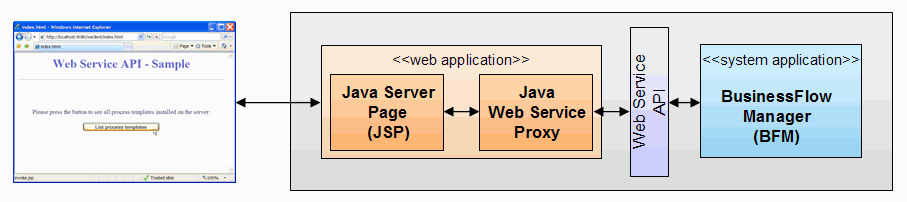 |
| Figure 1: Sample application |
Security aspects
The
Web service API delivered with the WebSphere Business Process
Choreographer is secured by the Web service's security mechanism. This
means that all requests against this Web service's interface have to
contain a security token, which represents a valid user authentication.
The default security definition for the JAX-WS based BPC API is either
a username or a LTPA token. In this sample we will use the username
token.
Multi-Server scenario
It is possible to run the client application and the Business Flow Manager on different servers. An example configuration consisting of a WebSphere Process Server Client running on WebSphere (Server A) and a WebSphere Process Server (Server B) is shown in figure 2.
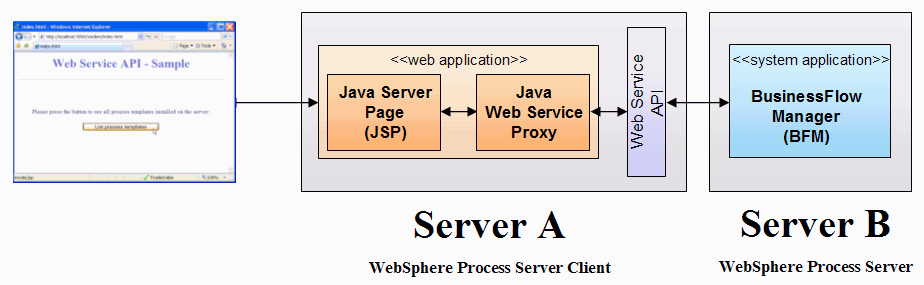 |
| Figure 2: Multi-server scenario |
Note that in this scenario single sign-on must be
established between server A and server B, to make sure that the LTPA
token created by server A is accepted as well by server B.
For more details about setting up single sign-on
refer to the InfoCenter:
Single sign-on documentation.