Client application
To run this sample, use the Business Process Choreographer Explorer.
Business Process Choreographer Explorer (BPC Explorer)
To start the BPC Explorer in the integrated test environment of your WebSphere® Integration Developer, perform the following steps:
- In WebSphere Integration Developer, switch to the Servers view.
- In the table, right-click WebSphere Process Server v7.0.
- From the pop-up menu, select Launch > Business Process Choreographer Explorer.

To start the BPC Explorer on WebSphere Process Server, perform the following steps:
- In a web browser, open URL
http://yourhost:yourport/bpc.
Note: Replace yourhost with your server's internet address and replace yourport with the port of your server's HTTP transport,
for example
If security is enabled, the BPC Explorer opens with a login screen:
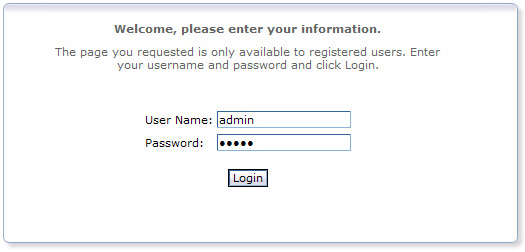
- Enter a valid User ID and Password. The default User ID is admin.
- Click Login.
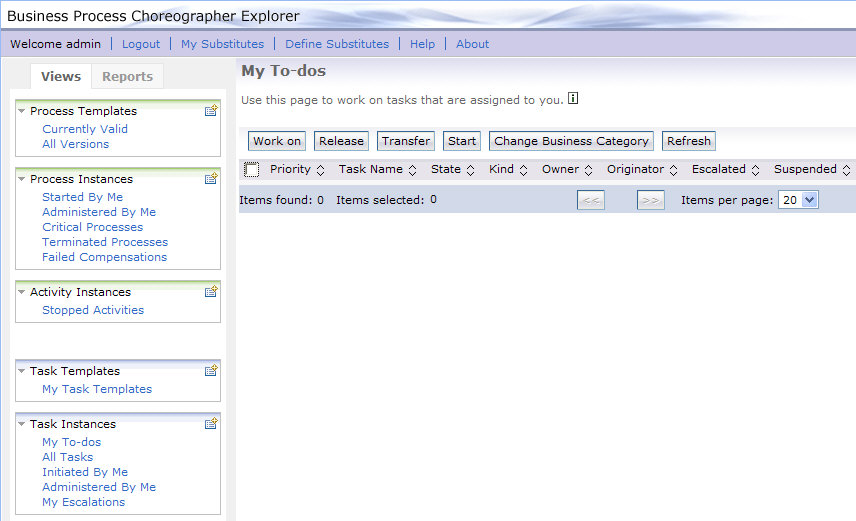
The BPC Explorer opens:
Starting the sample business process
To start the review process, complete the following steps:
- Switch to the BPC Explorer.
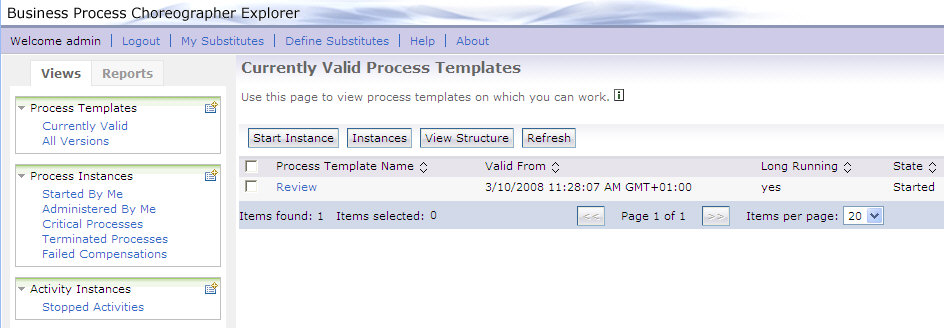
- In the Process Templates Section, click Currently Valid.
- Select Review, then click Start Instance.
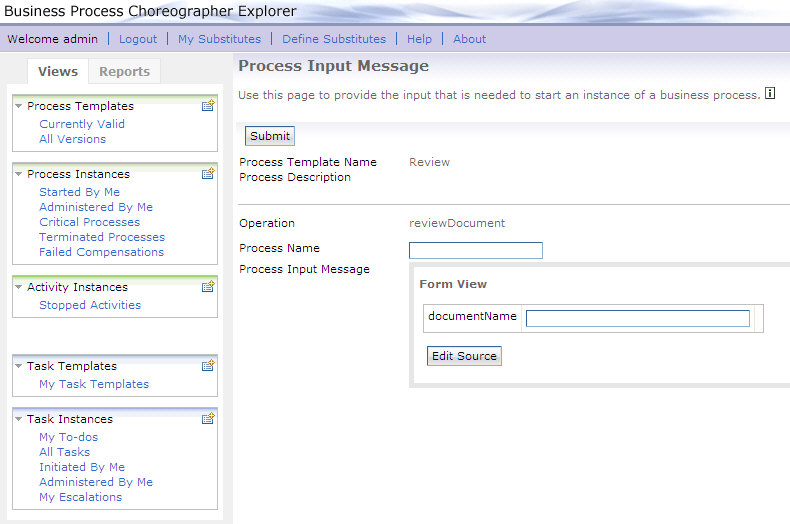
- Optionally, enter a name for the process in the Process Name field.
- In the documentName field, enter a string.
- Click Submit.
The Currently Valid Process Templates view is displayed:
The Process Input Message view opens:
Working with the human tasks of the sample business process
When the review business process is started, a human task is created for each participating reviewer. To work with these human tasks, perform the following steps:
- Switch to the BPC Explorer.
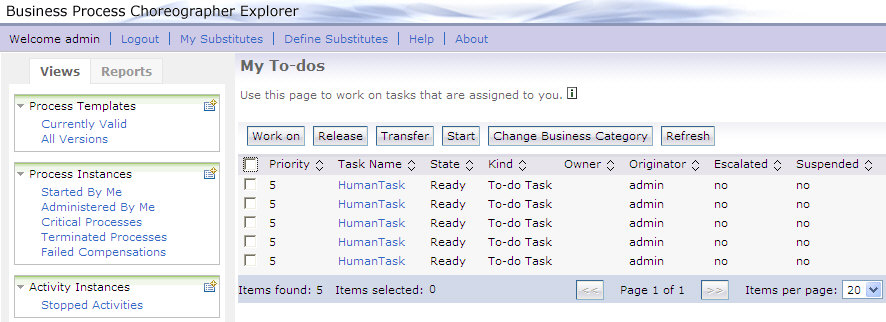
- In the Task Instances section, click My To-dos.
- If the list does not contain five human tasks, click Refresh.
- Usually, every reviewer should only see one review task. However, in this sample every authenticated user is allowed to see all tasks and to work on them for the sake of simplicity. One user can therefore perform all review tasks.
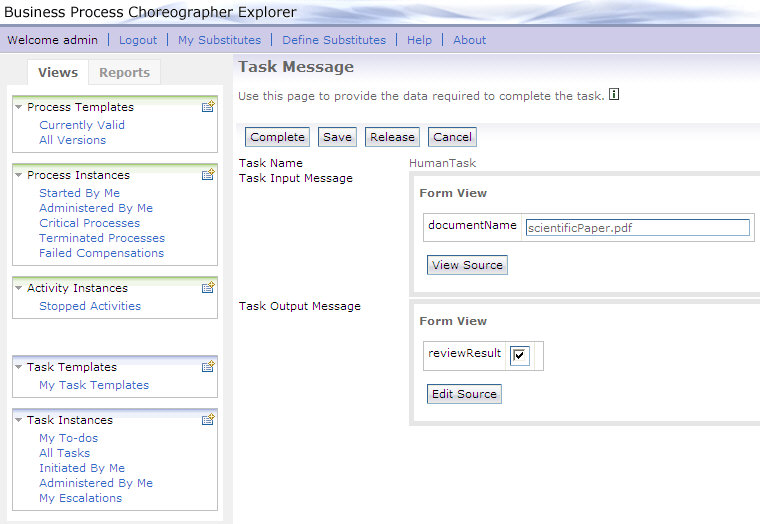
- Select one of the human tasks and click Work on.
- The default value of ReviewResult is true. To change it to false unclick the checkbox.
- Click Complete. The My To-dos view opens.
- Repeat steps 3 through 5 for two of the remaining four human tasks.
The My To-dos view opens:
Note:
The Task Message view is displayed:
Note: Due to the early exit criterion, the process resumes work as soon as three of the five human tasks have been completed. The human tasks that have not been processed so far will be removed. If the My To-dos view still displays the remaining two human tasks, click Refresh.
Process output
Viewing the output message
The review process is a long-running business process, and the process output message is computed asynchronously. To display the process output message that contains the result of the review process according to the recommendations of the three single reviewers, follow these steps:
- In the BPC Explorer, switch to the Currently Valid Process Templates view.
- Select Review and click Instances.
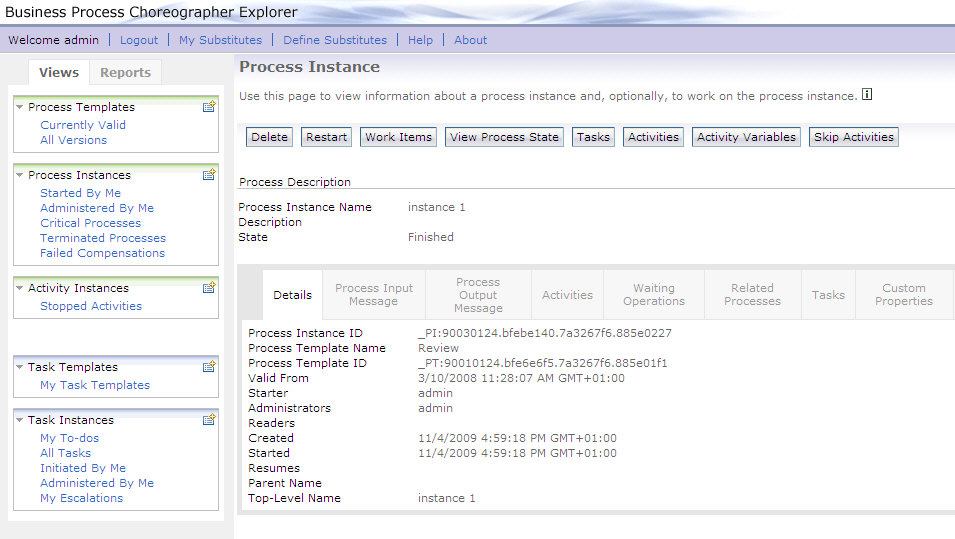
- Click the process instance.
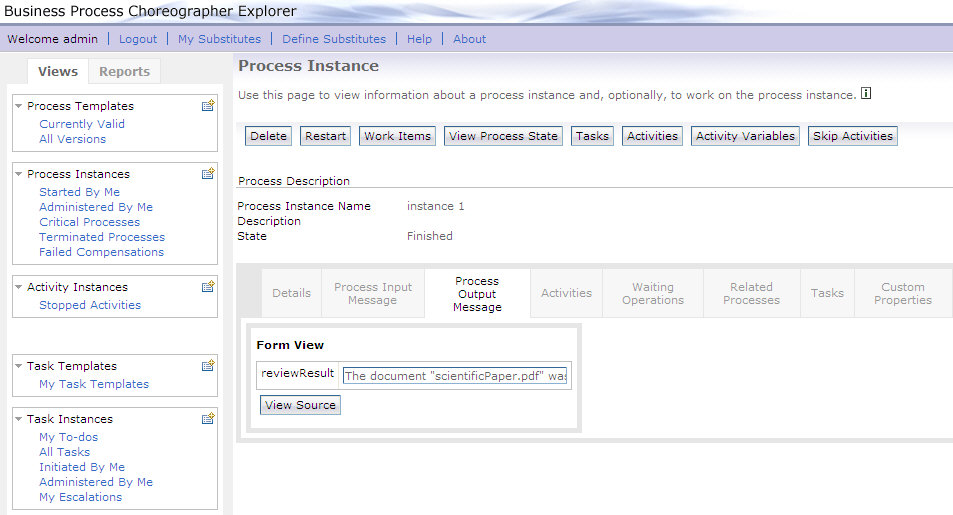
- Click the Process Output Message tab.
The Process Instances for Process Templates view is displayed:
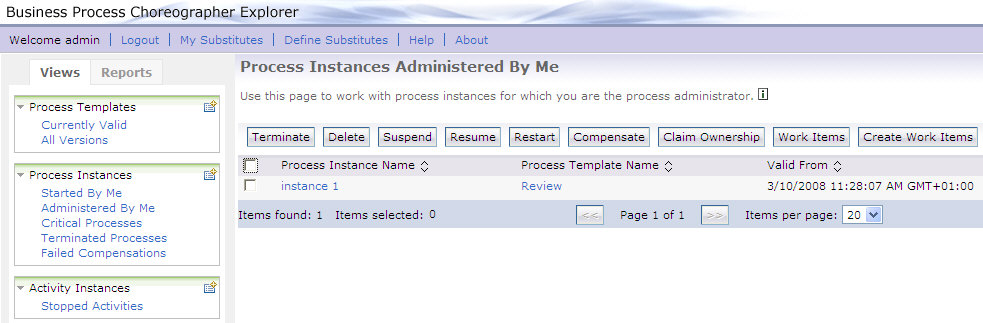
Note: The process instance is in the Finished state.
The Process Instance view is displayed:
The process output message is displayed: