Client application
To run this sample, use the client application which is delivered with this sample to define and start Ad-hoc Human Tasks. Then use the Business Process Choreographer Explorer to display and process these tasks.
Client application delivered with the sample
To start the client application on a WebSphere Process Server, follow these steps:
- In a web browser, open URL
http://yourhost:yourport/adhoc.
Note: Replace yourhost with your server's internet address and replace yourport with the port of your server's HTTP transport,
for example http://localhost:9080/adhoc.
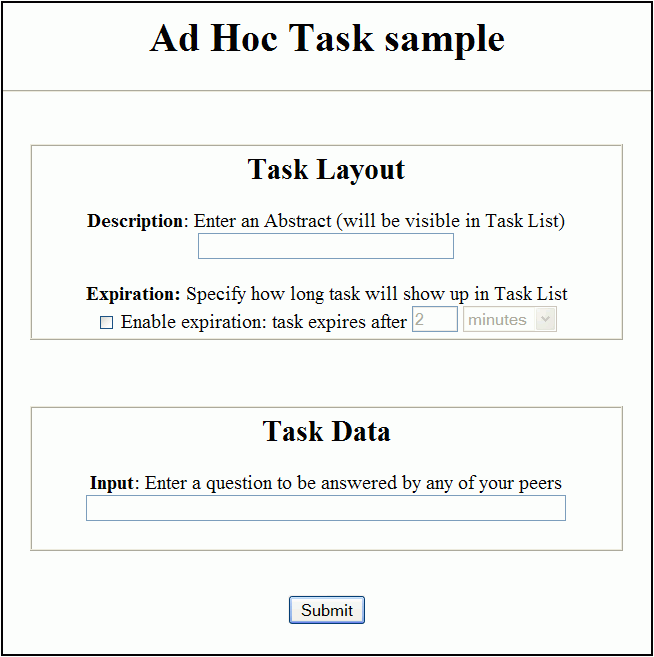
The client application is displayed:
Start the sample
To start the sample, follow these steps:
- Switch to the client application.
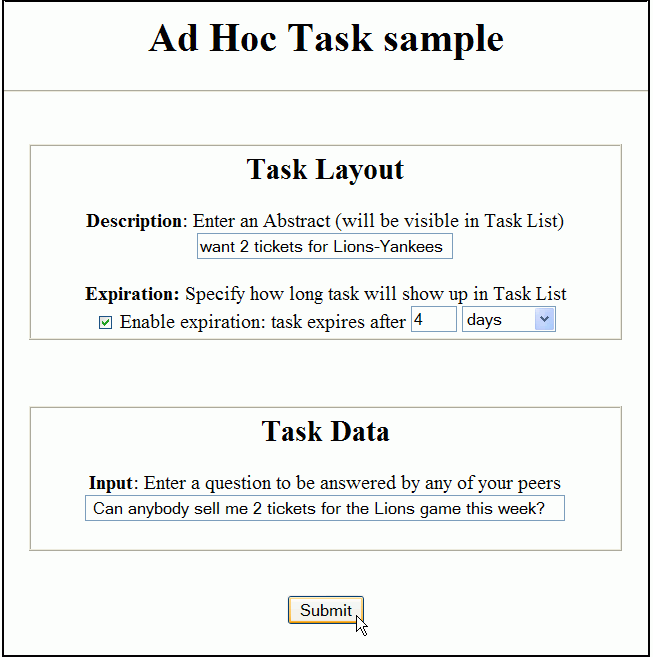
- In the Task Layout section in the Description field, enter a value of type string.
- In the Task Data section in the Input field, enter another value of type string.
- Optionally, enable the Expiration checkbox and specify a number of seconds, minutes, hours, or days as expiration time interval.
- Click Submit.
Note that you just have defined settings for both the task template and the task instance within the same page. The page may for example look like this:
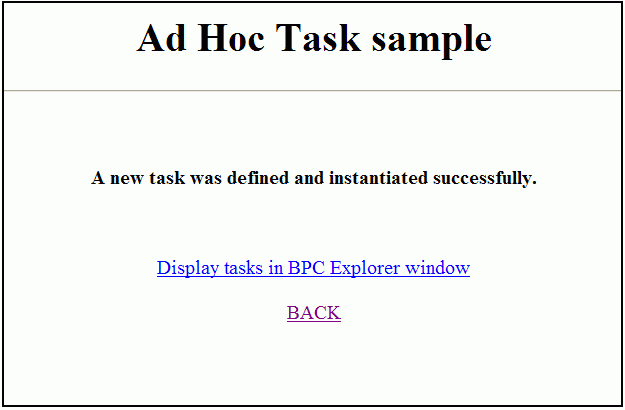
The following response is shown, indicating the successful creation of the Ad-hoc Human Task:
Inspect the task list
You can now find the newly created task by using the Business Process Choreographer Explorer (BPC Explorer). For your convenience, the response screen contains a direct link to the BPC Explorer application's entry page.
In the BPC Explorer, click on My Tasks to refresh the list of tasks:
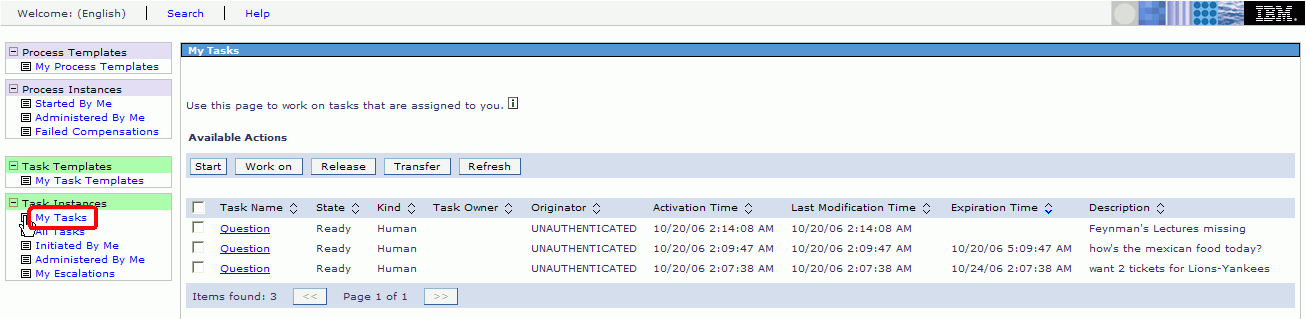
For the tasks in the list, you can issue the available actions as usual.
Note: The relative expiration interval specified in the Ad-hoc web application is converted into an absolute time value, which is displayed in the Expiration Time column. Once the indicated expiration time is reached, the next refresh operation will make expired task instances disappear from the My Tasks list again.
To see the Expired and Finished tasks, and to inspect the output for Finished tasks, use another appropriate view, for example All Tasks or Administered By Me:

The Administered By Me allows additional operations as well, for example, to terminate tasks; and here you can delete all tasks which have reached a final state.