This section describes how to enable a human task to create group work items. It covers how to:
- Enable group work items.
- Import the prepared project.
- Open the human task editor.
- Make sure the appropriate staff plugin provider is used.
- Use the staff verb "Group".
Enable group work items
Since we want to determine the users for our business process by the groups they belong to, we first have to enable WebSphere to search users by groups. This can be enabled via the administrative console.
- In a Web browser, open the URL
http://yourhost:yourport/admin. - Log in as a userid with administrative privileges.
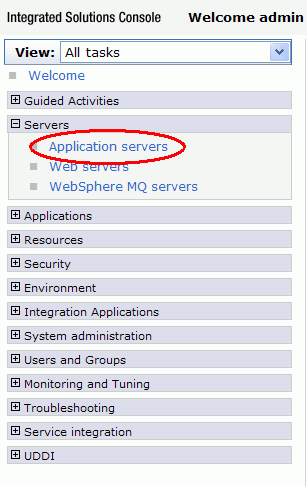
- On the navigation pane, expand the Servers section.
- Click on the Application servers link.
- Click on the name of the application server for which you want to enable group work items. In this case the server is server1.
- In the Business Integration section, expand the Business Process Choreographer item and select Human Task Manager.
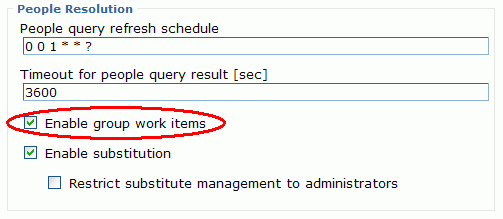
- Scroll to the People Resolution section at the bottom of the page.
- Check the Enable group work items checkbox.
- Click on Apply.
- Scroll to the top of the page and click the save link.
To start the administrative console on WebSphere Process Server, perform the following steps.
Note: Replace yourhost with your server's internet address and yourport with the port of your server's HTTP transport,
for example http://localhost:9060/admin.
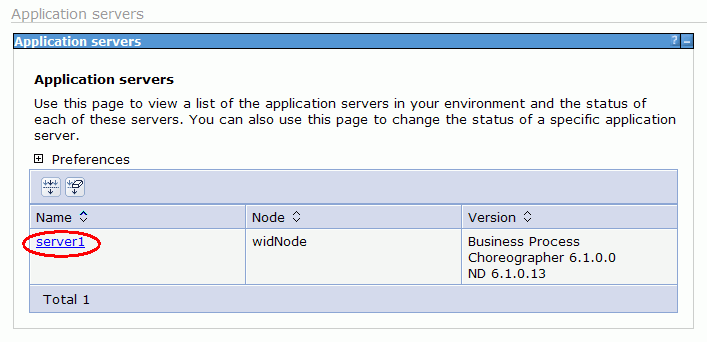
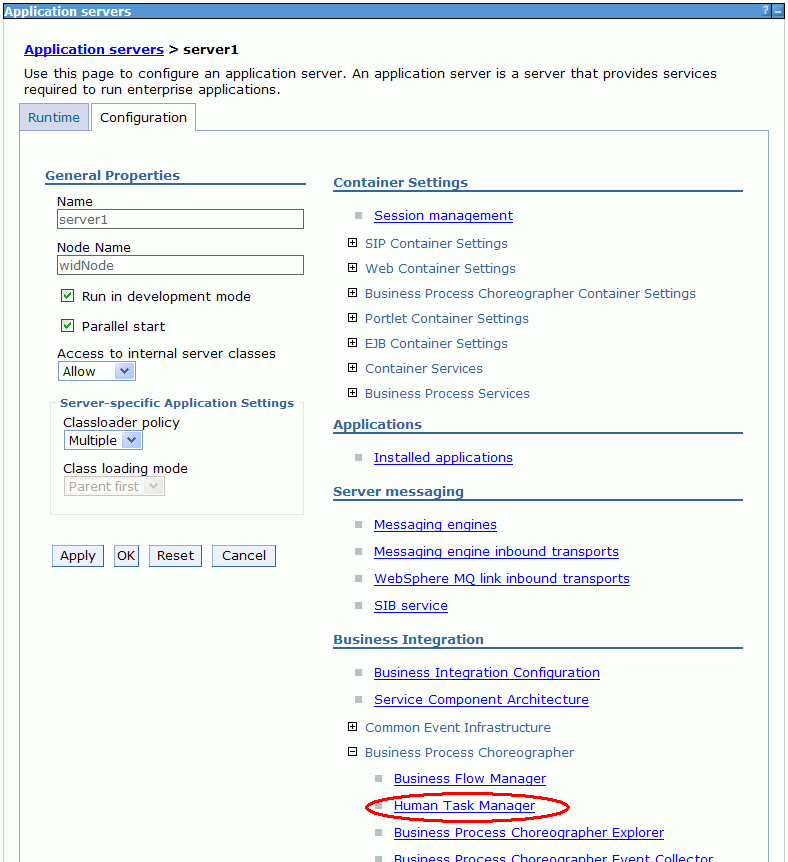
The configuration page opens.
Now you have to persist the changes you made.
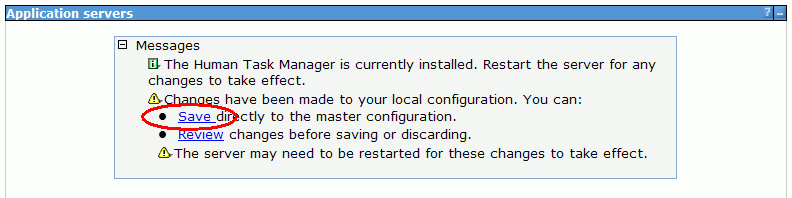
The new settings will become active after the next server restart.
Import the prepared project
A project has been prepared, which serves as the basis to build this sample. To import the prepared project interchange file delivered with this sample, perform the following steps:
- Download the GWISamplePrepare.zip file, and save it to a temporary directory.
- In WebSphere Integration Developer, click File > Import. The Import window opens.
- Select Other > Project Interchange.
- Click Next. The Import Project Interchange Contents window opens.
- Click Browse next to the From zip file field.
- Browse to the temporary directory and select the zip file you downloaded in step 1.
- Click Open.
- Select your workspace directory as your Project location root.
- Click Select All.
- Click Finish.
- Wait until the automatic build process has finished.

Open the human task editor
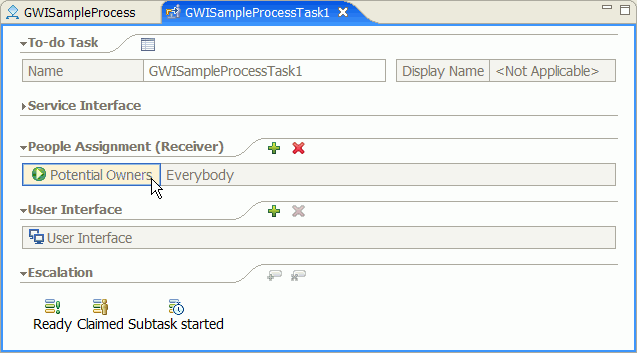
- In the business process editor select the Group Work Item Task.
- Select the Properties tab.
- Click on Details.
- Click on Open.
In this sample business process we defined two staff activities which are executed in parallel. The same users are eligible for these activities, but different mechanisms are used to determine the eligible users. This is just for demonstrating the difference between these two mechanisms. In a production scenario, you rather would pick the appropriate mechanism, depending on the number of users existing in the group, and then use this mechanism for both activities.
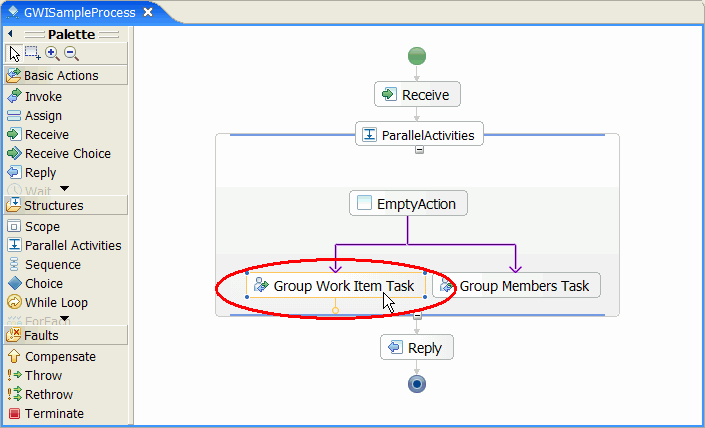
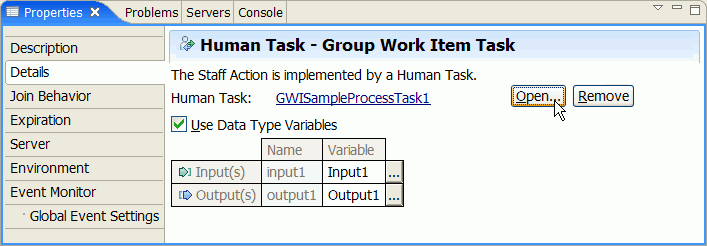
The human task editor opens.
If you did not use the preparation file delivered with this sample you need to create a new human task first and set the input and output parameters of the interface. If a human task had not been defined before, a New button instead of the Open button would be displayed.
Check the staff verb plugin provider setting
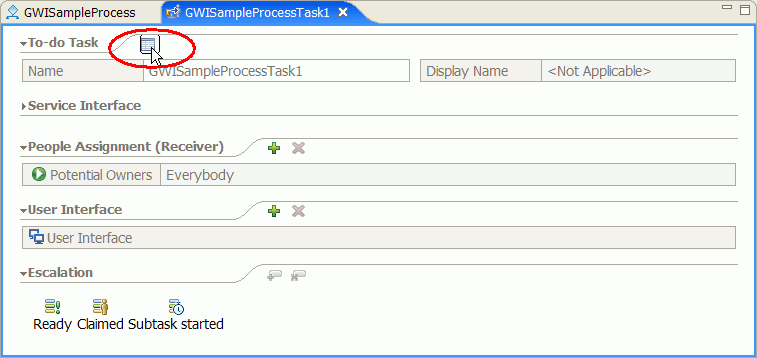
- Switch to the human task editor.
- Click the icon to display the properties.
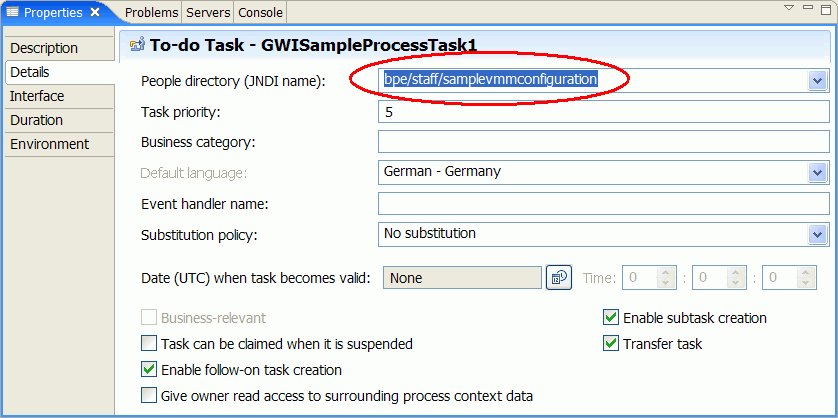
- In the Properties view, select the Details section.
- In the field People directory (JNDI name) select bpe/staff/samplevmmconfiguration from the list box.
- On the toolbar, click the Save button
 .
.
Use the staff verb "Group"
- Switch to the human task editor.
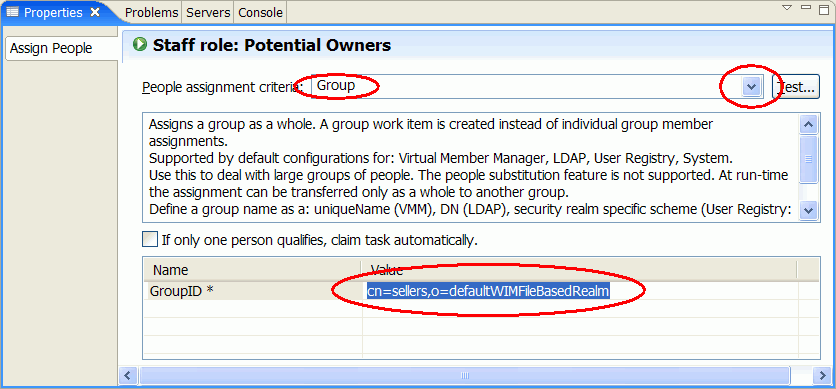
- Select the role you want to create group work items for. In this case it is Potential Owners.
- Go to the Properties view.
- Select Group from the list box next to People assignment criteria.
- In the GroupID field enter
cn=sellers,o=defaultWIMFileBasedRealmwhich is the full qualified name of the group. - On the toolbar, click the Save button .