Client application
To run this sample, use the Business Process Choreographer Explorer, or the client application delivered with this sample.
Business Process Choreographer Explorer (BPC Explorer)
To start BPC Explorer in the integrated test environment of your WebSphere Integration Developer, follow these steps:
- In WebSphere Integration Developer, switch to the Servers view.
- In the table, right-click WebSphere Process Server v6.1.
- From the pop-up menu, select Launch > Business Process Choreographer Explorer.

To start the BPC Explorer on WebSphere Process Server, follow these steps:
- In a Web browser, open the URL
http://yourhost:yourport/bpc.
Note: Replace yourhost with your server's internet address and replace yourport with the port of your server's HTTP transport,
for example http://localhost:9080/bpc.
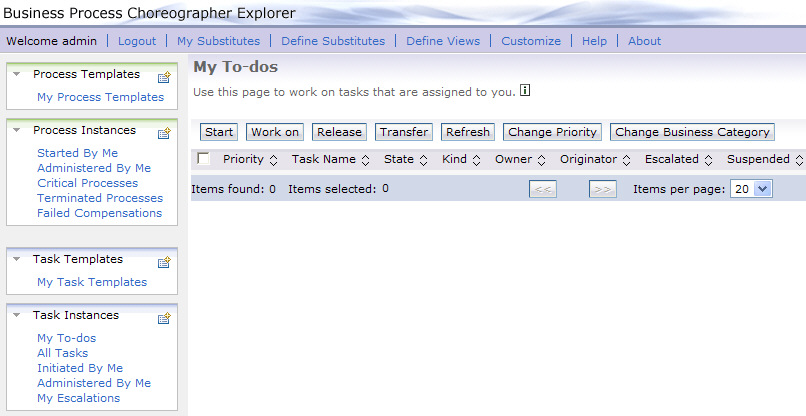
The BPC Explorer opens:
Client application delivered with the sample
In the Download section of this sample, you can find the client application ToDoTaskClient as both a WID project interchange file and as an Enterprise Archive (EAR File). You can deploy either version to your server:
- To deploy the project interchange file, import it into WID, right-click WebSphere Process Server v6.1, then select Add and Remove Projects and add the ToDoTaskClientEAR to the server.
- To deploy the EAR file, open the administrative console and use Applications > Install New Application, accepting all the defaults. Then make sure that this application is started.
To run the client application in your Web browser, follow these steps:
- In a Web browser, open URL
http://yourhost:yourport/ToDoTaskClient. - If security is enabled, you will be requested to log into the client Web application. Enter the userid and password.
Note: Replace yourhost with your server's internet address and replace yourport with the port of your server's HTTP transport,
for example http://localhost:9080/ToDoTaskClient.
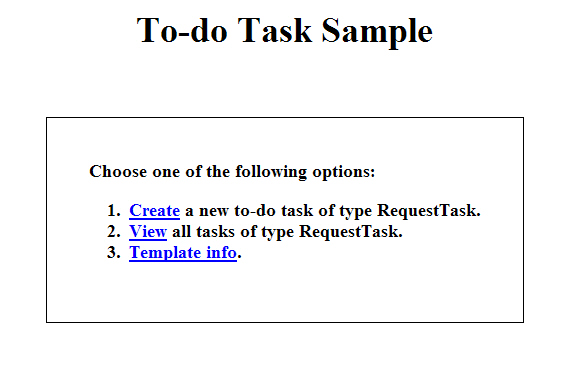
The home view of the client application is displayed:
Start the to-do task with a business process
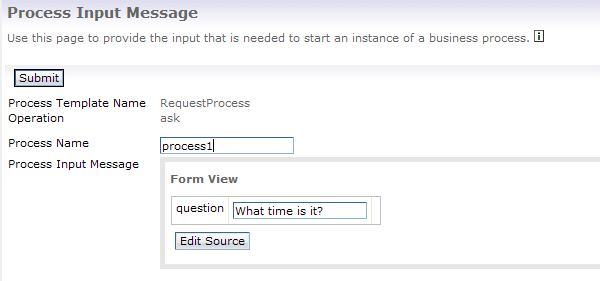
To start the request process, follow these steps:
- Switch to the BPC Explorer.
- In the Process Templates section, click My Process Templates.
- Select RequestProcess, then click Start Instance.
- Optionally, enter a Process Name.
- In the question field, enter a value of type string.
- Click Submit.
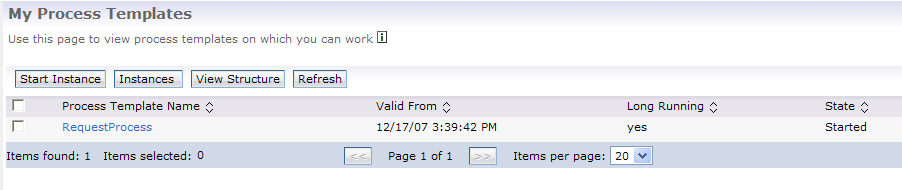
The My Process Templates view is displayed:
The Process Input Message view opens:
Start the to-do task with the client application
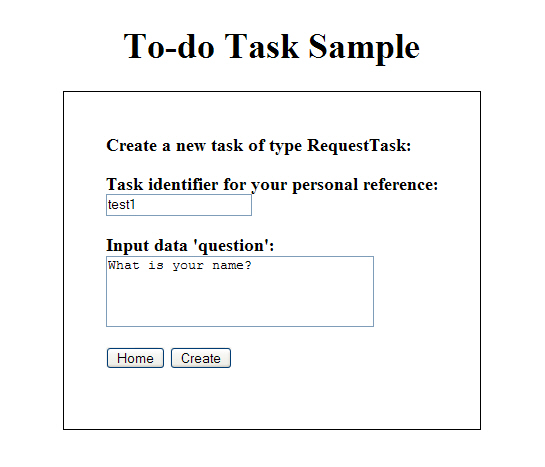
To create a new to-do task, follow these steps:
- Switch to the client application.
- In the home view, click Create. The create page is loaded.
- Optionally, enter a Task identifier.
- In the Input data field, enter a value of type string.
- Click Create.
- To return to the home view, click Home.
- To create another to-do task, click New.
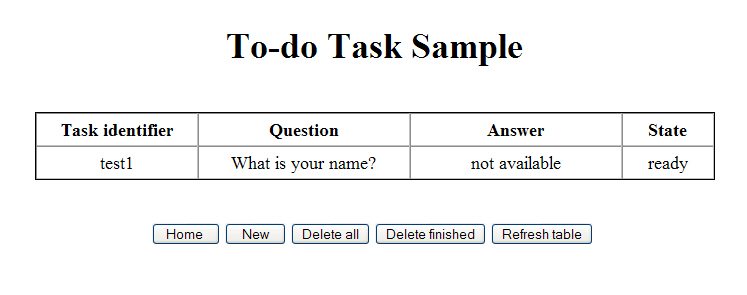
- To display the task list view, click List.
- Click List to see the task you just created:
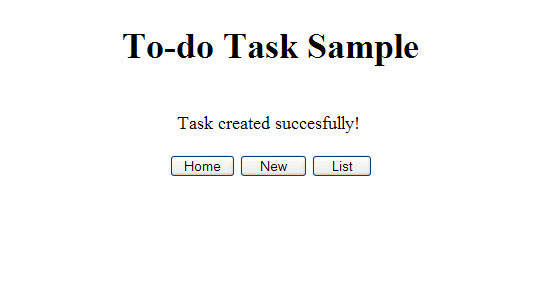
A confirmation message is displayed:
Work with the human task
To work with human tasks, follow these steps:
- Switch to the BPC Explorer.
- In the Task Instances section, click My To-dos.
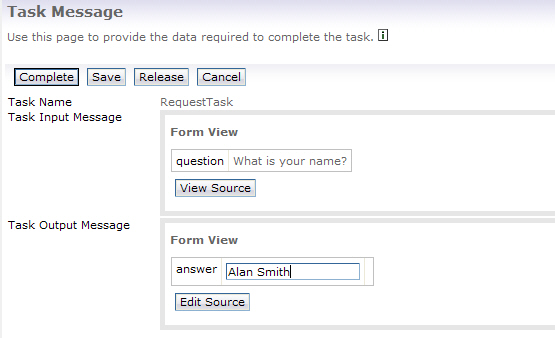
- Select RequestTask and click Work on. The Task Message view is displayed.
- In the answer field, enter a value of type string.
- Click Complete.
The My To-dos view opens:
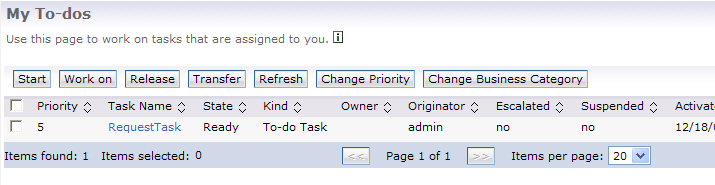
The task you created is in the ready state. RequestTask is the Task Display name, specified when you created the Task model.
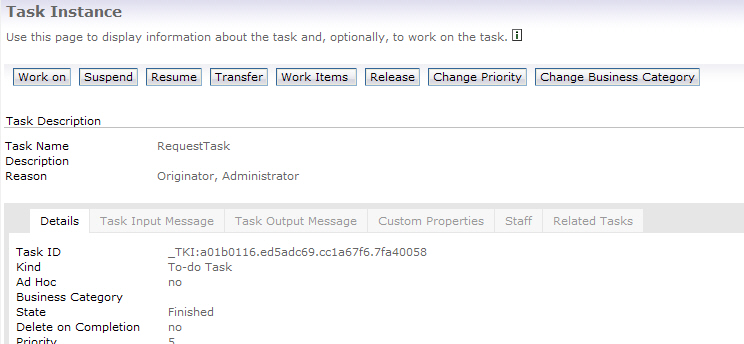
To view the status of completed human tasks in BPC Explorer, follow these steps:
- In the Task Instances section, click All Tasks.
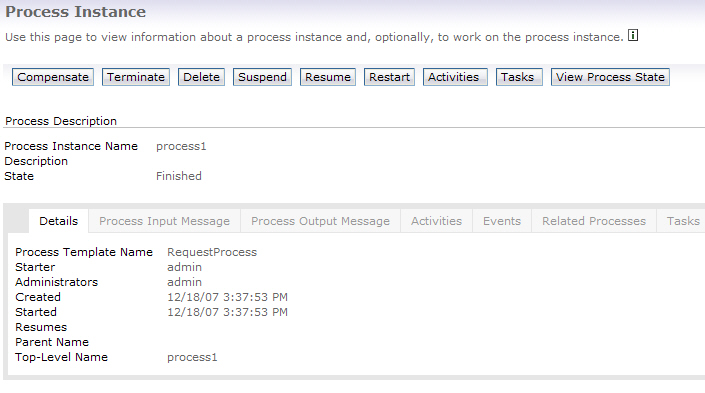
- Click on RequestTask to view more details.
- Click on the Task Input Message tab to view the input message.
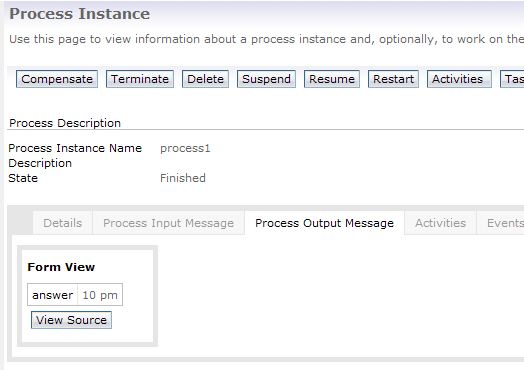
- Click on the Task Output Message tab to view the output message.
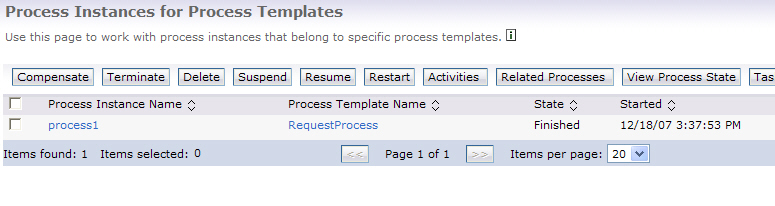
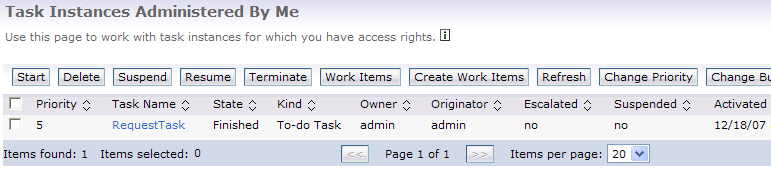
The All Tasks view is displayed:
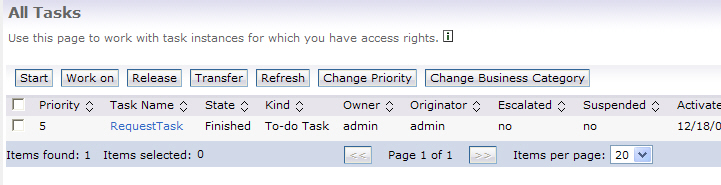
As you can see, your task is now in the finished state.
Track the task status with your client application
To track the status of your human task, follow these steps:
- Switch to the client application.
- In the home view, click View.
- To return to the home view, click Home.
- To create another to-do task, click New.
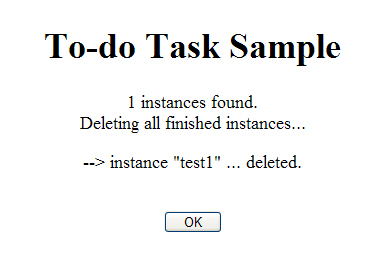
- To delete all tasks, click Delete all.
- To delete all tasks that are in the finished state, click Delete finished.
- To refresh the task list view, click Refresh table.
The task list view is displayed:
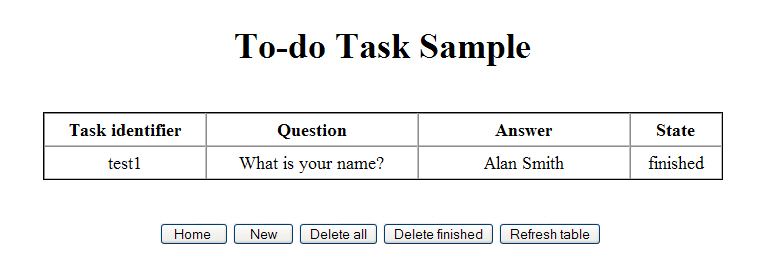
Notice the task is now in the finished state and the output message is available.
To track the status of human tasks in general, follow these steps:
- Switch to the client application.
- Create a new task and submit.
- In BPC Explorer, claim the task. Before you complete the task, return to the client.
- In the home view, click View.
- You should now see the task status as claimed.
- Return to BPC Explorer and complete the task.
- Return to the client and Refresh table. The task status is now finished.