To build, test and run the invoice process sample, follow these steps:
- Create Users and Groups
- Import Process App
- Upload image file
- Create Business Object
- Select the Invoice Variable Type in all the process variables
- Implement Human Service - CaseAllocation
- Implement service – Perform Checks and Measures
- Create Participant Group
- Allocate Participant groups to lanes
- Complete the Accounts Payables – Invoice Process BPD
- Test the process application
Download and Install partially completed Process App
To import process application in IBM Process Designer, complete the following steps:- Download Invoice_Process - Invoice_Process_Version_1.0.twx from the download section to a temporary directory.
- In the IBM Process Designer, click the Import Process App link.

- In the Import Process App window browse the Invoice_Process - Invoice_Process_Version_1.0.twx file you downloaded to the temporary directory in step 1 and click Next.
- You can see the process app imported in the list of process applications.

- Click the Open in Designer link to open process application.
Create Users and Groups
- In a browser, open the Process Admin console. The default URL is http://localhost:9080/ProcessAdmin to create Users and Groups.
- If security is enabled, enter a valid User ID and Password. Click Log in.
- In the navigation pane, select User Management à User Management.
- Enter the following information:
- In the User Name, type pa1
- In Full Name, type Process Assistant 1
- In the Password pa1edu,
- In Confirm Password, retype the password and click Add.

- Similarly create the following users
- User : ca1; Full Name: Case Allocation ; Password: ca1edu.
- User : buyer1; Full Name: Buyer; Password: buyer1edu.
- User : ap1; Full Name: Accounts Payable; Password ap1edu.
- Create Groups. To create group select User Management à Group Management in the navigation pane.
- Click New Group.

- In the Create Group window, type Process Assistant Team in the Name field and click Save.
- In the Group Management window, type a partial or complete group name as Process Assistant Team in the Select Group to Modify field.
- From the list of groups displayed, select the Process Assistant Team group and click on Add Members.

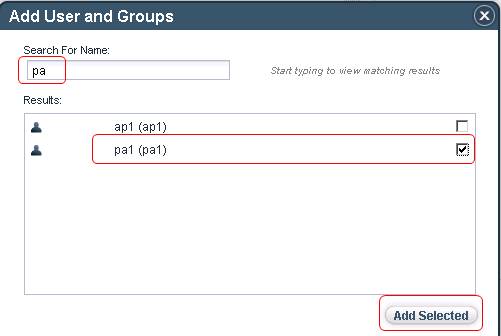
- In the Add Users and Groups window, in the Search for Name field type pa1. You can enter part of the name and the window displays all accounts that match.
- Select pa1 from the list and click Add Selected.
- Repeat the above steps from 6-12 to create following groups and the members in the groups -
- Group Case Allocation Team , Member ca1
- Group Buyer Group, Member buyer1
- Group Account Payable Team, Member ap1
Upload image file
- Switch to IBM Process Designer to upload the professional1_example.png
image.
Go to INVOICE PROCESS à Files
then click
 . Select Web File from
the menu. In a New Web File window browse for professional1_example.png
and
click Finish.
. Select Web File from
the menu. In a New Web File window browse for professional1_example.png
and
click Finish.
Create Business Object
- In the Designer view, click the plus sign (+) next to Data and select Business Object from the list of components.

- In the New Business Object dialog, enter Invoicein the Name field and click the Finish button.

- In the Business Object editor, under the Behavior section, select Complex Structure Type from the Definition Type drop-down list.
- In the Parameters section, click the Add button.
- In the Parameter Properties section, replace Untitled1 in the Name field with invoiceCode.
- Leave the variable type set to String.

- Repeat steps 4 through 7 to add the following parameters.
- poCode, String
- approval, String
- dispatchDocsAppended, String
- inspectionReportAvailable, String
- tinNumber, String
- serviceTaxRegNumber, String
- price, Decimal (Note : To change the datatype from default String to Decimal click Select button and select Decimal)

- category, String
- status, String
- The completed business object should look as follows.

- Press Ctrl-S to save the changes.
- Close the business object editor.
Select the Invoice Variable Type in all the process variables
- Select Processes under INVOICE PROCESS and then double-click Accounts Payables – Invoice Process from the Business Process Definitions section.
- Click the Variables tab.

- Click on Lresponse variable under Output variables.

- In the Details section, click Select and select Invoice.

- Notice the red cross will be removed after you select Invoice business object.
- Go back to the Diagrams tab.
- Repeat the above steps for all the variables in the services of Payables – Invoice Process BPD where the Invoice Business Object has been referred.
- Double-click Process Inward Invoice Documents

- Click the Variables tab. Repeat the above steps to reference the Invoice business object for the following variables and press Ctrl-S to save your changes.
- Input, Linvoice.
- Output, Lresponse

- Close the Scan and Create Invoices service.
- Make sure you are in the Accounts Payables – Invoice Process BPD. Double-click the Invoice Returned to Buyer/User service in Buyer/User Department swimlane.

- Click the Variables tab. Repeat the above steps to reference the Invoice business object for the following variables and press Ctrl-S to save your changes.
- Input, Linvoice.
- Output, Lresponse
- Close the Invoice Returned to User service.
- Make sure you are in the Accounts Payables – Invoice Process BPD. Double-click the Perform Duplicate Check service.

- Click the Variables tab. Repeat the above steps to reference the Invoice business object for the following variables and press Ctrl-S to save your changes.
- Input, Linvoice.
- Close the Perform Invoice Duplicate Check service.
- Make sure you are in the Accounts Payables – Invoice Process BPD. Double-click the Reject Invoice service.

- Click the Variables tab. Repeat the above steps to reference the Invoice business object for the following variables and press Ctrl-S to save your changes.
- Input, Linvoice.
- Output, Lresponse
- Close the Reject Invoice service.
- Make sure you are in the Accounts Payables – Invoice Process BPD. Double-click the Process Payment service.

- Click the Variables tab. Repeat the above steps to reference the Invoice business object for the following variables and press Ctrl-S to save your changes.
- Input, Linvoice.
- Output,
Lresponse
- Close the Initiate Payment service.
Select the image in Process Payment coach
- These steps you are performing to link the image control of the
coach in Process Payment activity, with the
- Select Processes under INVOICE PROCESS and then double-click Accounts Payables – Invoice Process from the Business Process Definitions section.
- Double-click Process Payment.
- Click the Coaches tab.

- Double-click the Pay Invoice coach.

- Click the professional1_example.png image control and click the presentation tab in the Properties section below.

- Click the Select button and select professional1_example.png from the list.
- Press Ctrl-S to save your changes.
Implement Human Service - CaseAllocation
- If you have closed the Accounts Payables – Invoice Process BPD, to reopen it, select Processes under INVOICE PROCESS and then double-click Accounts Payables – Invoice Process from the Business Process Definitions section.

- Right-click the CaseAllocation
activity and select Activity
Wizard from the list of options.

- In the Activity Wizard - Setup Activity dialog complete the following and click Next
- Select Service Type as Human Service (Service with human interaction).
- Select Service Selection as Create a New Service.
- Type Allocate Invoice Category in
New Service Name field.

- In the Activity Wizard - Parameters dialog, choose the
existing
process variables to use as input and output for this new service. You
do not
need invoiceValidation process variable for this activity so,
click true
in the Input and the Output field in front of the invoiceValidation
process variable to change the setting to false. Similarly, toggle Lresponse
variable input and output to false.

- Click the Finish button. The new service is created and attached to the activity. The new service includes a single Coach.
- Double-click the Case Allocation activity for which you created the new service using the Activity Wizard.
- The new Allocate Invoice Category human service
opens in the
Designer and you can see the diagram as shown in the following image:

- Click the Coach and see the Properties section below. Change the name in the Name field, from Coach to EnterInvoiceData.
- Press Ctrl-S to save your changes.
- Click the Coaches tab and then click
the listed EnterInvoiceData component. Because we used
the
Activity Wizard, the Coach includes a form element for each of the
parameters
in the Invoice structure as shown in the following
image:

- Click on the border just
above
the Invoice title bar. Note the blue border below.

- In the properties
view
at the bottom select Section tab. In the Behavior section
increase #
of Columns to 2

- Drag the Image control
from the Controls section in the right navigation menu and drop
on the second
column.

- Select the image control
in the second column.

- See the Properties tab
at the bottom. Click on the Presentation tab.

- Click on Select to select professional1_example.png
- Press Ctrl-S to save your changes.
- Click the OK button and see the Properties tab at the bottom.
- Change the Label field
in the Button Details section from OK to Allocate
Category.

- Press Ctrl-S to save your changes.
- Click the Diagram tab.
-
Drag the server
script
from the right navigation menu to diagram panel on the right of the EnterInvoiceData.
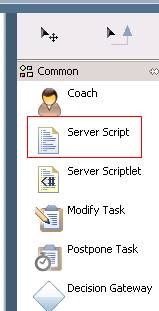
- Click the server script activity. See the Properties below and change the name of the activity from Untitled1 to ‘Set Status To Allocated’.
-
Click the Implementation
tab in the Properties
section and add the following lines of code
tw.local.invoice.status = "CaseAllocated"; - Wire the entire flow.
- Remove the wire from EnterInvoiceData to End.
- Wire Start to EnterInvoiceData,
To do this select the sequence flow icon
 from
the right hand palette,
wire Start to EnterInvoiceData.
from
the right hand palette,
wire Start to EnterInvoiceData. - Wire EnterInvoiceData to Set Status to Allocated
- Wire Set Status to Allocated to End
- Your diagram should look like below

- Select back the Selection
Tool
 .
. - Press Ctrl + S to save your changes.
- Close the Allocate Invoice
Category service.
Implement service – Perform Checks and Measures
- Make sure you are in Accounts Payables –
Invoice Process BPD.
To create
Implementation right-click Perform Checks and Measures in
the System
Services lane.

- In the Activity Wizard - Setup Activity dialog complete the following -
- Select Service Type as System Service.
- Select Service Selection as Create a New Service
- Type Perform Checks and Measures in New Service Name field.

- Click Next.
- In the Activity Wizard – Parameters toggle the following
- invoiceValidation, Input to false.
- Lresponse, Input and Output to false.
- Click Finish.

- Press Ctrl + S to save your changes.
- Double-click Perform Checks and Measures service.
- Click on the Diagram tab. Click the Script activity. Change the name of the activity from Script to ‘Set Checks and Measures to false’.
- Type in the following code in the Implementation tab under Properties.
tw.local.invoice.status = "InvoiceProcessing";
tw.local.invoiceValidation = new tw.object.InvoiceValidation();
tw.local.invoiceValidation.invoiceChecksMeasures = false;

- Select the wire from Set Checks and Measures to false to End and press Delete.
- Drag the Decision Gateway from the right navigation menu to diagram canvas. Rename it from Untitled1 to ValidateInvoice.

- Drag and drop 3 Server Script from the right navigation menu to diagram panel. Rename them to Validate Invoice For Case A, Validate Invoice For Case B and Validate Invoice For Case C respectively. Your diagram should look like as shown below –

- Press Ctrl + S to save your changes.
- Wire the ValidateInvoice
Decision Gateway to the three Server Script activity. Select
the sequence
flow icon on the right, click on the ValidateInvoice
node and connect the Server Script in the following sequence.
First
connect to Case B then Case A and Case C. NOTE:
You
are connecting in this sequence because as per the functionality if
all
conditions evaluate to false, the process follows the default sequence
line.
The default sequence line is the first line that you create from the gateway to a following step. For this
sample you need
to define Case B as a default sequence line that is why you are
connecting this
first.

- Press Ctrl + S to save your changes.
- Select the Selection Tool
icon
 on
the right and click on the wire connecting Decision Gateway to
each Server
Script to rename them to Case A, Case B and Case C respectively
from
the Properties Panel at the bottom. Check the Name Visible option.
on
the right and click on the wire connecting Decision Gateway to
each Server
Script to rename them to Case A, Case B and Case C respectively
from
the Properties Panel at the bottom. Check the Name Visible option.

- Similarly rename Case B and Case C.
- Press Ctrl + S to save your changes.
- Click on the ValidateInvoice
Decision Gateway. Go to the Properties à Implementation. Select
 icon
to select attribute in a
input Data for Case A as shown below –
icon
to select attribute in a
input Data for Case A as shown below –

- From the next drop down select == as shown

- In the next text box enter “CaseA”.
- Similarly repeat steps from 14-16 for “CaseC”. Your configuration should look like below –

- Click on Validate Invoice For Case A and go to Properties à Implementation. Enter the following code –
tw.local.invoiceValidation.invoiceChecksMeasures
= true;
- Click on Validate Invoice For Case C and go to Properties à Implementation. Enter the following code –
tw.local.invoiceValidation.invoiceChecksMeasures
= true;
- For Validate Invoice For Case B enter the following code –
tw.local.invoiceValidation.invoiceChecksMeasures
= false;
- Wire the following
- Start to Set Checks And Measures To False
- Set Checks And Measures To False to ValidateInvoice
- Validate Invoice For Case A to End
- Validate Invoice For Case B to End
- Validate Invoice For Case C to End

- Press Ctrl + S to save your changes
Create Participant Group
- To create participant group
from the left side navigation panel select INVOICE PROCESSs à Processes
then click . Select Participant Group
from the menu.

- Enter “Process Assistant Team” as a name of a group. Click Finish.
- Under Members section
select Standard Members and click Add user. Enter pa1

- Press Ctrl + S to save your changes.
- Repeat steps 1-4 to add following participant group
- Group Case Allocation Team , User ca1, press Ctrl + S to save your changes. Close the editor.
- Group Buyer Group, User buyer1, press Ctrl + S to save your changes. Close the editor.
- Group Account Payable Team, User ap1, press Ctrl + S to save your changes. Close the editor.
- Observe the four participant groups you have created just now.

Allocate Participant groups to lanes
- Open the Accounts Payables – Invoice Process BPD.
- Select the Inward Process Team lane.

- In the Properties section below click Select to assign the Default Lane Participant Group to Process Assistant Team.

- Press Ctrl + S to save your changes.
- Similarly allocate the following swimlanes to corresponding participant group:
- Swimlane – Case Allocation Team, Group - Case Allocation Team.
- Swimlane – Buyer/User Department, Group - Buyer.
- Swimlane – Accounts Payables, Group – Account Payable Team.
- Press Ctrl + S to save your changes.
Complete the Accounts Payables – Invoice Process BPD
- Drag and drop Decision Gateway from the palette in between Perform Checks And Measures and Perform Duplicate Check on the diagram canvas. Rename it to Is Invoice Valid ?

- Select the sequence flow
icon on
the right, click on the Is Invoice Valid ? and connect the Perform
Duplicate Check.
- Select back the Selection
Tool icon from the palette, and then
select the wire Is Invoice Valid ? to Perform
Duplicate
Check. Change the following under Properties of Decision
Gateway.
- Rename the wire to SUCCESS.
- Check the Name Visible option.
- Your diagram should like following:

- Click on the Is Invoice Valid ? and connect the Invoice Returned to Buyer/User. Rename the wire to FAILED. Your diagram should like following:

- Press Ctrl + S to save your changes.
- Click the Is Invoice Valid ? decision gateway and click the Implementation tab under Properties.
-
In the Decisions
section
select icon
as shown below and then select invoiceValidation(InvoiceValidation)
à
invoiceChecksMeasures(Boolean) –

- From the next drop down select == as shown
- In the next text box enter false.
- Your completed decision gateway configuration should look like following –

- Press Ctrl + S to save your changes.
- Wire the following services of BPD-
- Case Allocation to Perform Checks and Measures.
- Perform Checks and Measures to Is Invoice Valid?
- Invoice Returned to Buyer/User dept to Case Allocation.
- Press Ctrl + S to save your changes.
- The complete BPD process should look like following:

The
process application is completed now. Switch to the Run
the samples section for the instructions on how to run and test the
process.