This chapter describes how the sample is executed in IBM Business Process Manager v75. It assumes, that the user has either completed the ‘Build it yourself’ section, that he has imported the complete version of the sample, or that he has an IBM Business Process Manager v75 GA version which has the sample installed in Process Center already. (Comment: The sample is only installed, if the user has selected to install the WebSphere Application Server samples as well during the installation of IBM Business Process Manager v75. This option is only offered when performing a custom install.)
If
the sample is not yet imported into Process Center, download the sample
*.twx file from the download page and import it into Process Center
using the Import Process Application feature.
In IBM Business
Process Manager v75 GA, the sample is listed in the
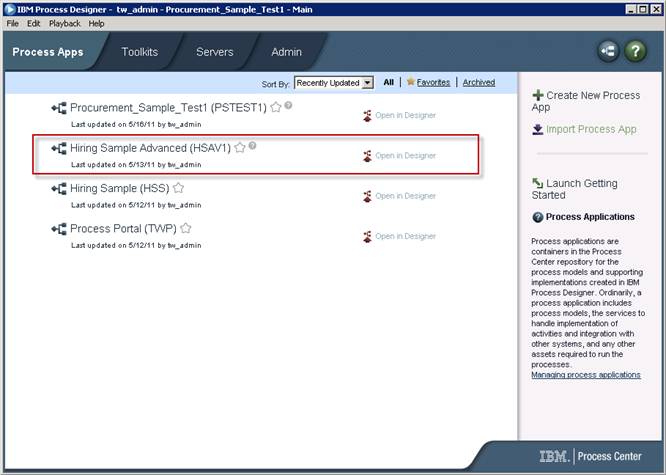
(There might be
additional Process Application listed in
The Advanced Hiring Sample is fully implemented and ready for you for execution in the playback server. In order to see the sample in execution, follow the steps described here:
____ 1. Explore the sample in IBM Business Process Manager Process Designer:
___a. Hover over the Process Application named
‘Advanced Hiring Sample’ and click in Open in Designer
___b. 
___c. Quickly the Process Designer opens. This is the tool you will use to create Business Process Definitions. Even if you just opened the Process Application ‘Advanced Hiring Sample’, the tool seems to be empty:
___d. 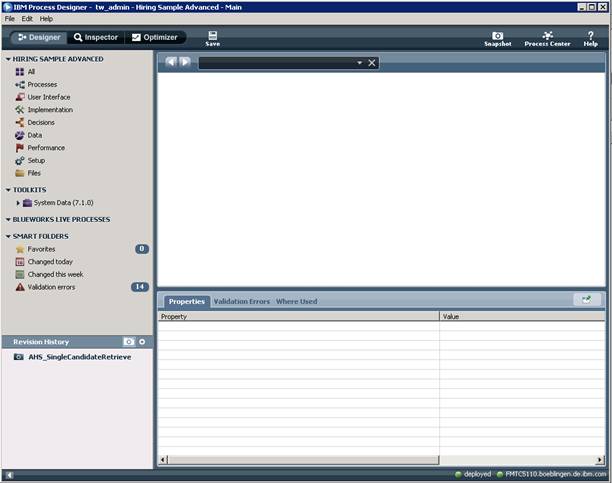
___e. However, this is not the case. In order to open the process, click on Processes, then click on HR Open New Position
___f. 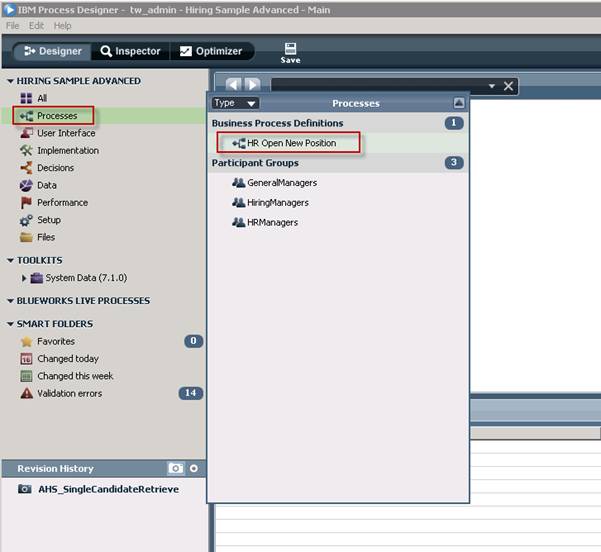
___g. The process HR Open New Position is opened in
the diagram view: 
___i. Before moving on with the execution of the process, here is a short
description of the process:
___a. The process begins on the left hand side with the Start event, and
terminates at one of the End events on the left hand side of the process model
___b. The first task called ‘Submit job requisition’
comes with a number of user interfaces asking the Hiring Manager for specific
information about the job requisition
___c. If General Manager approval is required, then
the next task in the process is the ‘Approve / reject requisition’ task.
___d. If the General Manager approves the job requisition, or if the job
requisition does not required General Manager approval,
then the next step is performed, which is named ‘Find Candidates’. This step is an automatic step, and tries to find
suitable job candidates from a number of (simulated) HR backend systems, or
from a (simulated) external agency.
___e. If no candidates are found, or if the General Manager rejects the job
requisition, the next step called ‘Notify Hiring Manager’ informs the job requester, that the
General Manager does not accept the job requisition, or that no candidate was
found
___f. If at least one candidate was found, the candidate, or a list of
candidates is presented to the Hiring Manager in the task ‘Select candidate for interview’. The Hiring Manager can now decide to
invite one of the candidates to an interview, he can ask for a new list of
candidates (then the task ‘Find Candidates’ is executed once again), or simply
end the process, accepting that there is no suitable candidate available this
time
___g. This is the scope of the process. One must imagine,
that this process is just one part of a broader human resource processes
landscape, and can very well be used in other processes. But for the sake of
this exercise, this is all we need at the moment
___j. Now that you are familiar with the process, lets execute the process ….
____ 2. Run the sample on IBM Business Process Manager Playback Server:
___a. On the right hand side in Process Designer,
click on the run button:
___b. 
___c. IBM Process Designer asks you to leave the
Designer perspective and to switch to the Inspector perspective. Allow to do so
by clicking Yes
___d. 
___e. IBM Process Designer’s Inspector perspective
is the perspective where to execute business process definitions in kind of a
prototype mode on playback server. Have a look at your process in the Inspector
perspective:
___f. 
___g. Let’s quickly look what the Inspector perspective offers:
___a. 1: The upper left window shows all running process instances you are
executing at the moment.
___b. 2: This diagram windows shows the business
process definition currently in execution. Over time, it will be further
enhanced with icons etc, to indicate what task is executed at the moment, or
other relevant information to understand the execution progress of your process
___c. 3: This window shows the list of tasks that were already executed, or
indicates what next task is made ready for execution
___d. 4: In the execution state window you can follow the execution tree, and
you can specify breakpoints to ‘debug’ the process
___e. 5: Here you can look into the process variables and follow how the
process date is set throughout process execution
___h. Now it’s time to launch the first task of the process. To do so, select
the task listed in the upper right window, and click the run button:
___i. 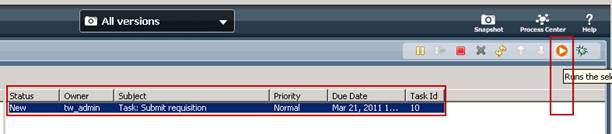
___j. The first task ‘Submit job requisition’ is
started. The task’s coach (user interface) is presented to the Hiring Manager.
For the sake of this exercise, you will serve as Hiring Manager, using the userid tw_admin.
___k. Depending on how you are locked on the IBM
Process Designer, when starting this task Inspector will ask you for a userid. Inspector presents a list of available userids, and you should select either tw_admin,
or tw_user. Once you did this, the coach is presented
using the default system web browser.
___l. 
___m. If the above dialog shows up, select tw_admin
and click OK
___n. An additional logon window may pop up. If it does, enter the user id
and the password (both is ‘tw_admin’), and click login: 
___o. 
___p. This first dialog is the first coach implemented for this task. All
data entry fields are prefilled, in order to speed up the demonstration of this
process execution. For sure you can overwrite the values with your own data, or
select other entries from pre-defined values offered from dropdown lists (for
some entries). Keep in mind that the entry fields labeled in red and marked
with an ‘*’ are mandatory fields and need to be specified with qualified data.
___q. Accept the default values or enter your own values, and click Next when done
___r. Because we have specified that this job
requisition deals with an existing position, the next coach of the first task
‘Submit job requistion’ is launched:
___s. 
___t. Here as well most of the fields are pre-filled (but changeable if you
like). You may decide to add more data to the Notes field. If you’re done,
click Next
___u. 
___v. The last coach of the first task ‘Submit job requisition’ summarizes
the most important data in order to proceed with the job requisition. Click Submit if the data is correct.
___w. With that, the first task ‘Submit job requisition’ completes, and the
process engine moves on to the next task, providing the next task as defined in
the process.
___x. If the task is not shown immediately, refresh the task list by clicking
on the refresh icon in the upper right corner:
___y. 
___z. Now Inspector checks if new tasks are available, and presents the next
task for execution.
___aa. As you can see in the upper left window, the process has made ready the
‘Find Candidates’ task. As it seems, based on your data selection of your job
requisition (if done similar to the description here), there is no need for
General Manager Approval. When running the sample a second time, or third time,
you may investigate what it takes to launch the ‘Approve / reject requisition’
task.
___bb. To move on with the sample, you do not need to select the ‘Find
Candidates’ task and you do not have to click the run button (because the
service is invoked automatically), but you may click on the refresh button to
see when the next manual task is made available:
___cc. 
___dd. This time you won’t see much, because the
‘Find Candidates’ task is fully automated and executed under the covers. The
task triggers a service integrated via SCA (Service Component Architecture)
which is implemented calling a number of (simulated) backend systems
orchestrated in a BPEL process. (We will explain later how you can explore the
BPEL process, and the simulated backend systems). When
the service completes, the process engine moves on and presents the next task.
___ee. Look at the upper right window, the next task should be available
shortly, select the task and click the run button:
___ff. 
___gg. Again, the task’s coach is presented to the
Hiring Manager, simulated by the tw_admin user. You
may have to select the tw_admin user from an
additional message box, click OK once you have performed the selection:

___hh. When done, the ‘Select candidate for interview’ GUI is presented::
___ii. 
___jj. This candidate was indentified and retrieved
from a number of (simulated) backend systems. Now the Hiring Manager is
presented with this candidate and can define to:
___a. Invite this candidate to an interview (which
will complete the process)
___b. Or to request a new candidate (which will run
the ‘Find Candidates’ task and its service implementation again probably
identifying another candidate
___c. Or to request an external candidate (which
will complete the process)
___kk. As described above, when done, all tasks in
the process are done, and the process instance completes. You can see this
again in the upper right window: 
There is much
more to explore in IBM Business Process Manager v75.
However – in
order to get to lunch (or dinner) – this is the end of the exercise.