Because the business process and the human task were enabled for Business Space in the Build it Yourself section, you can do either of the following:
- use Business Space to run this sample, or
- use the Business Process Choreographer Explorer to run this sample.
1. Using Business Space for running the sample
In the following all steps are described to set up Business Space for human tasks and to start and complete a business process.
 Note:
Note:
If you run this sample in a cluster configuration where Business Space and WPS run on different nodes,
make sure that the WAR (Web ARchive) module is mapped to both the server running WPS and the server running Business Space.
To start Business Space in the integrated test environment of your WebSphere® Integration Developer, follow these steps:
- In WebSphere Integration Developer, switch to the Servers view.
- In the table, right-click WebSphere Process Server v7.0.
- From the pop-up menu, select Launch > Business Space.

To start Business Space on WebSphere Process Server, follow these steps:
- In a web browser, open URL
http://yourhost:yourport/BusinessSpace.
Note: Replace yourhost with your server's internet address and replace yourport with the port of your server's HTTP transport,
for example
If security is enabled, Business Space opens with a login screen:

- Enter a valid User ID and Password. The default User ID is admin.
- Click Login.
Depending on whether you have already worked with Business Space, a Business Space start screen is displayed, for example this one:
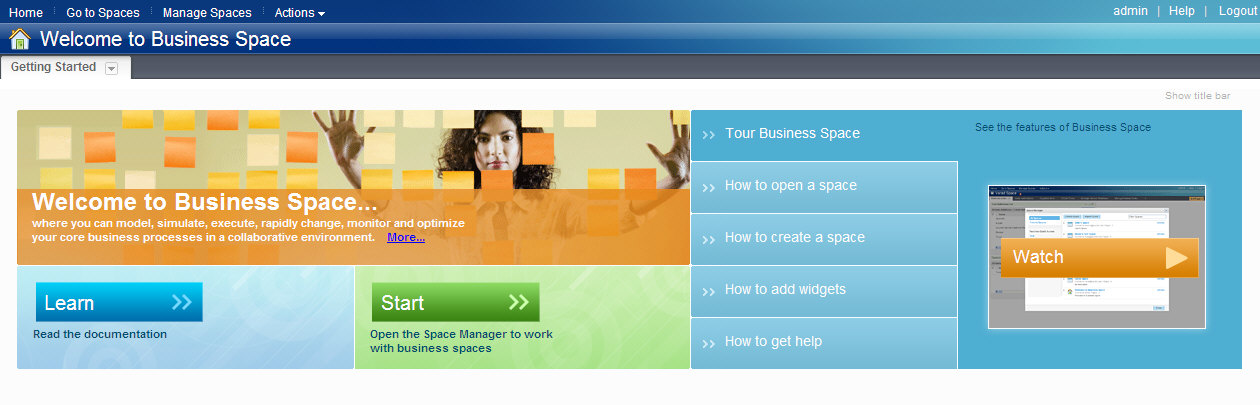
Create new Business Space
If you have not worked with human tasks in Business Space yet, do a one-time setup on your WPS server (this step can be skipped if you run this sample again later).
Follow these steps:
- In the Getting Started widget of the Welcome Business Space, click Manage Business Spaces:
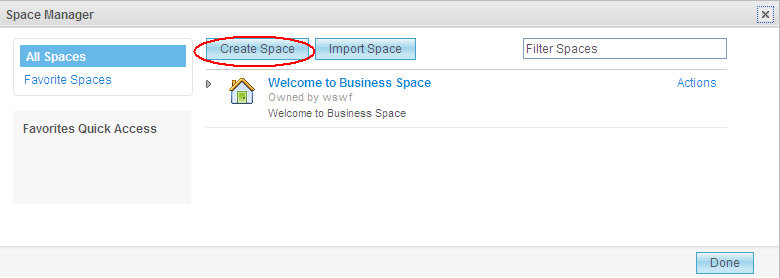
- In the Business Space Manager, click the symbol
 for creating a new Business Space:
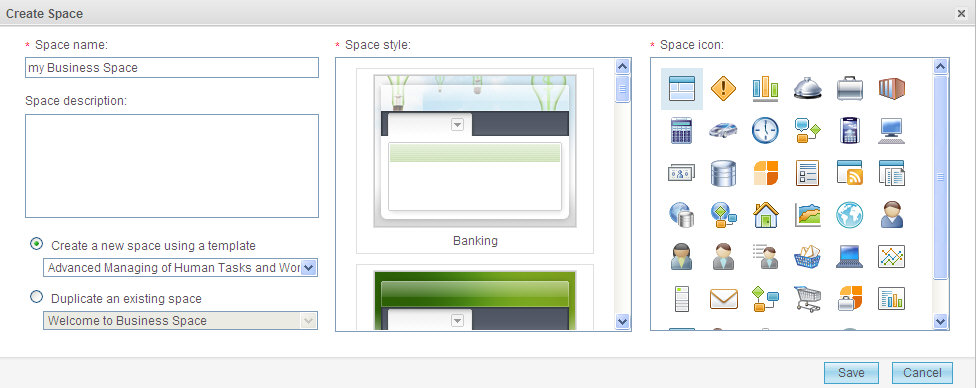
 - In the popup menu, select a name for your Business Space, for example,
my Business Space. - Switch to From a template and select Advanced Managing of Human Tasks and Workflows.
- Click OK.
- Click Done.

After clicking on Go to Spaces in the upper menu, your new Business Space is displayed:
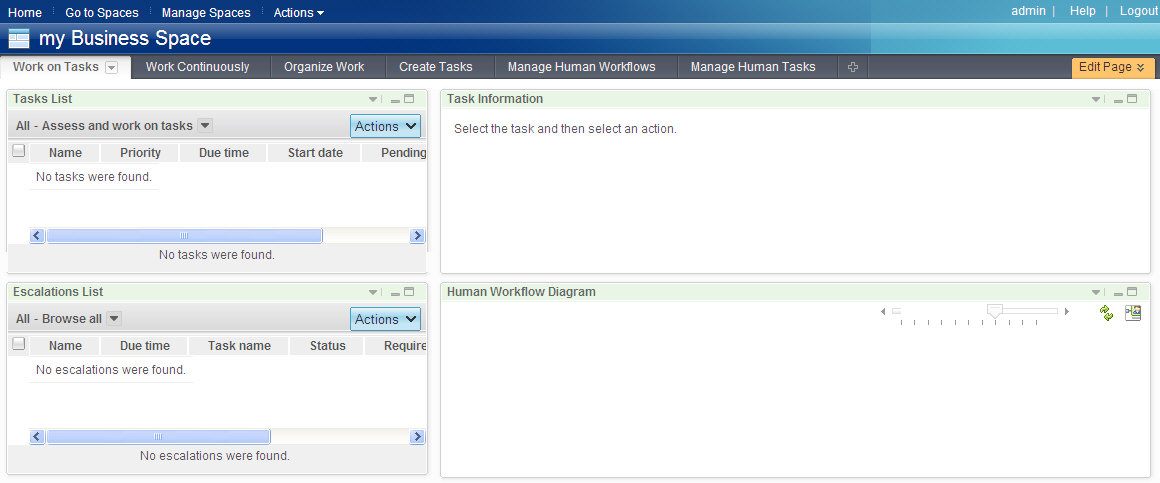
Now you are ready to work on your human tasks with Business Space.
Start the sample business process
To start the human interaction process, follow these steps:
- Make sure HumanInteractionApp is installed on the server.
- Switch to Business Space.
- Proceed to the Manage Human Tasks tab.
- In the Manage Human Tasks widget, select the task template Start the HumanInteractionProcess and click the symbol for creating a new instance.
- In the input field, enter a value of type string.
- Click Submit.


In the Task Information widget, the form for completing the input data is displayed:
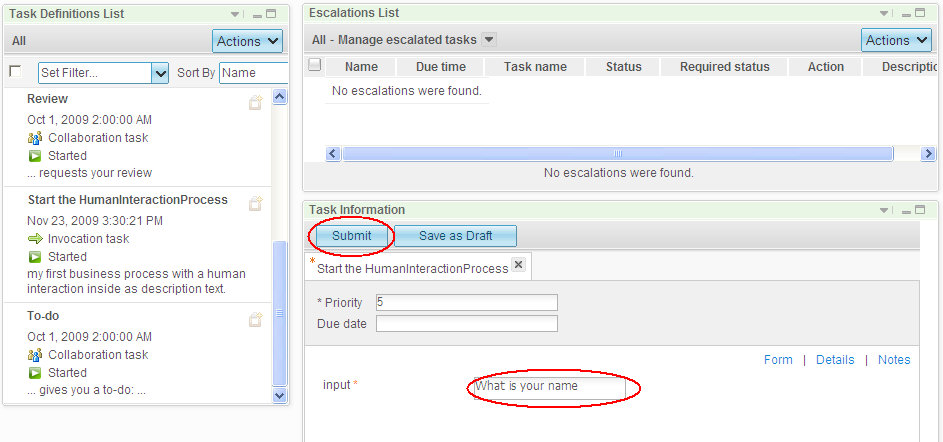
Now a business process is started, and the human task activity of the business process (in this sample: AskQuestion) is available for the userids specified in the task template of the human task (in this sample: everybody).
Work with the human task of the sample business process
This sample business process requires a human to enter a string into a data field. This string can be used in later steps of the process. In this example, there are no later steps; instead, we will browse the persisted output (i.e. the output message) after the process is finished.
You can use either Business Space or the BPC Explorer to work with the generated human tasks. To use Business Space for working with human tasks, follow these steps:
- In Business Space, switch to the Work on Tasks tab.
- In the Tasks List widget, select AskQuestion and click the symbol for accepting and editing the task:
- Replace the text in the answer field by a text of your choice, for example,
John Doe. - Click Submit.

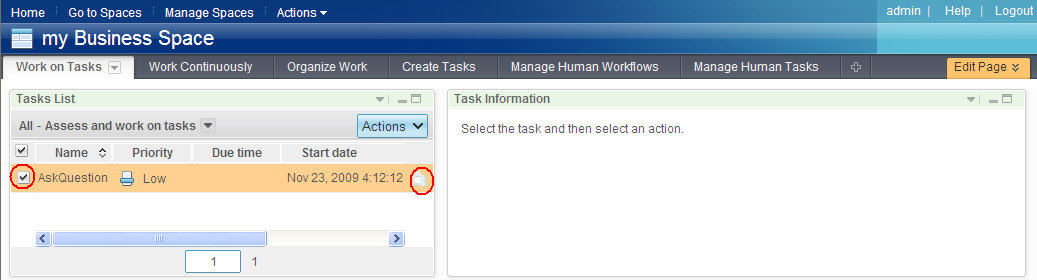
A form for processing the task is displayed in the Task Information widget; here, the output field is prefilled with the input that was entered by the user when starting the process instance, and then passed from the process instance to the task instance.
Note:
Because the task was claimed by userid admin and because this userid has the privileges to see the process template
details, the business process is graphically displayed in the Human Workflow Diagram widget. Without these privileges,
the user can still complete the human task but would not see the diagram.

The task is now completed and is removed from the Tasks List widget again.
Verify output
Output message
The human interaction process is a long-running business process, and the process output message is computed asynchronously. To display the process output message, follow these steps:
- In Business Space, proceed to the Create Tasks tab.
- Select the most recent process instance with name Start the HumanInteractionProcess.
- Select Actions > Open:


In the Task Information widget, both the process input message and the process output message are displayed:

2. Using Business Process Choreographer Explorer for running the sample
Alternatively, you can use the Business Process Choreographer Explorer to run this sample.
To start the BPC Explorer in the integrated test environment of your WebSphere Integration Developer, follow these steps:
- In WebSphere Integration Developer, switch to the Servers view.
- In the table, right-click WebSphere Process Server v7.0.
- From the pop-up menu, select Launch > Business Process Choreographer Explorer.

To start the BPC Explorer on WebSphere Process Server, follow these steps:
- In a web browser, open URL
http://yourhost:yourport/bpc.
Note: Replace yourhost with your server's internet address and replace yourport with the port of your server's HTTP transport,
for example
If security is enabled, the BPC Explorer opens with a login screen:
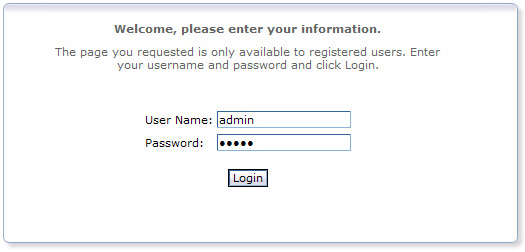
- Enter a valid User ID and Password. The default User ID is admin.
- Click Login.
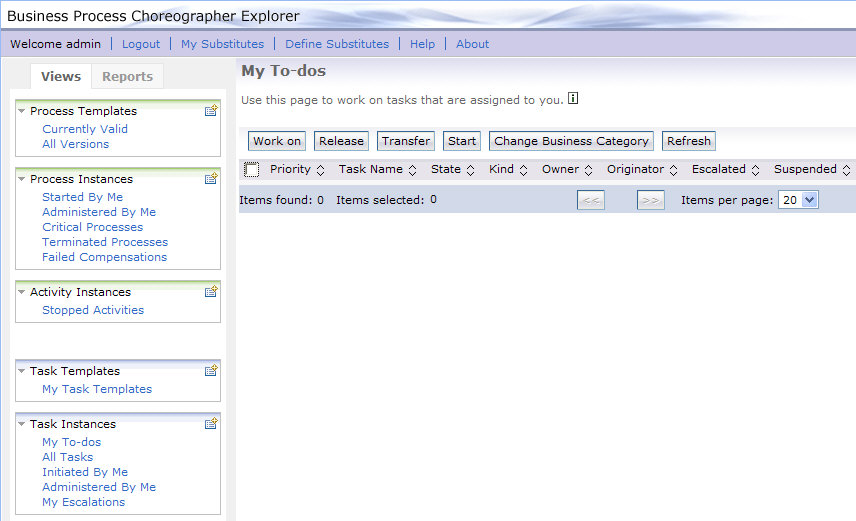
The BPC Explorer opens:
Start the sample business process
To start the human interaction process, follow these steps:
- Switch to the BPC Explorer.
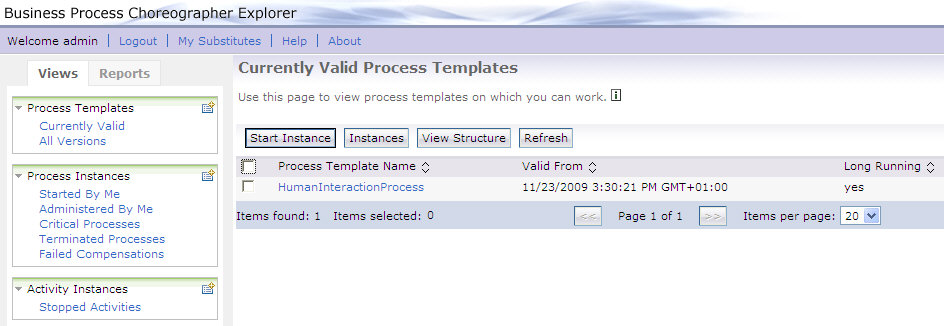
- In the Process Templates section, click Currently Valid Process Templates.
- Select HumanInteractionProcess, then click Start Instance.
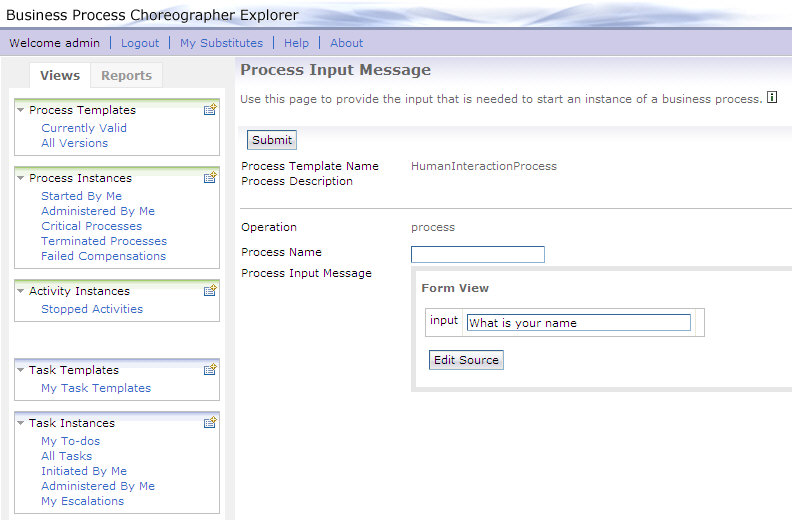
- Optionally, enter a Process Name.
- In the input field, enter a value of type string.
- Click Submit.
The Currently Valid Process Templates view is displayed:
The Process Input Message view opens:
Work with the human tasks of the sample business process
This sample business process requires a human to enter a string into a data field. This string can be used in later steps of the process. In this example, there are no later steps; instead, we will browse the persisted output (i.e. the output message) after the process is finished.
You can use BPC Explorer to work with the generated human tasks. To work with human tasks, follow these steps:
- Switch to the BPC Explorer.
- In the Task Instances section, click My To-dos.
- Select the task and click Work on.
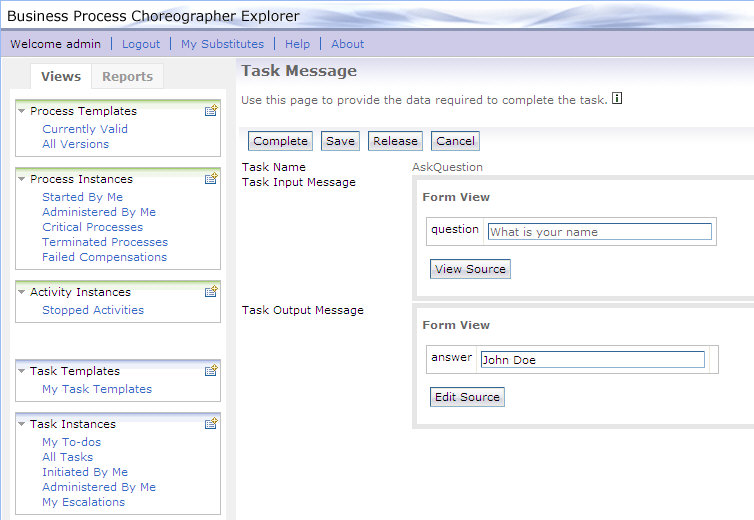
- In the answer field, enter a value of type string.
- Click Complete.
The My To-dos view opens:
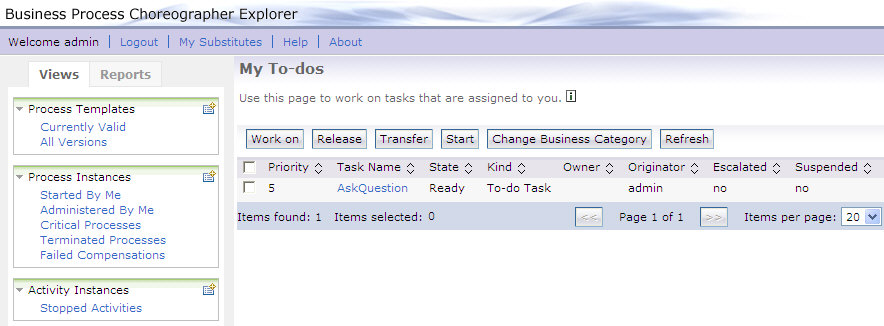
Note: The AskQuestion task is in the ready state.
The Task Message view is displayed:
Verify output
Output message
The human interaction process is a long-running business process, and the process output message is computed asynchronously. To display the process output message, follow these steps:
- In the BPC Explorer, switch to the Process Templates view.
- Select HumanInteractionProcess and click Instances.
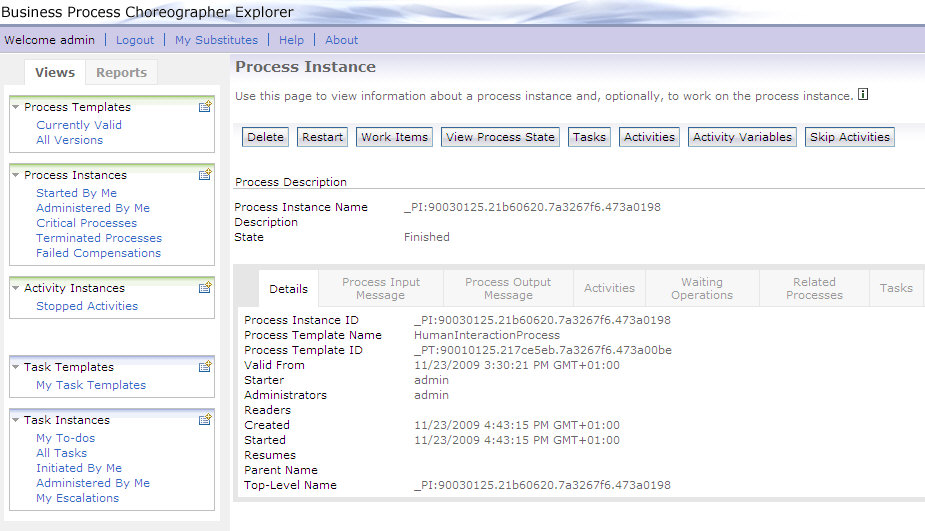
- Click the process instance.
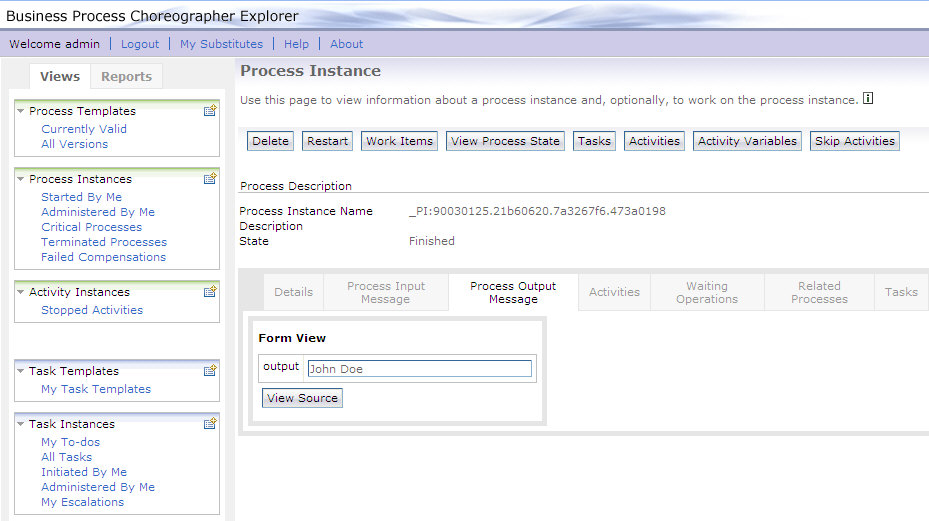
- Click the Process Output Message tab.
The Process Instances for Process Templates are displayed:

The Process Instance view is displayed:
The process output message is displayed: