To build the to-do task of this sample, follow these steps:
- Import the provided module.
- Develop the to-do task.
- Assemble the SCA module.
- Test the process in the integrated test environment.
- Assemble the enterprise application.
- Install the human task application on WebSphere® Process Server.
- Uninstall the human task application from WebSphere Process Server.
Import the provided module
To import the module that provides the required artifacts into your workspace, follow these steps:
- Download the ToDoTaskPrepare.zip file, and save it to a temporary directory.
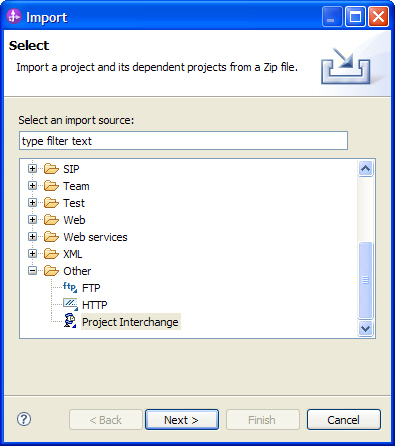
- In WebSphere Integration Developer, click File > Import. The Import window opens.
- Select Other > Project Interchange.
- Click Next. The Import Project Interchange Contents window opens.
- Click Browse next to the From zip file field.
- Browse to the temporary directory. Select ToDoTaskPrepare.zip, and click Open.
- Verify your Project location root.
- Click Select All.
- Click Finish.

Develop the to-do task
Create the to-do task
To create a to-do task, complete the following steps:
- Switch to the Business Integration view.
- In the navigation tree, under Projects, right-click ToDoTask > Integration Logic.
- From the context menu, select New > Human Task.
- Select New default Human Task.
- In the Folder field, enter
bpc/samples. - In the Name field, enter
RequestTask. - Accept the default namespace.
- Click Next.
- In the Human Task: Select Type of Interaction and Interface Definition panel, select To-do Task.
- From the Interface dropdown list, select Question.
- The operation ask is selected automatically.
- Click Finish.

The New Human Task window opens.


Change the to-do task settings
Follow these steps to change specific human task settings:
- In the Business Integration view, double-click ToDoTask > Integration Logic > Human Tasks > bpc\samples > RequestTask.
- Open the Properties view and proceed to the Duration section. We need to change the default deletion settings.
- Change Duration until task is deleted to Never.
- On the toolbar, click the Save button
 .
.
The human task editor opens.

Add the to-do task to the SCA module
To complete the implementation of the module, follow these steps:
- In the Business Integration view, double-click ToDoTask > Assembly Diagram.
- Drag the RequestTask to the Assembly Diagram.
- Drag the RequestProcess to the Assembly Diagram.
- Create a wire from the reference of RequestProcess to the interface of RequestTask.
- On the toolbar, click the Save button .

Test the process in the integrated test environment
Install the ToDoTask project to the test environment by using the Server > Add and Remove Projects function. This is described in detail for the HelloWorldApp in the Hello World sample.
Subsequently, refer to the Run the Sample section on how to run the ToDoTask process in the integrated test environment.
Export the enterprise application
To create an installable application, complete the following steps:
- In the Business Integration view, right-click the ToDoTask module.
- From the context menu, select Export.
- In the Export window, select Java EE > EAR file.
- Click Next.
- In the EAR project list of the EAR Export window, select ToDoTaskApp.
- In the Destination list, specify your destination directory.
- Click Finish.
Install the to-do task application to WebSphere Process Server
Install the ToDoTaskApp exactly as described for the HelloWorldApp in the Hello World sample.
Uninstall the to-do task application from WebSphere Process Server
Uninstall the ToDoTaskApp exactly as described for the HumanInteractionApp in the Human Interaction sample.