< Previous

Download the sample

Completed samples are available so that you can start at any stage of this tutorial. This section shows you how to import the solutions. After you import the model, you can proceed to the relevant section in the Build It Yourself section to continue development.

You can download the following files.

Use the following section to import the model using WebSphere® Integration Developer.

Import the J2EE application solution into WebSphere Integration Developer

A solution has been provided so that you do not have to build the J2EE application from scratch. This section shows you how to import the application into WebSphere Integration Developer and generate J2EE projects for deployment.

  1. Start WebSphere Integration Developer and set up the environment.
    1. Start WebSphere Integration Developer V 6.1, and when prompted, point to a new workspace, such as C:\workspaces\MonitorAdapter.
    2. Close the Welcome tab.
  2. Select File > Import, then select Other > Project Interchange and click Next.
  3. Click Browse. Locate and select the project interchange file named MonitorAdapter.zip.
  4. Click Select All and then click Finish. Wait for the projects to be built.
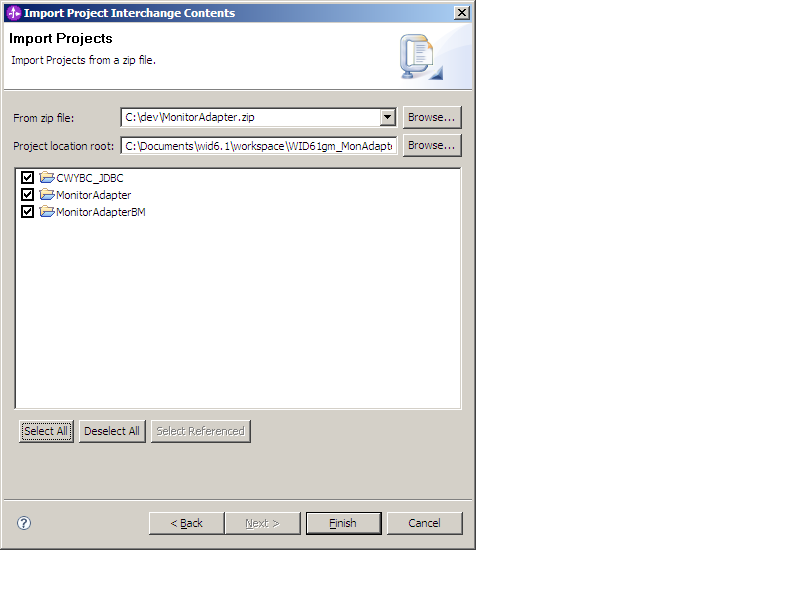
    Import Project Interchange File
  5. In the Business Monitoring perspective, right-click the MonitorAdapterMM.mm and select Monitor Tools > Generate Monitor J2EE Projects.
  6. Click Finish.
< Previous