To run this sample, the Business Process Choreographer Explorer will be used to start processes and work with the human tasks, and the Query Table Builder will be used to deploy and test the query table.
 Note:
Note:
In order to be able to use the Query Table Builder to deploy and test the query, a local WebSphere® Process Server 7.0 has to exist and must be running.
Business Process Choreographer Explorer (BPC Explorer)
To start the BPC Explorer on WebSphere Process Server, perform the following steps:
- In a Web browser, open the URL
http://yourhost:yourport/bpc.
Note:
Replace yourhost with your server's internet address and replace yourport with the port of your server's HTTP transport,
for example
If security is enabled, the BPC Explorer opens with a login screen:
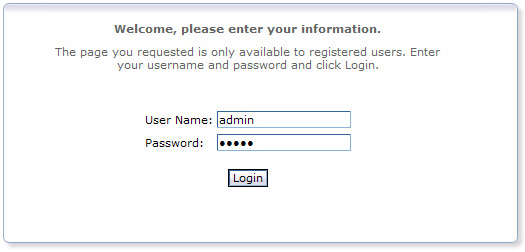
- Enter a valid User ID and Password. The default User ID is admin.
- Click Login.
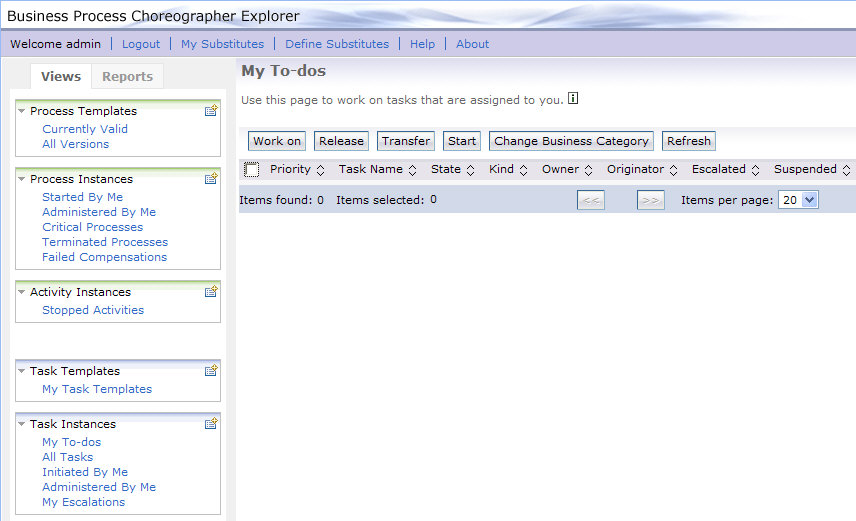
The BPC Explorer opens:
Start the sample business process
To start the insurance claim process, complete the following steps:
- Switch to the BPC Explorer.
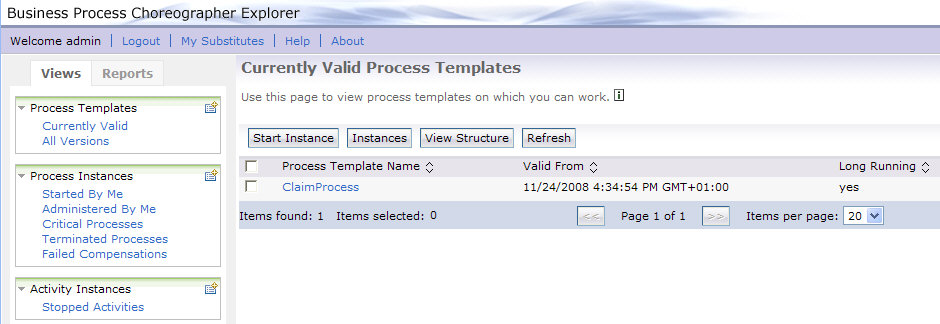
- In the Process Templates section, click Currently Valid.
- Select ClaimProcess, then click Start Instance.
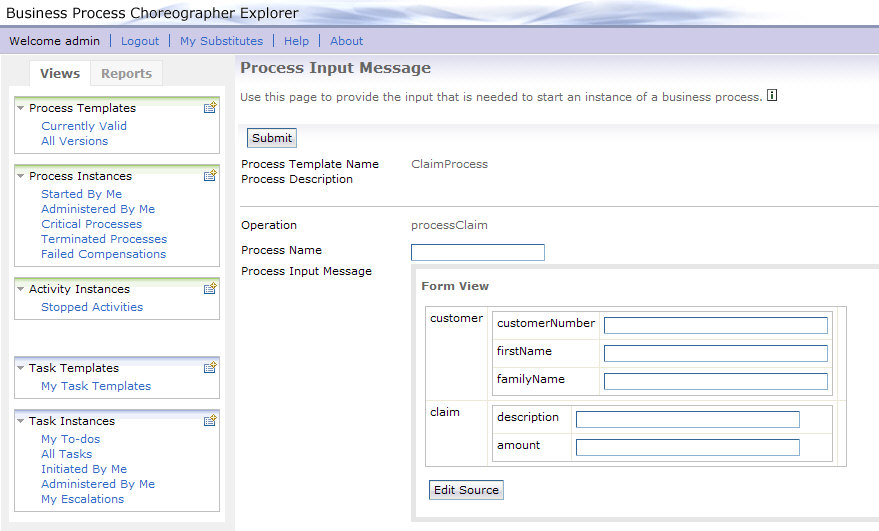
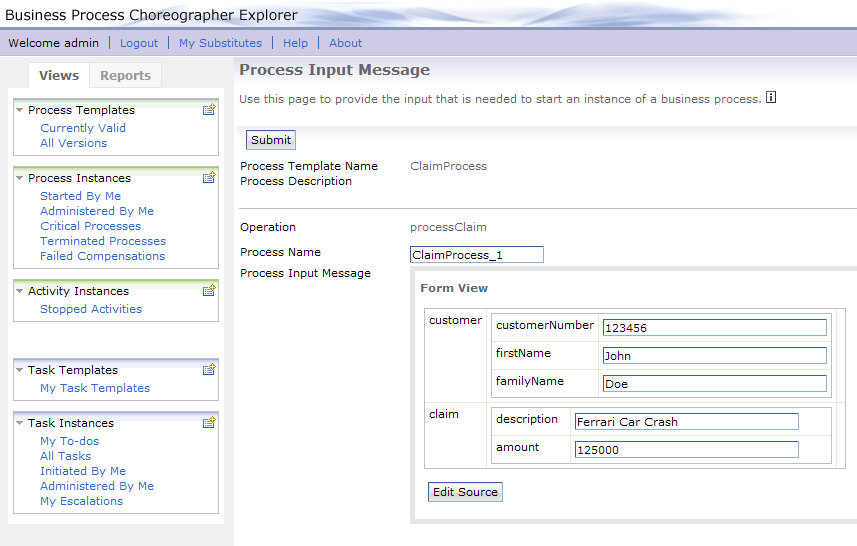
- Optionally, enter a name for the process in the Process Name field, for example
ClaimProcess_1. - Enter a number in the customerNumber field, for example
123456. - Enter a string in the firstName field, for example
John. - Enter a string in the familyName field, for example
Doe. - Enter a string in the description field, for example
Ferrari Car Crash. - Enter a number in the amount field, for example
125000. - Click Submit. The process is started and the human task is created.
- To view all tasks, click My To-dos in the Task Instances section.
The Currently Valid Process Templates view is displayed:
The Process Input Message view opens:
The My To-dos view is displayed:
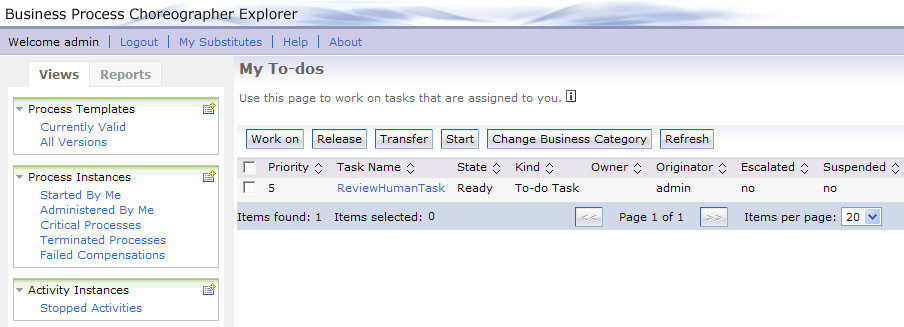
The new task ReviewHumanTask has been started and is in the state ready.
Deploy the query table
To deploy the query table that has been created in the Build it Yourself section on a local WebSphere Process Server, follow these steps:
- Switch to the Query Table Builder.
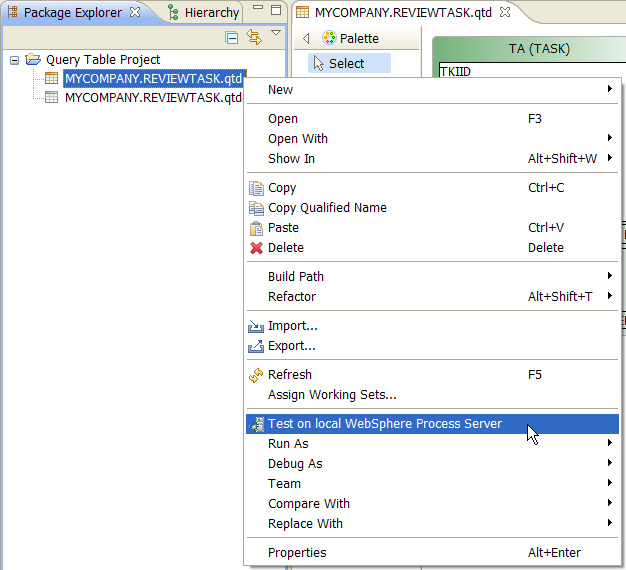
- In the Package Explorer, right-click Query Table Project > MYCOMPANY.REVIEWTASK.qtd.
- From the context menu, select Test on local WebSphere Process Server.
- Click on the
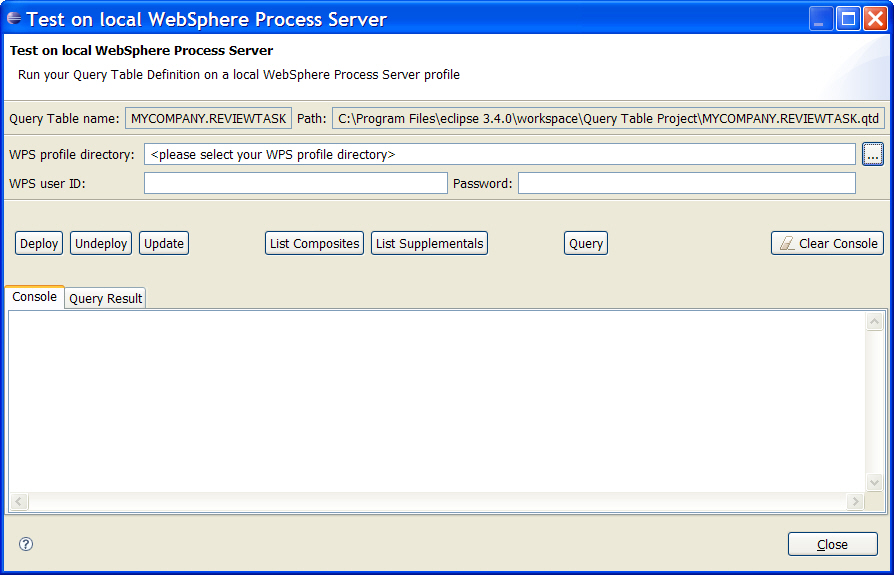
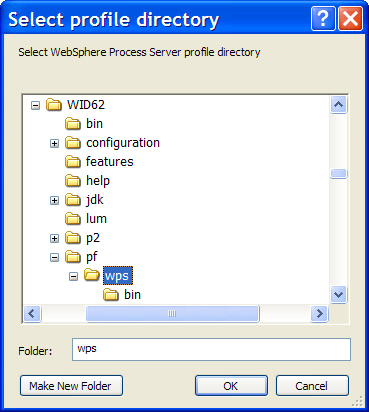
 button next to the WPS profile directory field. The Select Profile Directory window opens.
 - Select the profile directory of your local WebSphere Process Server and click OK. The window closes.
- In the WPS user ID field, enter the user ID that will be used to deploy and test the query table.
- In the Password field, enter the password for the user ID.
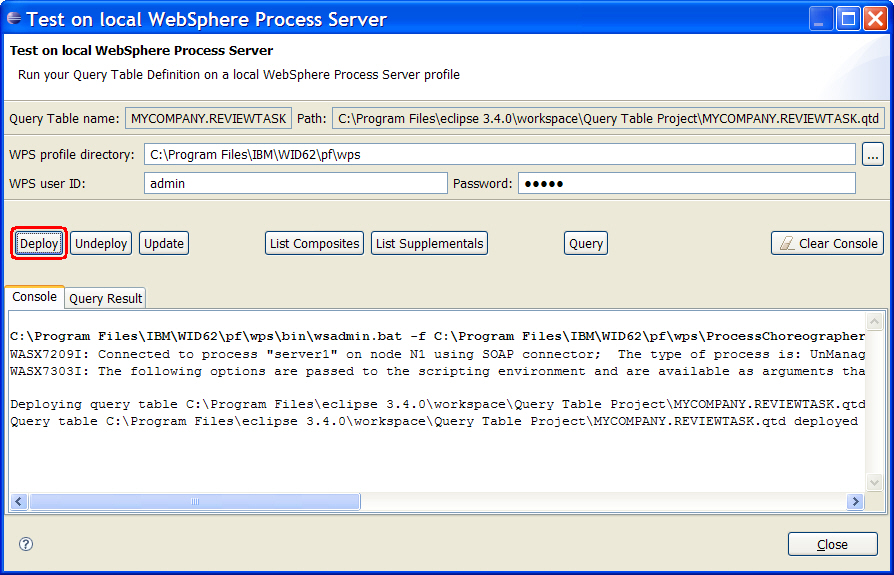
- To deploy the query table, click the Deploy button. The query table will now be deployed, and the Console shows the progress of the deployment procedure.
- Wait until the deployment process is finished.
- Make sure that the deployment was successful by checking the output in the Console for the statement Query table <project path>\MYCOMPANY.REVIEWTASK.qtd deployed successfully..
The Test on local WebSphere Process Server window opens:
 Troubleshooting:
If the window does not open but instead a message box is shown, please refer to the Troubleshooting section.
Troubleshooting:
If the deployment was not successful, please refer to the Troubleshooting section.
Hint:
The output in the Console always includes the command that has been used to execute the selected operation.
In this case, the Console includes the command that has been used to deploy the query table:

List all deployed composite query tables
To list all composite query tables that are deployed on the local WebSphere Process Server, perform the following steps:
- In the Test on local WebSphere Process Server window, click the Clear Console button to clear the Console.
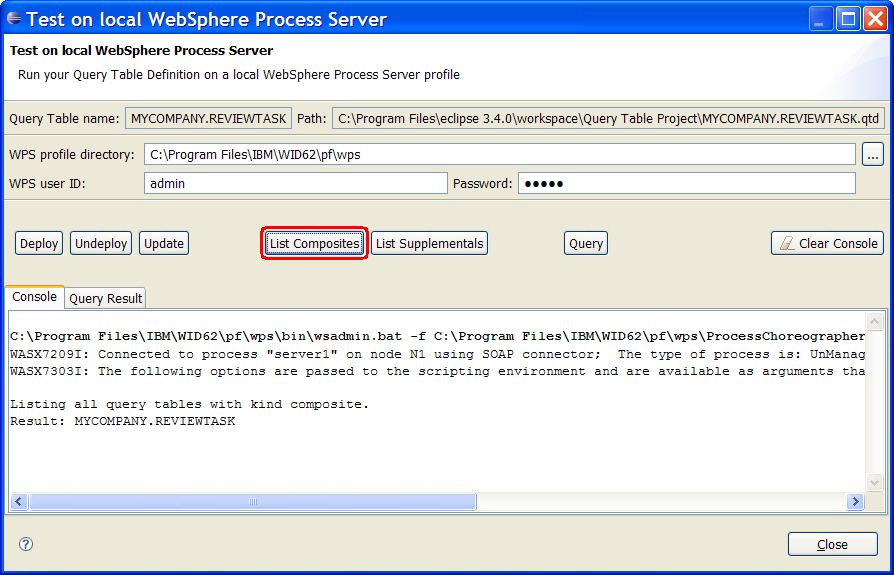
- Click the List Composites button. The list of deployed composite query tables is requested, and the Console shows the progress of this request.
- Wait until the request has been processed.
- Check the output in the Console for the list of deployed composite query tables. Make sure that the list includes MYCOMPANY.REVIEWTASK.
Troubleshooting:
If the list does not contain the composite query table MYCOMPANY.REVIEWTASK, perform the steps described in the
section Deploy the query table
and make sure that the successful deployment of the query table is confirmed.
Test the query table
To test the deployed query table, follow these steps:
- In the Test on local WebSphere Process Server window, click the Clear Console button to clear the Console.
- Click the Query button. A new query is created and sent to the process server.
- Wait until the request has been processed. As soon as it is finished, the window switches to the Query Result tab in which all results are listed.
- View the output of the request by clicking on the Console tab:
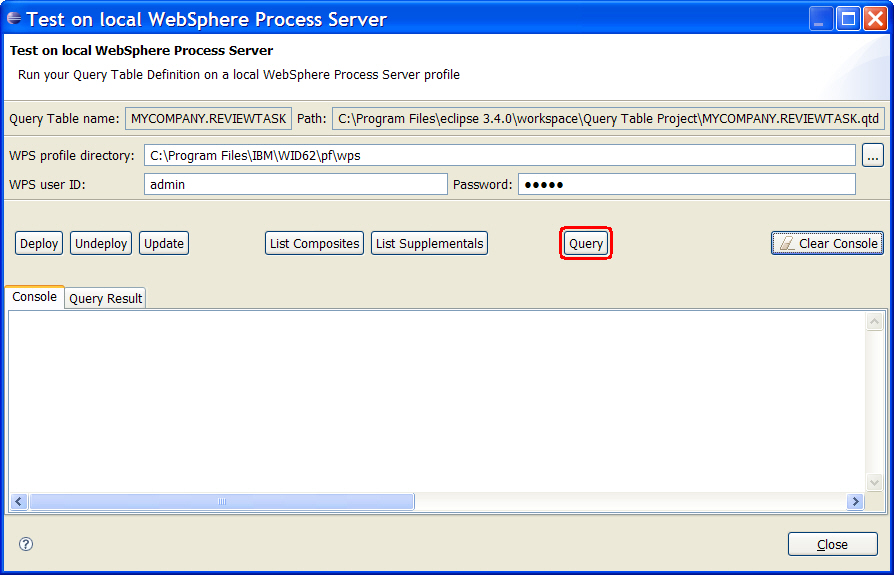
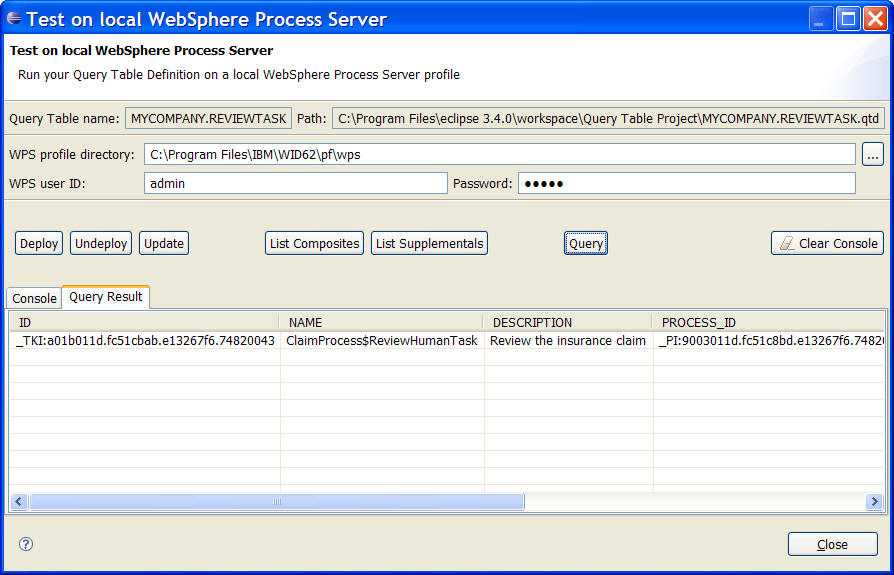
In this example, one result element was found, and the attributes are shown in the order in which they were specified in the query table definition.
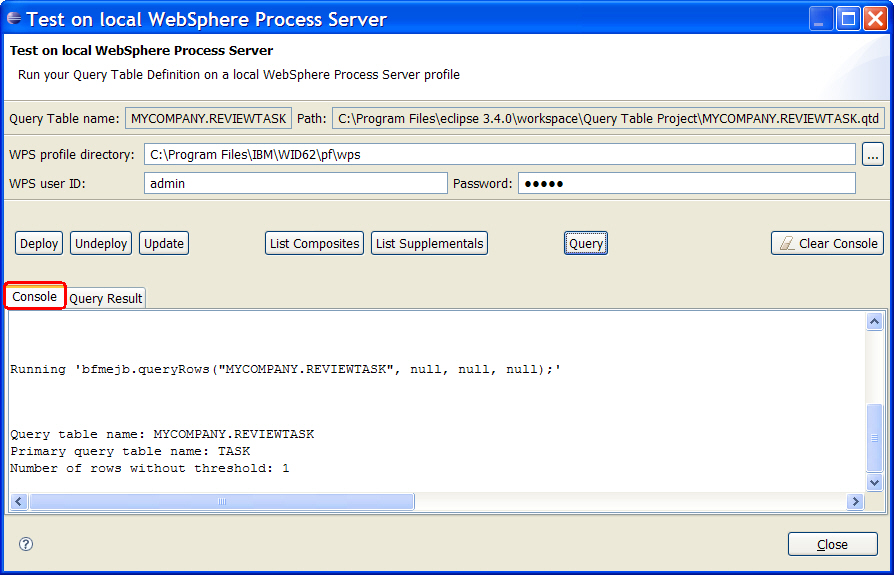
Hint:
The output in the Console also includes the api call to execute the query.

Undeploy the query table
To undeploy the query table once it is no longer needed, perform the following steps:
- In the Test on local WebSphere Process Server window, click the Clear Console button to clear the Console.
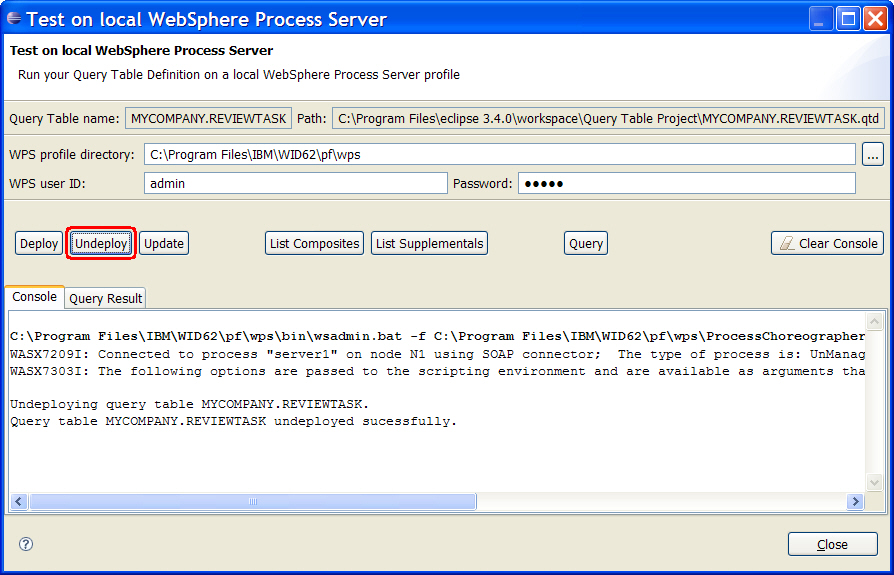
- Click the Undeploy button. The query table will now be undeployed, and the Console shows the progress of the undeployment procedure.
- Wait until the request has been processed.
- Make sure that the undeployment was successful by checking the output in the Console for the statement Query table MYCOMPANY.REVIEWTASK undeployed successfully..
- Close the Test on local WebSphere Process Server window by clicking on the Close button.
Once you are done testing the query table, remember to complete all human tasks so that the processes you have started can be finished. Refer to the Human interaction sample in the Getting started section for details.
Troubleshooting
-
Symptom:
When Test on local WebSphere process server is being selected in the context menu of a query table definition file, the following message is being shown:

Possible Solution:
This message will be shown when the query table definition file you have selected has been modified and not saved. You can now choose to save the file before testing it (Yes), test the file without the modifications that werde done since it was last saved (No), or cancel the start of the test (Cancel).
-
Symptom:
The deployment of a query table definition was not successful.
Possible Solution:
A deployment can for example fail because of an invalid user name or password, or because the query table that has to be deployed contains validation errors. Please refer to the output on the Console for details: The Console contains all status and error messages of the current operation, and will provide you with a description of the problem.