Before starting the first version of the business process, make sure the following prerequisites are met:
The parent process module, HandleWarrantyClaimApp, is installed and started on the server.
Version 1 of the subprocess, ApprovalProcessV1App, is installed and started on the server.
The template name of the subprocess is specified in the parent process, by either one of the following three ways:
You use the Versioning.zip file available from the Download chapter of this sample.
You use the VersioningPrepare.zip file available from the Download chapter and performed the steps described in the Build it Yourself chapter.
You installed the HandleWarrantyClaimApp.ear file, available from the Download chapter, on a WebSphere Process Server.
Version 2 of the subprocess, ApprovalProcessV2App, is not installed on the server.
If you have tried version 2 of the subprocess earlier, you can just uninstall the application (just stopping the application ApprovalProcessV2App is not sufficient).
Version 3 of the subprocess, ApprovalProcessV3App, is not installed on the server either.
To run the version 1 of the business process, perform the following steps:
Switch to the BPC Explorer.
In the Process Templates section, click Currently Valid.
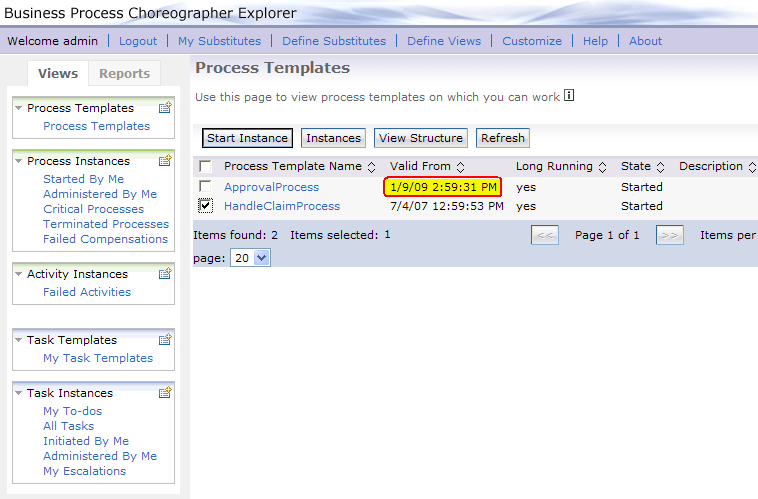
The Currently Valid Process Templates view is displayed:
Note that for the template name Approval Process, the attribute Long Running shows the value yes.
Select HandleClaimProcess, and then click Start Instance.
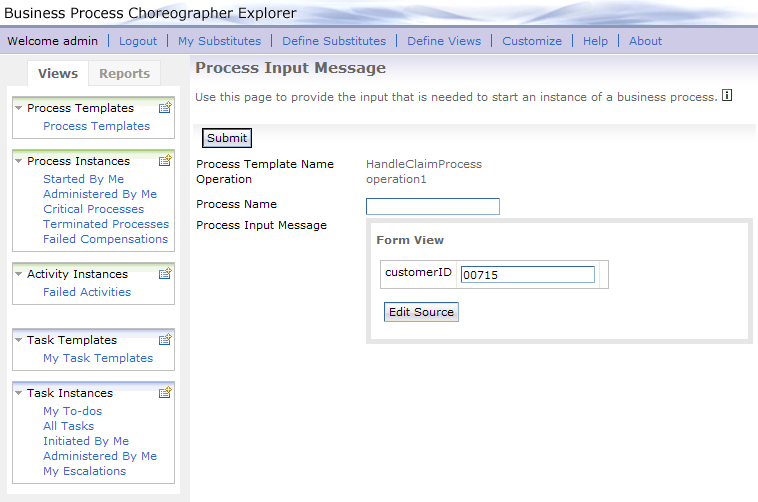
The Process Input Message view opens:
Optionally, enter a Process Name.
In the customerID field, enter a value of type string, for example 00715.
Click Submit.
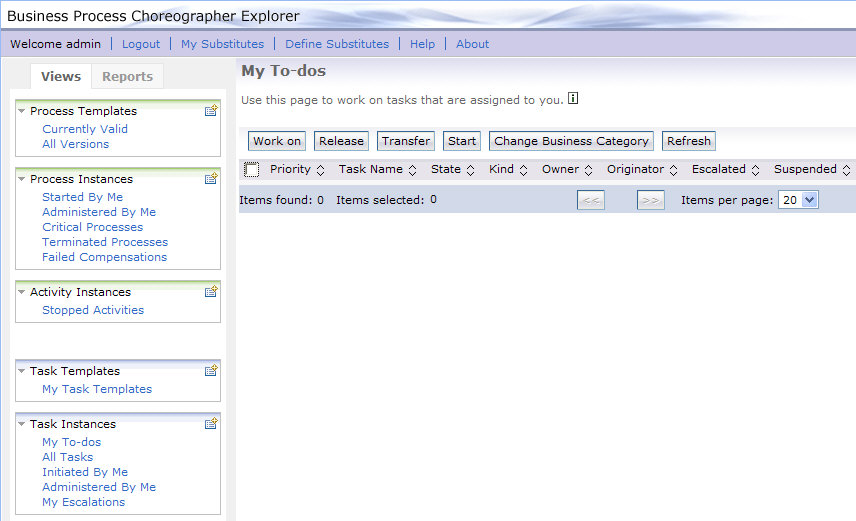
Switch to the My To-dos view by clicking Task Instances > My To-dos.
You should see a task in Ready state:
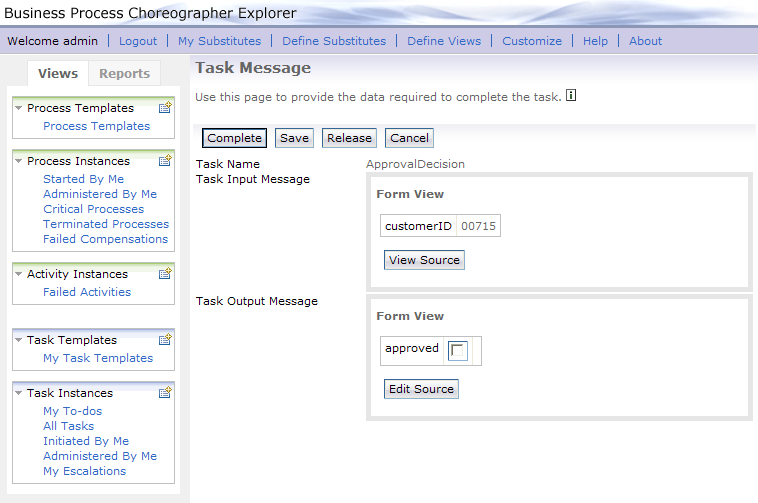
Check the checkbox and click Work on. The Task Message window opens.
In the field approved, either check or uncheck the checkbox and press Complete.
In the log file, you will find output similar to the output below.
[1/12/09 10:55:40:869 CET] 00000052 SystemOut O ApprovalProcess V1: result is false
[1/12/09 10:55:43:963 CET] 00000052 SystemOut O Mailing rejection to customer 00715
The business process is finished now and has been automatically deleted because the value yes is specified for the Delete on Completion attribute.
Repeat steps 1 through 6 above to start a second business process instance, for example, using 00716 for the customerID.
This time, skip steps 7 through 9 because we want to keep this ApprovalProcess instance running.
We will finish this one later, after deploying a new version of process ApprovalProcess.
Before starting the second version of the business process, make sure the following prerequisites are met:
In addition to the parent process and version 1 of the subprocess, now version 2 of the subprocess, ApprovalProcessV2App, is installed on the server too.
Version 3 of the subprocess, ApprovalProcessV3App, is not installed on the server.
To run the evolved version 2 of the business process, perform the following steps:
Switch to the BPC Explorer.
In the Process Templates section, choose the Currently Valid view and click Refresh.
The Process Templates view is showing the actual list of templates:
Note that for the template name Approval Process,
the Valid From attribute shows a more recent value now.
The attribute Long Running shows again the value yes.
Select HandleClaimProcess, and then click Start Instance.
Optionally, enter a Process Name.
In the customerID Field, enter a value of type string, for example 00717.
Click Submit.
This time, you do not need to perform the human task. Instead, you will find output similar to the output below in the log file (previous lines repeated here):
[1/12/09 10:55:40:869 CET] 00000052 SystemOut O ApprovalProcess V1: result is false
[1/12/09 10:55:43:963 CET] 00000052 SystemOut O Mailing rejection to customer 00715
...
[1/12/09 11:10:45:385 CET] 000000df SystemOut O ApprovalProcess V2: result is false
[1/12/09 11:10:46:291 CET] 000000df SystemOut O Mailing rejection to customer 00717
Since we did not complete one of the version 1 instances yet, this instance is still running.
Now we will complete that instance as well. Perform the following steps:
Switch to the BPC Explorer.
Switch to the My To-dos view by clicking Task Instances > My To-dos.
You should see a task in Ready state.
Check the checkbox and click Work on. The Task Message window opens.
In the field approved, either enter the value true or the value false and press Complete.
In the log file, you will find output similar to the output below (previous lines again repeated here):
[1/12/09 10:55:40:869 CET] 00000052 SystemOut O ApprovalProcess V1: result is false
[1/12/09 10:55:43:963 CET] 00000052 SystemOut O Mailing rejection to customer 00715
...
[1/12/09 11:10:45:385 CET] 000000df SystemOut O ApprovalProcess V2: result is false
[1/12/09 11:10:46:291 CET] 000000df SystemOut O Mailing rejection to customer 00717
...
[1/12/09 11:54:44:869 CET] 000000df SystemOut O ApprovalProcess V1: result is true
[1/12/09 11:54:45:822 CET] 000000df SystemOut O Handling warranty claim for customer 00716
Once all process instances of version 1 are finished, you can safely remove the version 1 of the subprocess template from the server, by uninstalling the ApprovalProcessV1App application.
Before starting the third version of the business process, make sure the following prerequisite is met:
In addition to the parent process and optionally version 1 and version 2 of the subprocess, now version 3 of the subprocess, ApprovalProcessV3App, is installed on the server too.
To run the evolved version 3 of the business process, perform the following steps:
Switch to the BPC Explorer.
In the Process Templates section, choose the Currently Valid Process Templates view and click Refresh.
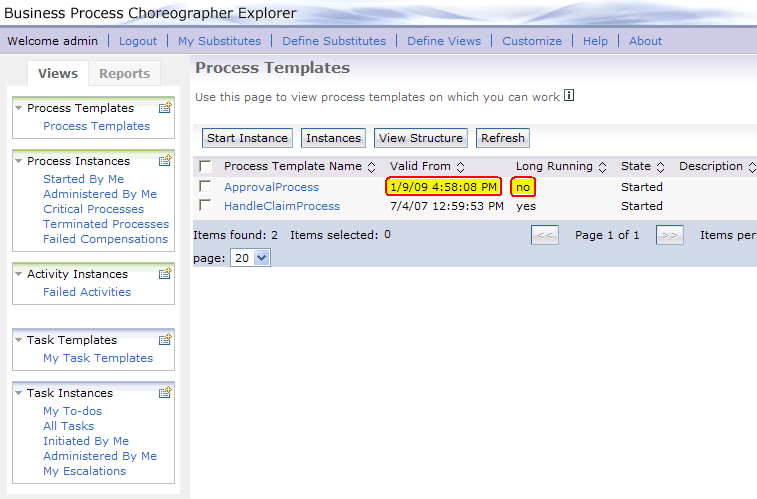
The Currently Valid Process Templates view is showing the actual list of templates:
Note that this time for the template name Approval Process, the attribute Long Running shows
the value no, and the Valid From attribute shows another more recent value now.
Select HandleClaimProcess, and then click Start Instance.
Optionally, enter a Process Name.
In the customerID Field, enter a value of type string, for example 00718.
Click Submit.
Note: In case you experience problems, please check the troubleshooting section below.
This time, again you do not need to perform the human task. You will find output similar to the output below in the log file (previous lines repeated here):
[1/12/09 10:55:40:869 CET] 00000052 SystemOut O ApprovalProcess V1: result is false
[1/12/09 10:55:43:963 CET] 00000052 SystemOut O Mailing rejection to customer 00715
...
[1/12/09 11:10:45:385 CET] 000000df SystemOut O ApprovalProcess V2: result is false
[1/12/09 11:10:46:291 CET] 000000df SystemOut O Mailing rejection to customer 00717
...
[1/12/09 11:54:44:869 CET] 000000df SystemOut O ApprovalProcess V1: result is true
[1/12/09 11:54:45:822 CET] 000000df SystemOut O Handling warranty claim for customer 00716
...
[1/12/09 12:08:24:838 CET] 00000051 SystemOut O ApprovalProcess V3: result is true
[1/12/09 12:08:25:104 CET] 000000df SystemOut O Handling warranty claim for customer 00718
Under certain circumstances, you may see error messages in the log file. In this section, some error symptoms are listed, together with possible root causes that may lead to those error symptoms.
Symptom:
You see this error message in the log file:
java.rmi.AccessException: CORBA NO_PERMISSION
org.omg.CORBA.NO_PERMISSION: The WSCredential does not contain a forwardable token.
Please enable Identity Assertion for this scenario.
Possible reason:
Identity Assertion is not enabled on your server: To enable Identity Assertion on the server, open the administrative console and navigate to Security -> Secure administration, applications, and infrastructure. Under Authentication, expand RMI/IIOP security and click CSIv2 inbound authentication. Enable the checkbox "Identity assertion" and specify * in the field Trusted identities. Click OK. Next, expand RMI/IIOP security again and click CSIv2 outbound authentication. Enable the checkbox "Identity assertion" and click OK. Save the changes and restart the server.
Symptom:
You see this error message in the log file:
CWWBE0114E: The partner role of partner link 'ApprovalProcessIF' used in activity 'ApprovalStep' is not initialized.
Possible reason:
The step required to specify late binding in the parent process was not performed correctly:
Make sure that the template name of the subprocess is specified properly for the Reference Partner.
Symptom:
You see an error message similar to this one in the log file:
CWWBA0008E: Process template 'ApporvalPorcess. null' is not found.
Possible reasons:
The subprocess template name specified in the Reference Partner setting is misspelled or does not match the name of the subprocess: Check the name and keep in mind that names are case sensitive.
The subprocess template name is specified correctly, but the subprocess is not deployed: By using the BPC Explorer, verify that the template is visible.
Symptom:
You see this error message in the log file:
com.ibm.websphere.sca.ServiceRuntimeException: Target cannot be resolved: ApprovalProcess
Possible reason:
The step required to enable late binding for the subprocess was not performed correctly:
Make sure that in the assembly editor of the subprocess module, the SCA export was generated properly.