Build it yourself

To build, test, and run the Hello World sample, complete the following tasks:

  1. Import the Business Process Execution Language (BPEL) module.
  2. Modify the BPEL module to emit Common Base Events (CBEs).
  3. Generate the WebSphereŽ Business Monitor model.
  4. Add a new metric to the WebSphere Business Monitor model.
  5. Generate J2EE projects of the WebSphere Business Monitor model.
  6. Install the BPEL module and WebSphere Business Monitor model on a WebSphere Business Monitor development server.
  7. Create an instances dashboard for the WebSphere Business Monitor model.
  8. Test the WebSphere Business Monitor model.

In addition, you can complete the following optional tasks:

  1. Export the dashboard definition.
  2. Remove the dashboard definition.
  3. Export the BPEL module and WebSphere Business Monitor model .ear files.
  4. Uninstall the BPEL module and WebSphere Business Monitor model.
  5. Install the BPEL module and WebSphere Business Monitor model on a WebSphere Business Monitor production server.

Import the BPEL module

  1. From the Help menu, click Samples > Tutorials (WebSphere Integration Developer).
  2. Help menu

  3. On the Welcome page for the Hello World Part 1: Getting Started sample, click Import.
  4. Welcome panel

Modify the BPEL module to emit Common Base Events (CBEs)

  1. From the Business Integration view, right-click HelloWorldProcess and click Open.
  2. Open Hello World

  3. From the Properties view, click Event Monitor.
  4. Process properties

  5. Select All.
  6. All process properties

  7. From the HelloWorldProcess editor, click the InputMsg variable.
  8. InputMsg variable

  9. From the Properties view, select All.
  10. All variable properties

  11. From the File menu, click Save.
  12. File Save

Generate the WebSphere Business Monitor model

  1. From the Business Integration view, right-click HelloWorldModule and click Monitor Tools > Generate Monitor Model.
  2. Generate monitor model

  3. On the Generate Monitor Model dialog box:
    1. In the Target monitor project field, enter HelloWorldModel.
    2. In the Target monitor model name field, enter HelloWorldMM.
    3. Click Next.
    4. Generate monitor model, Next

  4. On the Warning dialog box, click Yes.
  5. Warning message

  6. On the New Business Monitoring Project dialog box, click Finish.
  7. Generate monitor model, Finish

  8. On the Generate Monitor Model dialog box:
    1. On the Event Source tab, select HelloWorldProcess.
    2. On the Monitoring Templates tab, click Select All.
    3. Generate monitor model

  9. Again on the Generate Monitor Model dialog box:
    1. On the Event Source tab, click InputMsg.
    2. On the Emitted Events tab, click Select All.
    3. Click Next.
    4. Choose what to monitor

  10. On the Generate Monitor Model dialog box, click Finish.
  11. Choose how to monitor

  12. On the Switch perspectives dialog box, click Yes.
  13. Switch perspectives prompt

Add a new metric to the WebSphere Business Monitor model

  1. From the HelloWorldMM editor, right-click HelloWorldProcess and click New > Metric.
  2. ?

  3. On the Create New Metric dialog box, in the Name field, enter HelloWorldProcess Name and then click OK.

    Create a new metric

  4. From the HelloWorldMM editor:
    1. Select the This metric can be used for sorting check box.
    2. On the Metric Value Expressions page, click Add.
    3. Metric details

  5. Again from the HelloWorldMM editor, on the Metric Value Expressions tab, select the Expression column and click the ... button.
  6. Metric value expressions

  7. On the Expression dialog box:
    1. In the text box, enter fn:substring(InputMsgCHANGED/InputMsg, 7) or use the expression builder (Ctrl + spacebar) to create the expression.
    2. Click OK.
    3. Expression panel

  8. From the File menu, click Save.

Generate the J2EE projects of the WebSphere Business Monitor model

  1. From the Project Explorer view, right-click the HelloWorldMM model and click Generate Monitor J2EE Projects.
  2. Generate monitor J2EE projects

  3. On the Generate Monitor J2EE Projects dialog box, click Finish.
  4. Generate monitor J2EE projects, Finish

Install the BPEL module and WebSphere Business Monitor model on a WebSphere Business Monitor development server

  1. From the Servers view, right-click WebSphere Business Monitor Server v6.1 on WebSphere Process Server and click Start.
  2. Start server

  3. Wait until the Status column on the Servers view indicates that WebSphere Business Monitor Server v6.1 on WebSphere Process Server has started.
  4. Server started

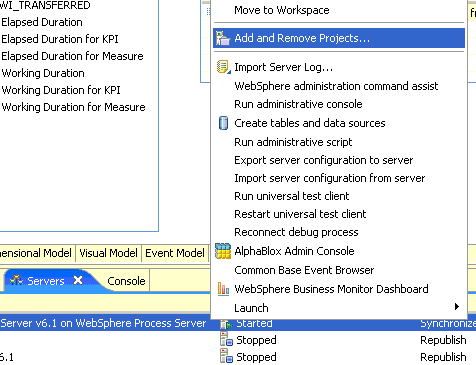
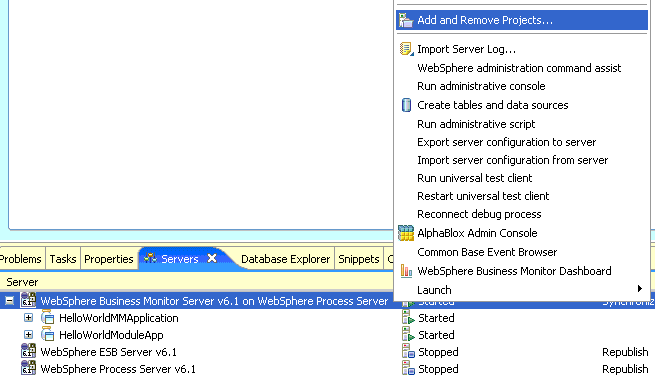
  5. Right-click WebSphere Business Monitor Server v6.1 on WebSphere Process Server and click Add and Remove Projects.
  6. Add and remove projects menu

  7. On the Add and Remove Projects dialog box:
    1. Select HelloWorldModuleApp and click Add.
    2. Select HelloWorldMMApplication and click Add.
    3. Click Finish.

    Add projects

  8. Wait until the Status column on the Servers view indicates that HelloWorldModuleApp and HelloWorldMMApplication have started.
  9. New application started

Create an instances dashboard for the WebSphere Business Monitor model

  1. From the Servers view, right-click WebSphere Business Monitor Server v6.1 on WebSphere Process Server and click WebSphere Business Monitor Dashboard.
  2. Dashboard menu

  3. From the WebSphere Business Monitor Dashboard editor:
    1. In the User ID field, enter your user ID (the default is admin).
    2. In the Password field, enter your password (the default is admin).
    3. Click Login.
    4. Dashboard login panel

  4. From the WebSphere Business Monitor Dashboard editor, click New.
  5. New dashboard

  6. On the New Dashboard dialog box, in the Name field, enter HelloWorld Instances and then click OK.
  7. New dashboard name

  8. From the WebSphere Business Monitor Dashboard editor, click Add to Dashboard.
  9. Add to dashboard

  10. On the Add to Dashboard dialog box, from the drop-down menu, select Instances and then click OK.
  11. Add item to dashboard

  12. From the WebSphere Business Monitor Dashboard editor, click Personalize.

    Personalize dashboard

  13. From the WebSphere Business Monitor Dashboard editor:
    1. Click Advanced.
    2. From the Model drop-down menu, select HelloWorldMM (All Versions).
    3. Advanced personalization

  14. From the WebSphere Business Monitor Dashboard editor:
    1. Click Show/Hide.
    2. In the Available table, select HelloWorldProcess Instance ID and click >.
    3. In the Available table, select HelloWorldProcess Start Time and click >.
    4. In the Available table, select HelloWorldProcess Name and click >.
    5. Click OK.
    6. Select columns for dashboard

  15. From the WebSphere Business Monitor Dashboard editor, confirm that the HelloWorld Instances dashboard has been created.
  16. Verify dashboard

Test the WebSphere Business Monitor model

  1. Click the Open Perspective icon and select Business Integration.
  2. Business integration view

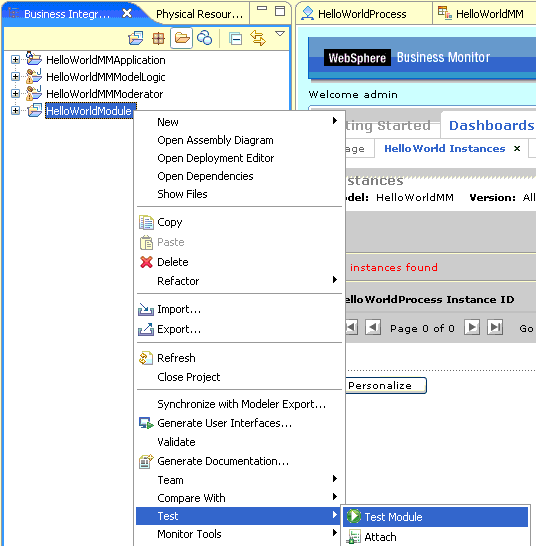
  3. From the Business Integration view, right-click HelloWorldModule and click Test > Test Module.
  4. Test module menu

  5. From the HelloWorldModule_Test editor:
    1. In the Detailed Properties section, click the Value column of the Initial request parameters table
    2. .
    3. In the Value field, enter your name and then click the Continue icon.
    4. Test value

  6. On the Deployment Location dialog box, in the Deployment Location table, click WebSphere Business Monitor Server v6.1 on WebSphere Process Server and then click Finish.
  7. Select deployment location

  8. From the HelloWorldModule_Test editor, wait for Invoke returned to appear in the Events section:
    1. In the Events section, click Return (HelloWorldProcess:SendMsg).
    2. In the Detailed Propertiessection, in the Value column of the Returned Parameters table, confirm that text you entered appended to Hello.
    3. Test information

  9. Confirm that the text that you entered is in the HelloWorldProcess Name column.
  10. Dashboard test results

Export the dashboard definition

  1. From the WebSphere Business Monitor Dashboard editor:
    1. Select the Manage tab.
    2. Next to the HelloWorld Instances dashboard, select the check box in the Select column and then click Export.
    3. Select dashboard instance

  2. On the File Download dialog box, click Save.
  3. Save file download

  4. On the Save As dialog box, in the File name field, enter a name for this data file and then click Save.
  5. Dashboard Save As panel

  6. Close the Download complete dialog box.
  7. Download complete, Close

Remove the dashboard definition

From the WebSphere Business Monitor Dashboard editor, on the Manage panel, click the check box in the Select column next to the HelloWorld Instances dashboard and then click Delete.

Removing the dashboard

Export the BPEL module and WebSphere Business Monitor model .ear files

  1. Click the Open Perspective icon and select J2EE.
  2. Open J2EE perspective

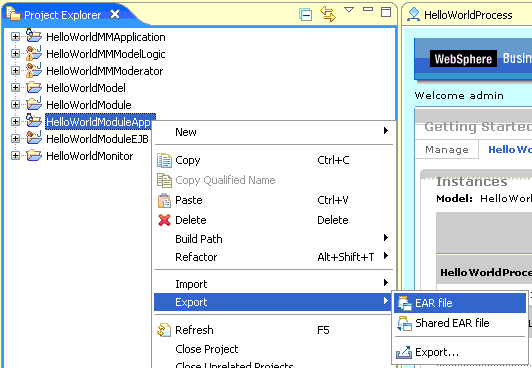
  3. From the Project Explorer view, right-click HelloWorldModuleApp and click Export > EAR file.
  4. Export EAR file

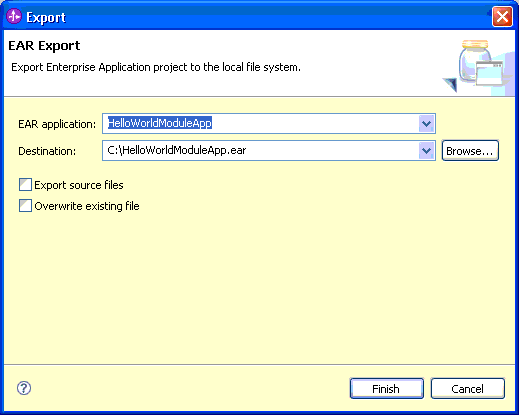
  5. On the Export dialog box, in the Destination field, enter an .ear file path and name and then click Finish.
  6. EAR export, Finish

  7. From the Project Explorer view, right-click HelloWorldMMApplication and click Export > EAR file.
  8. Export model menu

  9. On the Export dialog box, in the Destination field, enter an .ear file path and name and then click Finish.
  10. Export EAR file, Finish

Uninstall the BPEL module and WebSphere Business Monitor model

  1. From the Servers view, right-click WebSphere Business Monitor Server v6.1 on WebSphere Process Server and click Add and Remove Projects.
  2. Add and Remove projects menu

  3. On the Add and Remove Projects dialog box:
    1. In the Configured Projects table, select HelloWorldModuleApp and click Remove.
    2. In the Configured Projects table, select HelloWorldMMApplication and click Remove.
    3. Click Finish.
    4. Remove projects

  4. Confirm that HelloWorldModuleApp and HelloWorldMMApplication are no longer installed on WebSphere Business Monitor Server v6.1 on WebSphere Process Server.
  5. Verify that projects were removed

  6. Right-click WebSphere Business Monitor Server v6.1 on WebSphere Process Server and click Stop.
  7. Stop the server

  8. Confirm that Stopped displays in the Status column for WebSphere Business Monitor Server v6.1 on WebSphere Process Server.
  9. Server stopped

Install the BPEL module and WebSphere Business Monitor model on a WebSphere Business Monitor production server

    For instructions on how to install the sample on a WebSphere Business Monitor production server, refer to the Run the sample section.