For information on how to build the BPEL module and WebSphere® Business Monitor model, refer to the Build it Yourself section or download the HelloWorldModuleApp.ear and HelloWorldMMApplication.ear files for ready-to-run versions.
To install and run the sample on a WebSphere Business Monitor production server, complete the following steps:
- Log in to the WebSphere Business Monitor administrative console.
- Install and start the BPEL module.
- Install and start the WebSphere Business Monitor model.
- Create a process instance of the BPEL module.
- Start the WebSphere Business Monitor server.
- From a Web browser, log on to the WebSphere Application Server Administrative Console (for example, http://localhost:9060/ibm/console).
- On the Welcome page:
- In the User ID field, enter your user ID.
- In the Password field, enter your password.
- Click Log in.
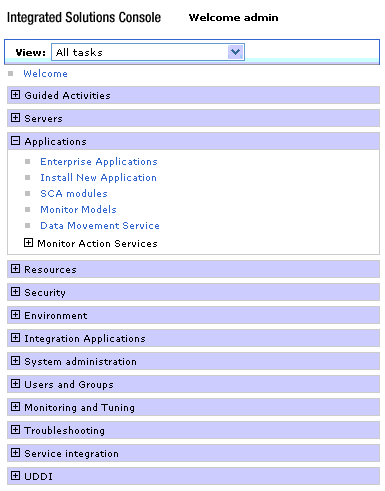
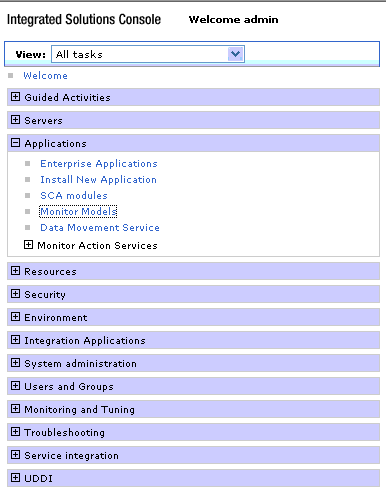
- From the navigation panel, click Applications > Install New Applications.
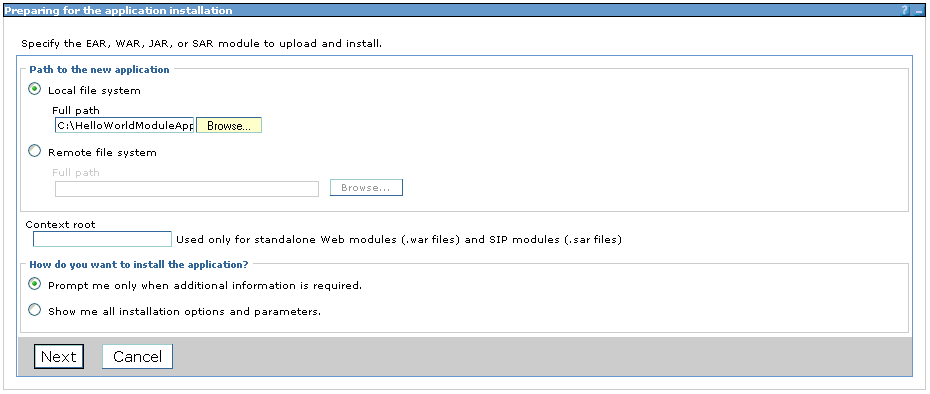
- On the Preparing for the application installation page:
- In the Full path field, enter the location of the HelloWorldModuleApp.ear file (for example, C:/HelloWorldModuleApp.ear).
- Click Next.
- On the Install New Application page, click Step 3: Summary.
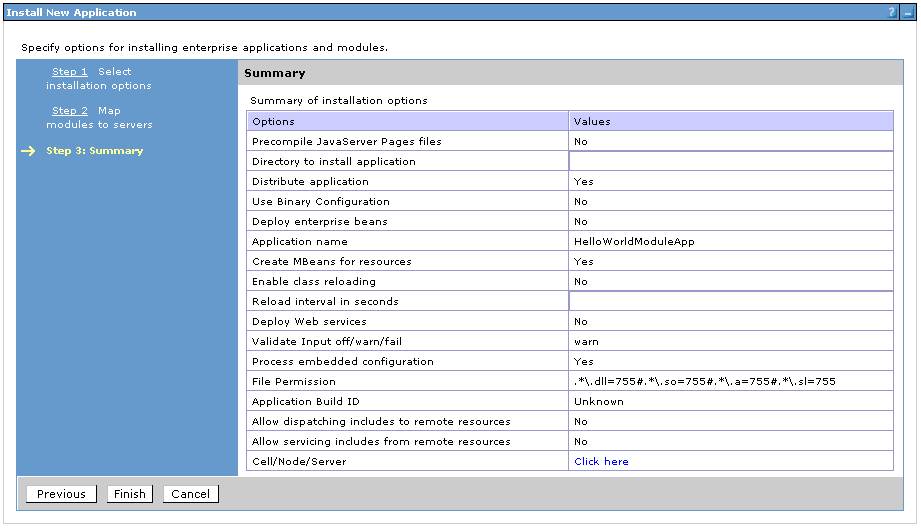
- On the Install New Application page, click Finish.
- When the HelloWorldModuleApp installation completes, click Save.
- From the navigation panel, click SCA modules.
- On the SCA modules page, in the Select column, select the check box next to HelloWorldModule and then click Start.
- On the SCA modules page, confirm that HelloWorldModule started successfully.
- From the navigation panel, click Install New Application.
- On the Preparing for the application installation page:
- In the Full path field, enter the location of the HelloWorldMMApplication.ear file (for example, C:/HelloWorldMMApplication.ear).
- Select Show me all installation options and parameters.
- Click Next.
- On the Preparing for the application installation page, click Next.
- On the Application Security Warnings page, click Continue.
- On the Install New Application page, click Step 9: Select Monitor model options.
- On the Install New Application page, select Run scripts to delete the schema during uninstallation and then click Step 10: Select Monitor model Alphablox options.
- On the Install New Application page, clear the Create the Alphablox cubes check box and then click Step 11: Select Monitor model CEI options.
- On the Install New Application page, confirm that the Event group profile list name table contains a single selected profile (such as, Event groups list) and then click Step 11: Summary.
- On the Install New Application page, click Finish.
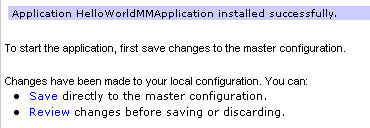
- When the HelloWorldMMApplication installation completes, click Save.
- From the navigation panel, click Monitor Models.
- On the Monitor Models page, confirm that the HelloWorldMM deployment is OK and has started.
- From a Web browser, access the BPC Explorer (for example, http://localhost:9080/bpc).
- On the login page, enter your user ID and password, and then click Login.
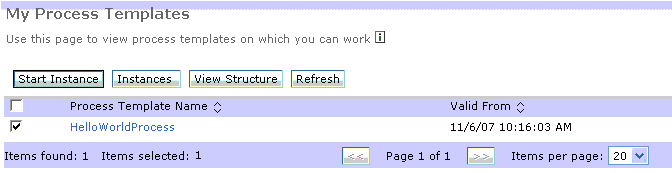
- From the navigation panel, click My Process Templates.
- On the My Process Templates panel, select the check box next to the HelloWorldProcess template, and then click Start Instance.
- On the Process Input Message page, in the YourName field, enter your name and then click Submit.
- If you are using a Web browser configured to process json/text documents, confirm that the monitoring context (MC) has been created (for example, http://localhost:9080/rest/bpm/monitor/models/HelloWorldMM/mcs/HelloWorldProcess/instances) and produces output similar to the following:
Log in to the WebSphere Business Monitor administrative console

Install and start the BPEL module


Install and start the WebSphere Business Monitor model



Create a process instance of the BPEL module



{"Model ID":"HelloWorldMM","Record
                     Count":1,"MCID":"HelloWorldProcess","Instance
                     Data":[{"Children":[],"Version":20080121000000,"Instance ID":1,"Metric
                     Data":[true,7281,"7.281 s",7281,"7.281 s",7281,"7.281 s","2008-01-
                     23T18:20:45","January 23, 2008 1:20:45
                     PM","_PI:90030117.a7e14fdf.4a64e4f6.4a5a0012","Your name
                     here...","2008-01-23T18:20:38","January 23, 2008 1:20:38 PM","3 -
                     STATE_FINISHED",7281,"7.281 s",7281,"7.281 s",7281,"7.281 s"]}],"Metric
                     ID
                     Array":["COMPLETED","HelloWorldProcess_Elapsed_Duration","HelloWorldProcess_Elapsed_Duration
                     Localized","HelloWorldProcess_Elapsed_Duration_for_KPI","HelloWorldProc
                     ess_Elapsed_Duration_for_KPI
                     Localized","HelloWorldProcess_Elapsed_Duration_for_Measure","HelloWorld
                     Process_Elapsed_Duration_for_Measure
                     Localized","HelloWorldProcess_End_Time","HelloWorldProcess_End_Time
                     Localized","HelloWorldProcess_Instance_ID","HelloWorldProcess_Name","He
                     lloWorldProcess_Start_Time","HelloWorldProcess_Start_Time
                     Localized","HelloWorldProcess_State","HelloWorldProcess_Working_Duration","HelloWorldProcess_Working_Duration
                     Localized","HelloWorldProcess_Working_Duration_for_KPI","HelloWorldProc
                     ess_Working_Duration_for_KPI
                     Localized","HelloWorldProcess_Working_Duration_for_Measure","HelloWorld
                     Process_Working_Duration_for_Measure Localized"],"Page Size":10,"Page
                     Number":1}