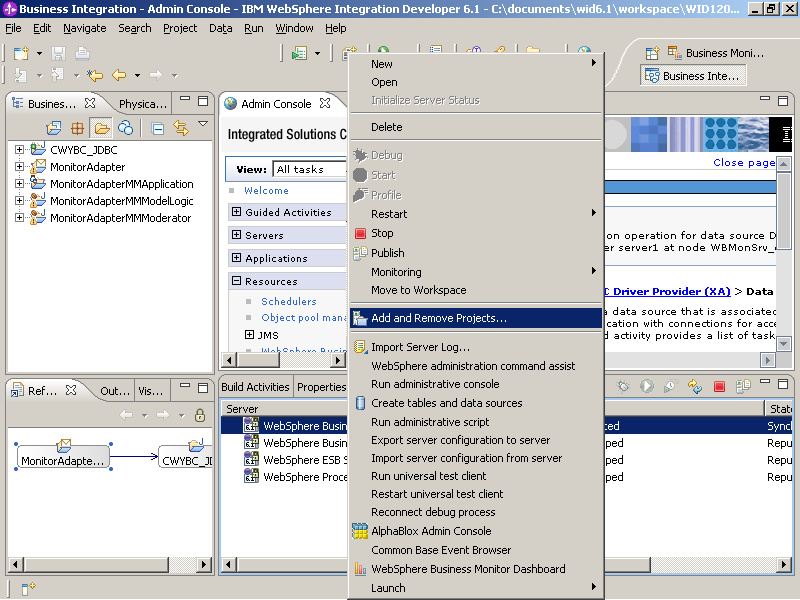
Deploy the Adapter/mediation application to the test environment server
Right-click on the Monitor server on WebSphere ESB and
select Add and Remove Projects.
Select MonitorAdapterApplication and click Add to
add the application to Configured projects.
Click Finish. The project is deployed to
the server and started. Ensure there are no error messages in the console.
To verify that the mediation module and adapter application works
correctly, open a DB2 command window and run the following commands:
db2 connect to ADAPTER user db2admin using <db2adminpassword>
db2 insert into customer values ('1', 'Yi', 'Che', 'Regular')
Note: If
you see general errors in the console, try removing the MonitorAdapterApp
project from the server, then do Project > Clean > Clean all projects,
then add the project to the server and retry. If you see UNAUTHENTICATED errors
in the console. Follow the steps in Add admin user to Monitor Data Security root group and
the retry to clean the projects.
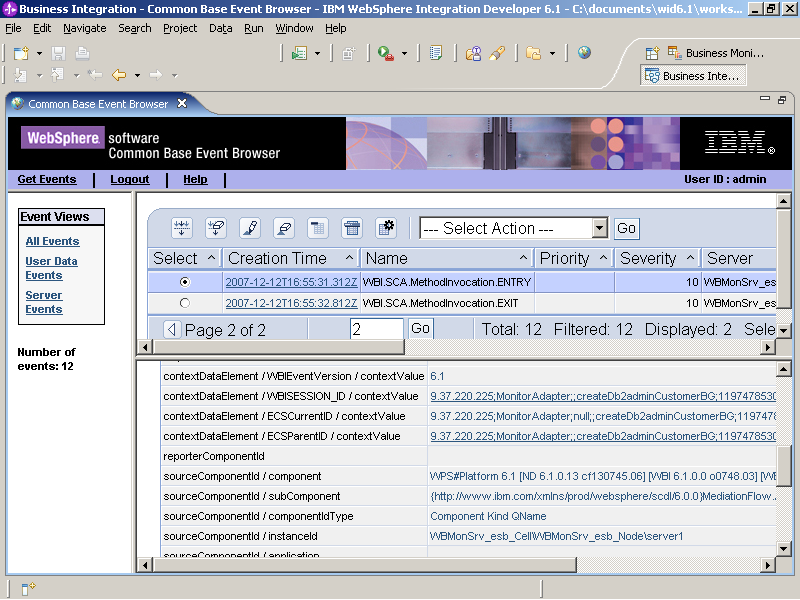
Right-click the WebSphere Business Monitor Server v6.1
on WebSphere ESB server and select Common Base Event
Browser.
From the left menu of the Common Base Event browser, click All
Events. The list should include the events related to the record
that you just inserted.